
Dungeon Master's Guide
A world begins as a single idea and ends as a place people can walk through. This guide walks that whole road — from the first spark, through the World Builder and every tab of the World Editor, to the art that gives it a face.
Getting StartedAbout this guide
This is the author's companion to The Lost Realms. Where the Player's Handbook teaches someone how to play a world and the in-app Field Guide is a reference to every button, this guide is a progressive walkthrough of making worlds: how to conceive one, plan it, generate it with the World Builder, and then shape every detail in the World Editor.
It is organised the way you actually work, in five parts:
I · Conceiving
The idea, the pillars, and a plan — before you touch a single tool.
II · The World Builder
Describe a world in a short form and have the Game Master forge it whole.
III · The World Editor
A section per tab — build, edit, and manage every data object by hand.
IV · Prompt & Image
Art styles, per-object prompts, providers, and the ✨ that writes prompts for you.
V · Running & Growing
Test with debug commands, then grow a world that's already in play.
Getting StartedThe DM & the GM — two different masters
Everything in this guide rests on one distinction. There are two "masters" in The Lost Realms, and they are not the same thing:
DM Dungeon Master
You. The human author. You conceive the world, generate it, and hand-tune every place, person, quest, and rule in the Editor. You decide what exists.
GM Game Master
The AI engine (Claude). At play it narrates, resolves actions, and runs your world within the rules you set. It never invents canon you didn't authorise — it works from your world data.
The two meet constantly while you build. Almost every Editor tab has a GM request box at the bottom: you type an instruction in plain language ("add a grizzled blacksmith named Doran to the square") and the GM authors the underlying data for you. The ✨ buttons work the same way for prompts. So in the Editor you are directing the GM as a co-author; at play you are handing it the keys. Keep the roles straight and the rest of this guide reads cleanly.
Getting StartedThe build workflow, end to end
A world moves through four stages. You can loop back to any of them at any time — worlds are never "finished" — but this is the natural order, and it's the order of this guide.
- Conceive. Settle the tone, theme & premise, art style, and the rules of reality. Sketch the regions, cast, and an opening thread. Part I
- Build. Open the World Builder from the login screen, describe the world, and press Generate World. The GM forges places, people, lore, and a starter quest as one editable JSON world. Part II
- Edit. Open the world in the World Editor and refine it tab by tab — rooms, entities, classes, skills, items, magic, quests, factions, regions. Part III
- Dress & run. Generate art from your prompts, then playtest with the DM debug commands, and grow the world as play reveals what it needs. Parts IV–V
rooms, entities, items, classes, skills, spells, quests, encounters, factions, races, regions, plus its framing (name, tone, theme, artStyle, rules, prologue). Every tool in this guide is just a friendly way to edit that object. You can always see and hand-edit the raw JSON in the World Builder, and export the whole thing to a file.ConceivingThe seed of a world
Before any tool, decide what the place is. Five choices shape everything the GM does downstream, and all five are things you'll type into the World Builder — so it pays to have opinions about them first.
| The choice | What it steers | Example |
|---|---|---|
| Tone | The emotional register. Drives narration voice and, crucially, the art-style presets offered to you. | Gothic mystery · grimdark · whimsical folklore |
| Theme & Premise | The setting, the central conflict, the hook. The single most important field — the richer it is, the richer the generated world. | "A drowned archipelago ruled by merchant-priests, where the tide hides a sleeping god." |
| Art Style | One line of visual direction, prepended to every image the world generates. Sets the whole look. | "moody oil painting, brine-dark palette, candlelit highlights" |
| World Rules | How reality works — magic, physics, death. Fed to the GM every turn, so it keeps play consistent. | "Tide-magic is real but bound to the moon and costly; the drowned do not always stay drowned." |
| Prologue | The opening backdrop the player reads as they begin. Canon the GM honours. | "The bells of Saltmarrow have not rung in a hundred tides…" |
You do not have to write all five yourself. The World Builder can Suggest a premise, Suggest an art style derived from your tone and theme, and ✨ Generate both the World Rules and the Prologue from what you've already written. But the more you bring to Theme & Premise, the more the world will feel like yours rather than a default.
ConceivingDesign pillars — the questions worth answering
A premise is a sentence; a pillar is a decision you'll lean on a hundred times. Before you build, answer these — even roughly. They keep the generated world coherent and give you a yardstick for every later edit ("does this fit?").
What is at stake?
The central tension the opening quest pulls on. A curse, a debt, a missing person, a rising power. It should be legible in the first room.
How does magic feel?
Common or feared? Free or costly? This is your World Rules. It decides whether a Mage is ordinary or a marvel — and whether the dead stay dead.
Who holds power?
Your factions. Even one named group (guards, a guild, a cult) gives NPCs allegiances and the player something to navigate.
Where does play start?
One vivid starting room the player can act in immediately — a village square, a ship's deck, a cell. Small and concrete beats sprawling and vague.
What can a newcomer do?
Your starting classes and their inherent skills. These set the verbs of play — fight, sneak, cast, track.
What does it look like?
Your Art Style. Decide it once, in one line, and every banner and portrait inherits it. See Part IV.
ConceivingPlanning the structure
The Game Master will happily forge an entire region from one paragraph, but the worlds that play best are the ones where you had a shape in mind. Think in terms of the objects the world is actually made of — the same objects you'll edit later — so your plan maps straight onto the tools.
Scale it to the Scope
The World Builder offers two scopes: Small (a compact 4–6 room starting area) and Medium (a fuller 8–12 room region). Start small. A tight, fully-dressed six-room world — every room described, every NPC given a secret, one clean quest — is far more satisfying than a sprawling one that's mostly stubs. You can always grow it later.
Sketch the moving parts
| Object | Plan for it by asking… | Editor home |
|---|---|---|
| Regions | What are the 2–4 distinct areas (a village, a moor, a barrow)? They become named zones on the map. | World › Geography › Regions |
| Rooms | Which locations can the player stand in, and how do they connect? Which are interiors of which? | Rooms |
| Cast | Who lives here? Give each a want and a secret. Which are friendly NPCs, which are monsters? | Entities |
| Factions | What organised powers pull on the cast? Even one gives the world politics. | World › Factions |
| Classes & skills | What can the player be, and what can each kind of character do? | Player |
| Loot & magic | What's worth finding? Which items teach, heal, harm, or unlock? | Items · Magic |
| The opening thread | What one quest, in a few beats, pulls the player into the story? | Quests |
ConceivingA pre-build checklist
When you can answer all of these, you're ready to open the World Builder:
- ◈ A one-paragraph Theme & Premise with a hook.
- ◈ A Tone chosen from the list (it sets your art presets).
- ◈ A one-line Art Style — or a plan to Suggest one.
- ◈ A sense of the World Rules: how magic and death work.
- ◈ A starting location the player can act in on turn one.
- ◈ 2–4 regions and a rough count of rooms per region.
- ◈ 3–6 named NPCs, each with a want and a secret.
- ◈ At least one faction.
- ◈ One opening quest in 2–4 beats.
- ◈ Your Claude API key (required) and any image/sound provider keys you want (optional).
The World BuilderOpening the World Builder
The World Builder turns a paragraph of intent into a whole, playable world. You reach it from the login screen.
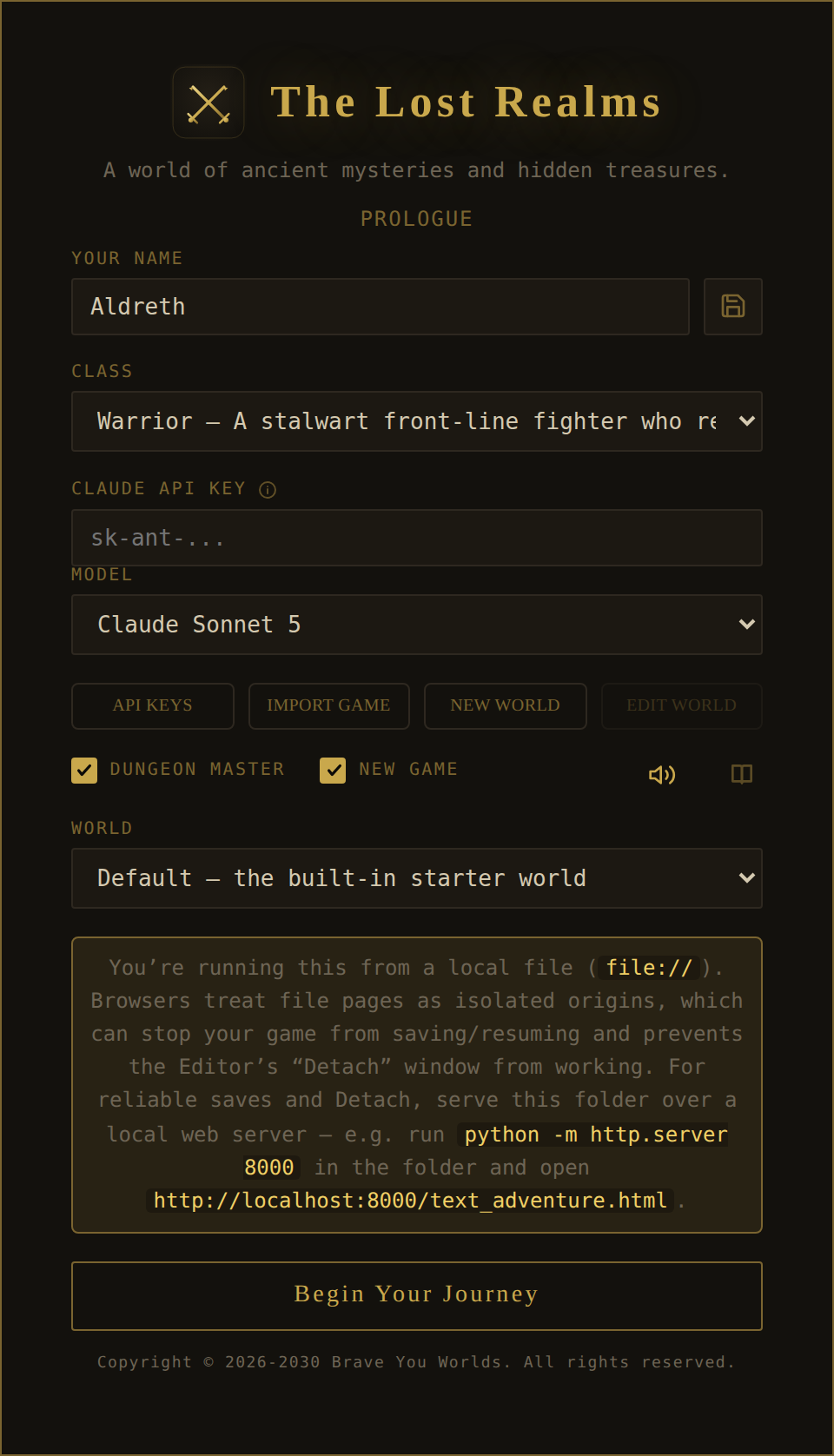
- On the login screen, paste your Claude API Key (required for generation). Optionally click API Keys to add image/sound provider keys.
- Click New World. The World Builder opens as a full-page workspace titled World Builder.
- Describe the world (next section), Generate World, review, and Save or Export it.
- Back at login, tick New Game, choose your world, and Begin Your Journey.
The World BuilderThe concept form, field by field
The Builder is a single form. Fill in as much or as little as you like — only a Theme & Premise really matters; the rest can be suggested or generated.
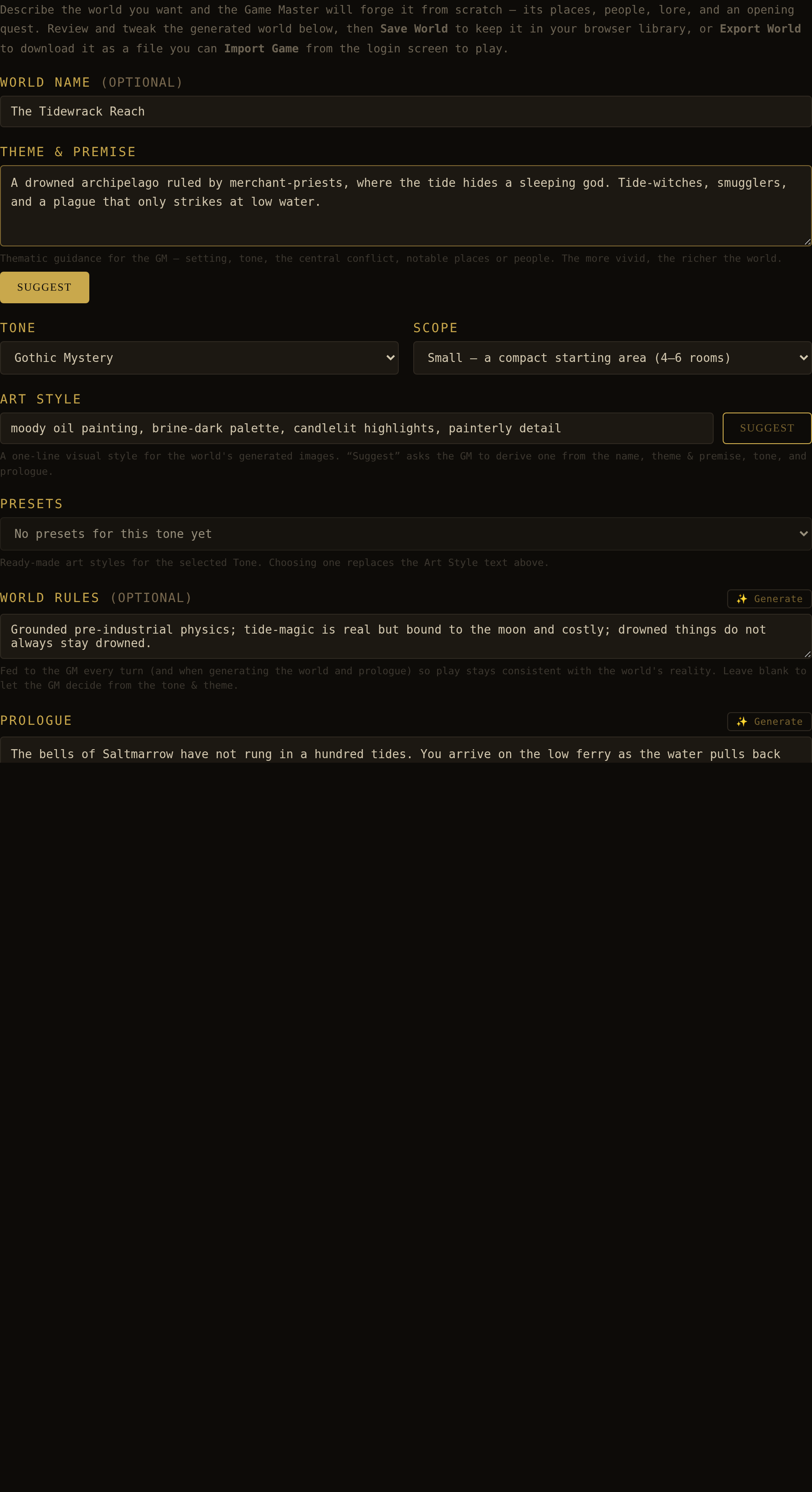
| Field | What it is | Helpers |
|---|---|---|
| World Name (optional) | The world's title. Leave blank to let the GM name it. Also sets the browser-tab title as you type. | — |
| Model | Which Claude model forges this world, and writes the brief fields behind ✨ Generate and Suggest. Its own picker with its own memory — separate from the model that narrates play, which the player chooses on the login screen. The list runs Claude Fable 5.1, Claude Fable 5, Claude Opus 5.5, Claude Opus 5, Claude Opus 4.8 (the default), Claude Sonnet 5.5 and Claude Sonnet 5. The Fables are here and nowhere else: they are slow and thorough, which is the wrong trade for a per-turn call and the right one for a one-shot build. Both are listed rather than the newer replacing the older, because a model id is a model and not a version — a world forged with Fable 5 is reproducible only by asking for Fable 5 again. On a vault-served realm the list is filtered to what the operator permits. It is also a spending decision. The Fables bill at roughly twice the Opuses per token, and a world generation is one large call — the biggest single item a session produces. That is the trade the picker is really offering: a slower, more thorough forge for about double the money, once. Typing /usage in play opens a per-playthrough ledger of what the Game Master has actually cost, priced from the tokens the API reported rather than estimated. | Remembered for next time; shared with the Region Builder's own picker. |
| Theme & Premise | The heart of the form: setting, tone, central conflict, notable places or people. The more vivid, the richer the world. | Suggest drafts a full premise for you. |
| Tone | A dropdown of 11 registers — Dark Fantasy, High Fantasy, Grimdark, Heroic Adventure, Gothic Mystery, Whimsical Folklore, Science Fantasy, Steampunk, Post-Apocalyptic, Science Fiction, Cyberpunk. Colours narration and selects the art-style presets. | Changing it repopulates Presets. |
| Scope | Small (4–6 rooms) or Medium (8–12 rooms). Sets how much the GM builds. | — |
| Art Style | One line of visual direction, prepended to every generated image. Sets the whole look. | Suggest derives one from name, theme, tone & prologue. |
| Presets | Ready-made art styles for the chosen Tone. Selecting one replaces the Art Style text. | Populated from the Tone. |
| World Rules (optional) | How reality works — magic, physics, death. Fed to the GM every turn so play stays consistent. Blank lets the GM infer from tone & theme. | ✨ Generate writes them from name, theme & tone. |
| Prologue | The opening backdrop shown to the player as they begin; canon the GM honours (and consistent with your Rules). | ✨ Generate / Create Prologue drafts it. |
| Include the built-in skills | A checkbox, ticked by default. Starts the world from the app’s standard skill set — Stealth, Herbalism, Athletics, Persuasion, Lockpicking, Arcana and the rest — rather than from nothing. The Game Master is shown that list so it reuses Lockpicking instead of inventing “Pick Lock” beside it. Untick it only when you want a skill set that is wholly this world’s. | Costs no generation time — the skills are merged in afterwards, not written by the GM. |
| Generate new skills | A checkbox and a number (4–24, default 8). How many skills of this world’s own the Game Master authors. The first several are the built-in classes’ signature skills — the knacks each one begins the game knowing — and the rest are spent on the setting: its trades, its hazards, the arts its magic needs. Untick it and the classes draw their signatures from the built-in set instead. | The count is a budget, not a quota per class. |
| Auto-generate Lore/Unlocks | A checkbox. When ticked, the GM also writes image prompts, hidden lore, and lore-unlock conditions for every applicable place, person, and item as it forges the world. | Adds time; richer result. |
| Auto-generate Errands | A checkbox, with a Write Errands button beneath it. The small work of living in the world — a delivery carried, a root fetched, a stall minded — written onto the people who would actually ask for it. Ticked, it runs by itself once the world is forged. Unticked, the button runs it whenever you are ready and shows you what it wrote. | A second GM pass over the finished world; the button is disabled until there is one. |
The World BuilderGenerating the world
Press Generate World. The Game Master reads your whole form and forges one complete world — rooms and their exits, people and creatures, a starting item catalogue, lore, and an opening quest — as a single JSON object. A live timer shows elapsed time while it works (a full world can take a minute or two, especially with Auto-lore on).
Three things to know about how the GM writes it:
- It is written in one pass, in order, and the order is load-bearing. The world comes back as a single JSON object written top to bottom, so where a thing sits in that object is when it was decided. The classes and the peoples come first; then the skills; then everything that leans on a skill — the items, the beings, the rooms with their locked doors and trapped chests, and the quests. That middle position is the whole reason it is worth naming: a skill has to already exist before a lock can set a picking difficulty against it or a being can be given a knack of this world's own, and it has to come after the peoples and classes to be tailored to them at all. A world whose skills were written last would have items and beings referring to a roster that did not exist when they were written.
- Prompts are written style-free. Every banner, portrait, and item image prompt the GM authors is a plain subject description — no palette or medium words — because your world's Art Style is applied automatically at generation time. This is why one Art Style line can re-skin the entire world. See Part IV.
- Your framing is stamped onto the world. The tone, art style, theme, and rules you chose are saved onto the world object so they survive export, import, and reload — and so the World › Profile and Art › Style tabs show them later.
The World BuilderThe editable World JSON
The generated world drops into the World JSON (editable) panel — a full code editor. Everything about the world is here and hand-editable: rename a room, fix a typo in a description, adjust a stat, delete an entity. Most of the time you'll prefer the friendlier tab-based Editor (Part III), but the raw JSON is always the ground truth, and it's the fastest way to make a surgical change or paste in content you've prepared elsewhere.
The World BuilderSave, export & import — and opening the Editor
The row of buttons under the JSON panel is how a draft becomes something you can play or share.
| Button | What it does |
|---|---|
| Save World | Stores the world in your browser's world library. It then appears in the login New Game world picker, ready to start a playthrough on. |
| Export World | Downloads the world as a .json file (a versioned envelope), dungeon maps and all — tile art only if the checkbox beside it is ticked. Share it, back it up, or Import Game it from another device's login screen. |
| Import World | Loads a world .json file back into the Builder for further editing. |
| World Editor | Opens this draft in the full tabbed World Editor — the subject of Part III. This is where most authoring happens. |
| Back to Login | Returns to the login screen. |
thelostrealms.world envelope) is a place with no history — importing one always starts a fresh game. A saved game is a playthrough with a character and progress — importing one continues it. The Field Guide covers portability in full.The World BuilderFrom world to playthrough
Once a world is saved or imported, playing it is a login-screen choice:
- Tick New Game. A World dropdown appears.
- Choose your world — Default (the built-in Lost Realms) or any world you've saved. An imported file is used automatically.
- Set your character's Name and Class, keep Dungeon Master ticked if you want Editor access in-game, and press Begin Your Journey.
You now have two roads into the Editor: from a fresh world's World Editor button in the Builder, or in-game via the DM's Editor tab. Both open the same tools. Part III walks every one of them.
The World EditorThe Editor at a glance
The World Editor is a tabbed workspace over your world's data. Each tab manages one kind of object — rooms, entities, classes, items, quests, and so on. Learn its two recurring patterns once and every tab becomes familiar.
Getting in
Three doors lead to the same Editor:
- DM In-game. While playing as a DM, the Editor tab across the top of the screen opens it over your live world — edits take effect immediately.
- From the Builder. The World Editor button on a generated draft opens that draft for tuning before you save.
- Edit World. The login Edit World button opens your current saved world as a draft (a detached, full-window editor).
Pattern 1 — the standard toolbar
Most tabs are a scrolling list of cards, one per object, topped by the same toolbar:
| Control | What it does |
|---|---|
| Filter by name | Live-filters the cards. A ✕ clears it. (Rooms add a region dropdown; Spells/Skills also match school/stat; on NPCs, Monsters and Fauna it also matches what a being is carrying — type an item name to find whoever has it, and Export respects the same filter.) |
| Export | Downloads the currently listed objects (respecting the filter) to a JSON file. |
| Import | Reads a JSON file and merges it — updating objects with the same id/name and adding the rest. Never duplicates. |
| Collapse all / Expand all | Folds or unfolds every card. Your collapse state is remembered per tab. |
Pattern 2 — the GM request box
At the foot of almost every tab is a text box and an Apply button. This is where you author. Type an instruction in plain language and the Game Master edits the data for you:
add a grizzled blacksmith named Doran to the square
give Willa a night-owl routine and a smuggling secret
raise the Mage's base INT to 20
remove the smuggling side quest
There is deliberately no "New" button — you create, change, and delete objects through this box (or by Import). A few things are true of every box:
- It is strictly scoped. The Factions box only edits factions; ask it for a room and it politely declines. This keeps edits from bleeding across object types.
- It is not a story turn — it authors data, it doesn't advance play or narrate.
- It merges, it doesn't clobber. Editing an existing object by name updates its fields in place (and applies to every same-named instance).
- The result — created / updated / removed — is reported on a status line, and every handoff is written to the Logs tab.
Cards themselves also carry inline editors: description boxes with a ✨ to have the GM (re)write them, portrait controls, and collapsible prompt and lore sections. The rest of Part III is a tour of what each tab manages and the fields each object carries. The tab order below matches the Editor's own.
Editor · MapMap
Editor › Map · inner subtabs: World / Regions / Background
The Map tab is a viewer, not an editor — the play-map with the fog lifted, so you can see the whole world's shape at once. It has no card list, no toolbar, and no GM box.
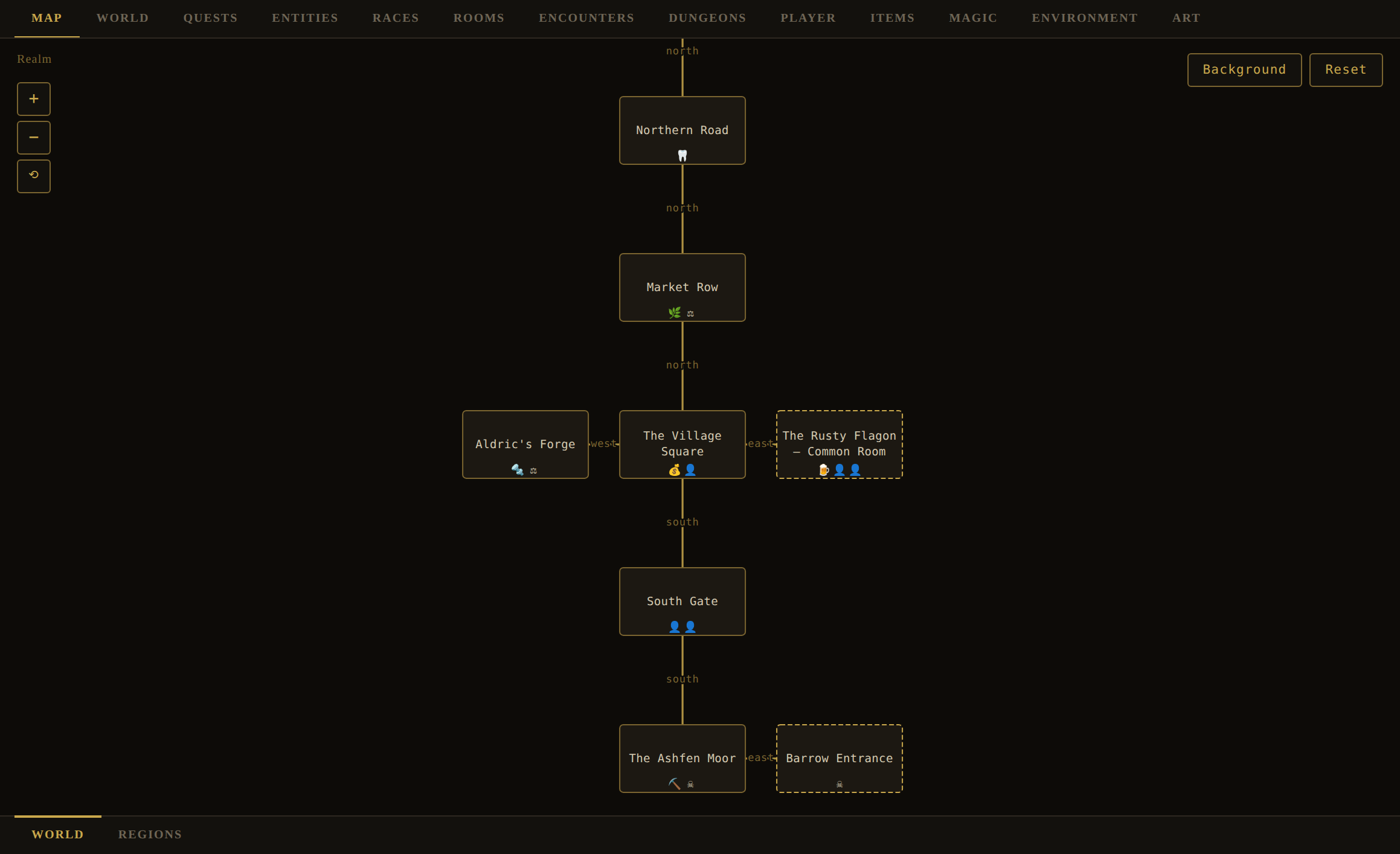
- World (inner subtab) — the realm graph. Zoom in/out and reset view with the floating controls; set or reset a decorative map background image; click a room node to open its detail popup, and click item/being icons on a node to inspect them.
- Regions (inner subtab) — every region's map on one screen. This is a review surface, not where regions are authored: they are made, named, shaped and filed on World › Geography › Regions, which shows one at a time because that is the right shape for writing one. This board shows them all at once because the question it answers is about the set — do these look like sheets out of one atlas? — which you could not ask before without selecting each region in turn. A card per region with its map, its own map prompt, and Generate / Upload; the head counts how many are still to draw. The controls are the same ones the detail panel draws, so an edit made here is an edit made there.
- Background (inner subtab) — the world map: a single 2D render of the world's exterior areas in their relative positions, with the world's name lettered across the top. Its own prompt and Generate / Upload, beside the shared Style.
Use the Map to sanity-check connectivity — dead ends, orphaned rooms, a region that isn't reachable — then jump to Rooms to fix exits.
Editor · WorldWorld — Profile, Chunks, Geography, Factions & Currency
Editor › World · inner subtabs include: Profile / Chunks / Geography / Factions / Currency / Settings
The World tab holds the world's framing and its highest-level structure, spread across several inner subtabs along its bottom edge. This section covers six of them — the ones that shape a world's identity, its geography, its money, and the people in it: Profile, Chunks, Geography (which holds Regions and Districts on a strip of its own), Factions, Currency and Settings. Two more are covered elsewhere: Evaluate compiles the world and reports what is provably wrong with it; because that belongs to testing rather than to authoring, it has its own section in Part V — see Evaluating & fixing a world. Culture is large enough to have outgrown a subsection and has a chapter of its own — see Building Cultures.
World › Profile
The world's identity, mirroring the World Builder form and pre-filled from the live world.
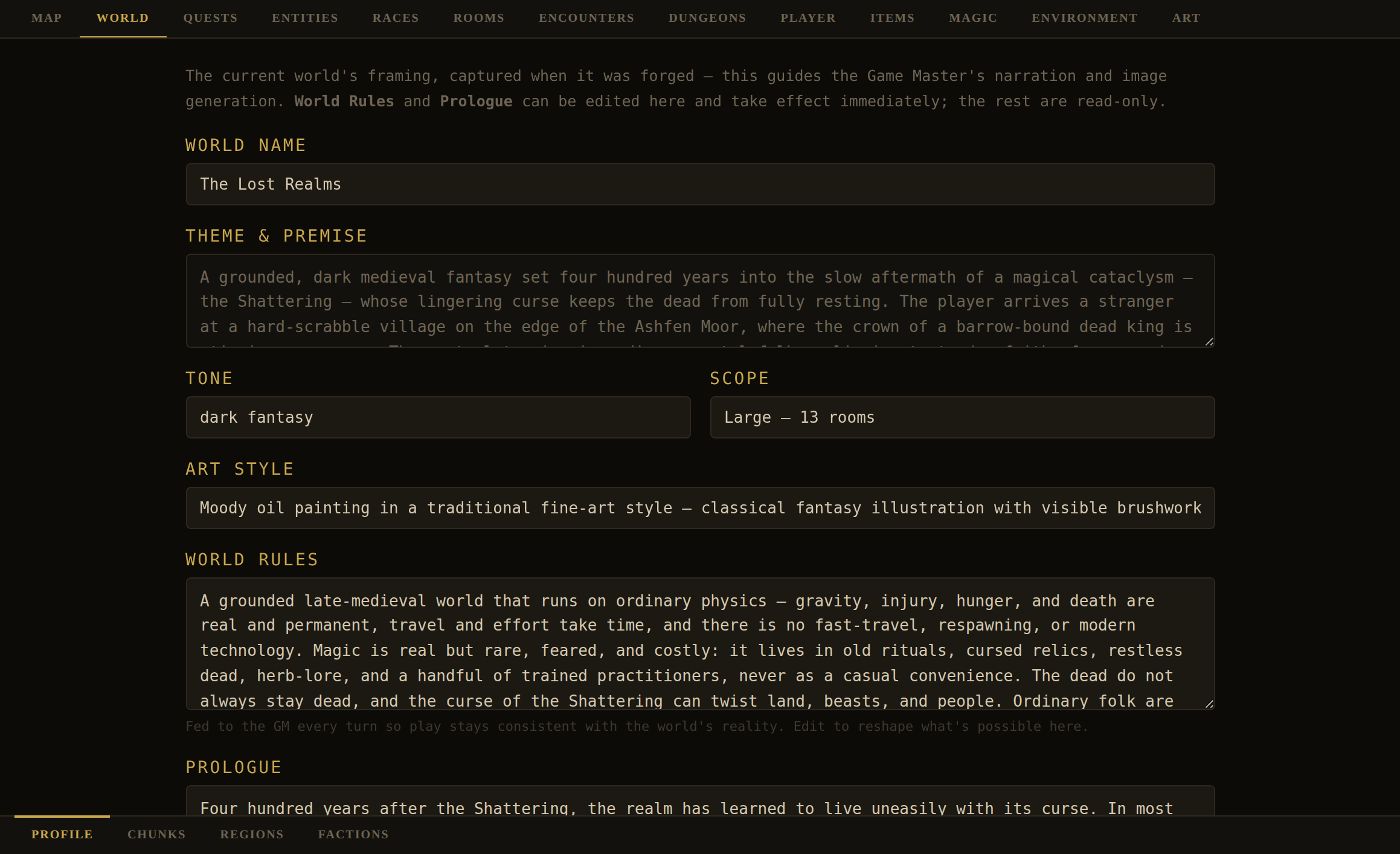
| Field | Editable? | Notes |
|---|---|---|
| World Name, Theme & Premise, Tone, Art Style | Read-only | Set at creation; shown for reference. |
| Scope | Read-only | A label derived from room count (Small ≤6 · Medium ≤12 · Large), e.g. "Medium — 9 rooms". |
| World Rules | Yes | Written live to the world and fed to the GM every turn. Edit here to change how reality behaves mid-project. |
| Prologue | Yes | The opening backdrop / canon. Editable live. |
World › Chunks
The world's merge-and-backup bench. Three jobs live here: grow the world with the GM, merge JSON "chunks" by hand, and export the whole world.
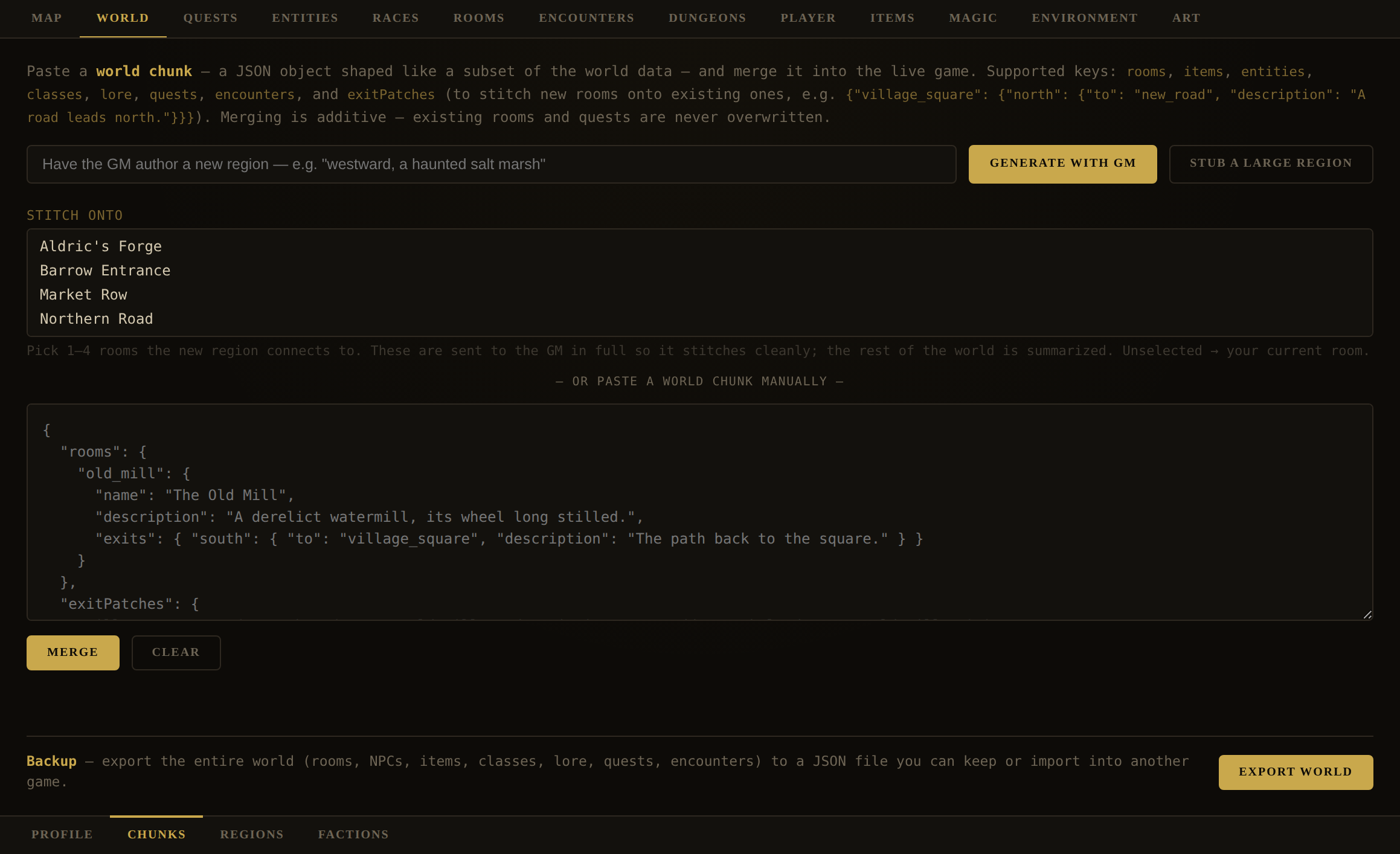
- Generate with GM — describe a new area ("westward, a haunted salt marsh") and the GM authors a full, fleshed region and merges it. The raw JSON also lands in the paste box for review.
- Stub a large region — lays out 8–16 skeleton rooms (name + one-line description + exits, each flagged a stub) to be fleshed out later from the Rooms tab. Great for blocking out a big area fast.
- Stitch onto — pick 1–4 existing rooms the new area should connect to (sent to the GM in full detail so it joins cleanly). Leave it unset to attach to the player's current room.
- Paste & Merge — drop a hand-written or exported chunk into the box and Merge. Supported keys:
rooms,items,entities,classes,lore,quests,encounters, andexitPatches(to graft new rooms onto old ones). Merging is additive — existing rooms and quests are never overwritten; catalogue collisions prompt you to overwrite or keep. - Export World — downloads the entire world as a versioned
.jsonbackup, dungeon maps included. Do this often. - Include dungeon tile art (the checkbox beside it) — off by default. Dungeon layouts always travel; the tiles you uploaded to dress them are pictures, and a fully dressed dungeon measured over two megabytes on its own. Unticked, a dungeon arrives on the built-in stone; ticked, exactly as you drew it. The answer is remembered, and it applies to Export Game too.
World › Geography
Geography is one tab with two faces, and its own strip of subtabs along the bottom: Regions and Districts. They are the same subject at two scales — a region is a stretch of the map with an outline and cardinal neighbours, a district is a named part of one — and they used to sit four places apart on the World strip, where nothing suggested they had anything to do with each other. The tab remembers which face you left it on, so stepping out to Calendar and back puts you where you were.
World › Geography › Regions
The functional region map — the world partitioned into named zones the player sees on their map.
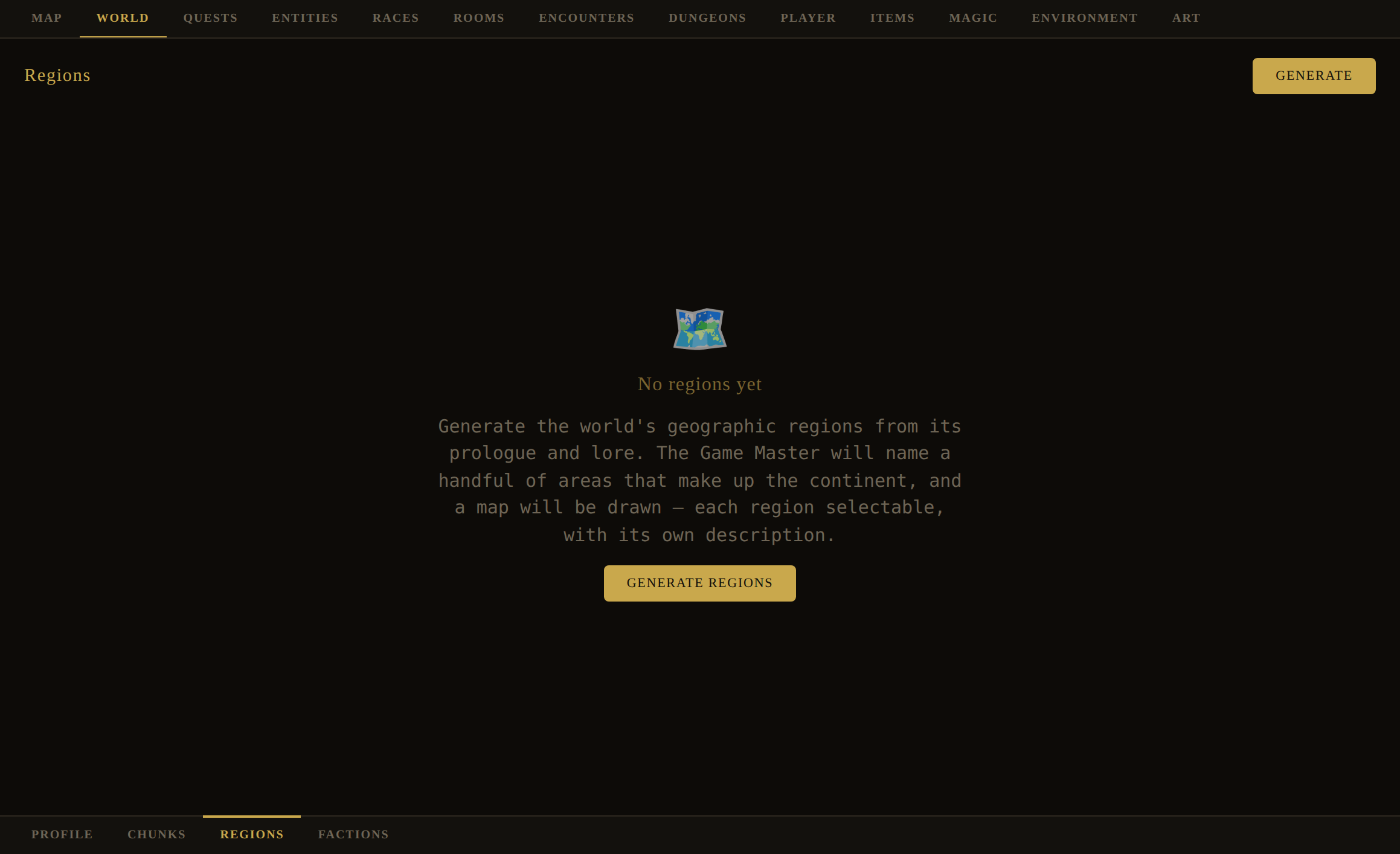
- Generate / Regenerate — the GM proposes 3–7 regions (each a name + 1–2-sentence description + a banner prompt) and the engine draws them as a selectable map. Regenerating asks for confirmation and clears every room's region, so you'll re-file rooms afterward.
- Select & edit — click a region (or the "No Region" chip) to open its detail panel: rename it (renames everywhere and re-tags its rooms), edit its description, and give it a banner image (Generate / Upload, with an image prompt + ✨ and an art-style override).
- File rooms — the region's rooms panel lists matching rooms, each with a dropdown to reassign its region.
- Map — below the banner, each region card has a Map section that paints an illustrated map of the region's interior layout. A ✨ asks the GM to compose a direction-aware map prompt from the region's rooms and how they connect (e.g. "Market Row lies north of the Village Square"), so locations land near their true relative positions; you can also type the prompt yourself. Below the prompt sits the generated map image (or a placeholder) with Generate / Regenerate and Upload. A shared Style prefix (with a Preset picker — Oil on Aged Parchment, Ink & Quill, Watercolour, Antique Engraving) is prepended to every region's map prompt so all your maps share one look. Region maps generate through the Map AI provider (Settings), and are shown to the player on their Maps › Region tab for whichever region they're currently in.
- Build — select a region and press Build Region to open the Region Builder, a form for authoring that one place in isolation without leaving the dialog. See below.
The Region Builder
The Region Builder is a region's own brief — description and climate (the same two fields the Regions tab edits) plus eight authoring fields: Theme & Premise, Tone, Scope (small / medium / large / extra large), Art Style, Rules of this place, Prologue, Narrative, and Beings. Every field may be left blank to inherit the world's own answer, and a ✨ beside each asks the GM to suggest it. Pressing Build Region hands the whole brief to the GM, which writes rooms, beings, items (with proper equipment slots, so any gear it mints can actually be worn), quests, and encounters for this region only — plus, if the Auto-generate Lore/Unlocks checkbox is on, its lore — told to write to the region's climate so the weather it describes matches the weather the engine resolves there, and merges the result straight into your world. It refuses on an empty brief rather than inventing a region from nothing but its name.
It is told to REUSE before it mints, and that is the rule worth knowing about. The build is handed a list of your world's existing items and asked to reference one rather than write a near-duplicate. The reason is unforgiving: the catalogue keys on a slug of the NAME, so a region that mints an Iron Bar beside your Iron Ingot has not added a material, it has split one — permanently, with nothing to merge them, and a recipe written against either is then unbuyable wherever the other is stocked. If you see a near-twin of something you already have after a build, that is what happened, and the fix is to delete the newcomer and repoint what used it rather than to keep both.
And a vendor only where one belongs. A region with a settlement, a camp or a waystation gets a trader holding those materials; a barrow, a drowned wood or a stretch of road gets none, and its materials are found rather than bought. That is deliberate and differs from the whole-world build, which requires at least one materials trader — a world without one is broken, where a region made to produce one grows a shop in a swamp.
Export Region downloads this region — its brief, its record, and everything in the world that belongs only to it (its rooms, and the catalog entries only its rooms use) — as a JSON file; Import Region loads one back in. A region file deliberately carries no dungeons: a dungeon's location is free text ("a region, a room name, a direction"), so which dungeons belong to a given region has no answer the engine can compute yet — build and place dungeons separately with the Dungeon Builder.
Region fields: id, name, description, color, polygon, label, bannerImage, bannerImagePrompt, mapImage, mapImagePrompt, ignoreArtStyle, brief. The shared map style lives on world.regions.mapStyle.
World › Geography › Districts
A region is a stretch of the map: it has an outline, a colour, cardinal neighbours, and a room says which one it is in. A district is the other half of how people name where they are — the shambles, the dock ward, the terraces above the mill — and it is a name rather than a shape. It is not drawn on the world map, it has no polygon, and nothing about it needs a room to know it exists.
The tab is a roster like Factions, with the same toolbar, cards and GM box. There are two ways in and they are different acts: + New opens a dialog asking for the name, the region and the two descriptions together, and refuses a nameless district while what you typed is still on screen; + Add has the Game Master invent one whole from this world's regions, theme and tone.
| Field | Meaning |
|---|---|
name | What its own people call the quarter — a name, not a label. |
description | One or two lines, the way the card reads at a glance. |
detailedDescription | The longer account: what stands here, who works it, how it sounds and smells walking it end to end. |
region | The region it lies in, by id — so renaming a region on the Regions tab cannot quietly move a district out of it. |
rooms | The rooms filed under it, by id, and the list its map is drawn from. Held on the district, not through a field on the room: a room sits in exactly one region, but a market on a boundary belongs to both quarters that argue over it. |
mapImage, mapImagePrompt | Its map and the prompt it was painted from — the same fields a region carries, under the same names. |
An id that stops resolving is kept and shown as missing rather than pruned: a room deleted today may be restored tomorrow, and a dangling reference you can see is one you can fix. The opposite rule applies to the Game Master — a reply naming a region or a room this world does not have has it dropped and named back to you, because that is a new claim made against a roster the model was shown in full, not data you already wrote.
Map Pins, left of Regenerate, opens the map with the district's rooms beside it: click a room, then click the map to place its marker, which shows the room's name above a dot. Clicking a room that already has one re-arms it, which is how a pin is moved. Pins are stored as fractions of the image, so they hold at any size, and a pin only lives as long as its room does — take a room out of the district, or delete it from the world, and its pin goes with it. That is deliberately the opposite of the rule the rooms list follows, and the reason is in the design doc: a dangling room id is recoverable and you can see it, while a dangling pin is a dot labelled with somewhere that is not there.
The map section is the Regions tab's, control for control: the shared Style prefix with its preset picker — world-level on purpose, so every map this world paints reads as one hand's work — the map prompt with its ✨ handoff, the image, and Generate / Upload.
Once placed, the pins are drawn in four places, so you never have to reopen the dialog to see what you did. The district card's own map carries them under it. Each room on the Rooms tab grows a read-only District section naming the quarters it is filed under, and the room popup — the one an NPC's location link or the map opens — carries a District line under Region. Both are chips and lists rather than single names, because a room may be filed under two quarters and naming one of them would read as a finished answer. Neither is editable: the district owns its rooms list, and a picker on the room would be a second writer onto the same relationship.
The fourth is the player's. When they are standing in a room filed under a district, their Maps tab grows a subtab named after the quarter itself — Quill Ward, not the word District — showing that quarter's map with your pins over it; walk out and the tab goes. A room filed under two quarters gets a subtab each, so the strip names both. It pans and zooms like the Region map. So the district's name is what a player reads on that strip, beside World and Region, which is worth knowing when you name one: a quarter called “District 4” or “the rooms near the docks” is a tab label as much as it is a record. Nothing about it asks whether a room was visited: the world map earns its fog one room at a time because the party assembles it by walking, but a district map is one authored picture, and fogging parts of an illustration would mean cutting it up.
And on that tab the pins are how the player gets about. Pressing one asks to travel there; they confirm, and they walk. The marker for the room they are standing in is drawn and inert — you are here — and on your two surfaces, the card and the pin dialog, markers stay inert too, so a click in the dialog still places a pin rather than moving anybody.
The walk is an ordinary turn, not a jump. The engine sends the command the same way the Maps tab's Return button does, the Game Master narrates the crossing, and the world moves while they cross it — so an ambush, a shut gate or a change since they last came that way all still happen. The GM is told about the district in its per-turn briefing, which is also what lets an NPC standing in the shambles talk about the shambles.
World › Factions
The world's organised powers — guilds, orders, cults, guards. The player only learns a faction exists when play earns it, so factions are as much a GM tool as a roster.
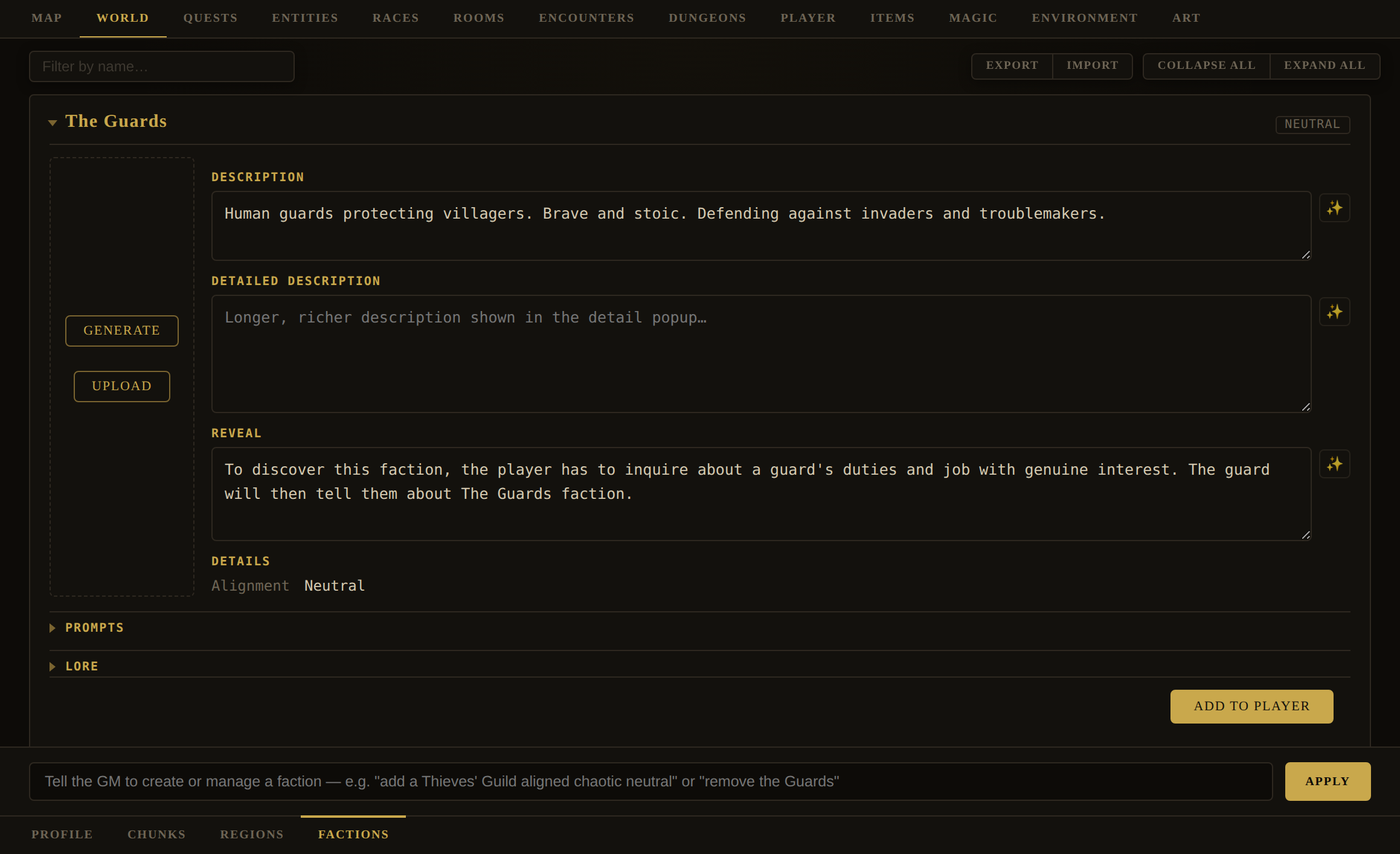
GM box examples: "add a Thieves' Guild aligned chaotic neutral" · "make the Ashen Order hostile to the player" · "give the Salt Cartel a reveal condition tied to dockworkers" · "give the Ashen Order a hidden history and price what it costs to learn it" · "remove the Guards".
| Field | Meaning |
|---|---|
id, name | Identity. Entities reference a faction by its id. |
description, detailedDescription | Public blurb and a fuller write-up (both ✨-editable). |
alignment | The faction's moral bent. |
regions | Where it operates. |
rivals | A list of other faction ids this one is at odds with — set through the GM box ("make the Ashen Order and the Salt Cartel rivals") rather than a card control of its own. Naming it in either direction is enough: the engine reads the union of what a faction names and everyone who names it back. Where a rivalry exists, the player rising with one order costs them half as much standing with each rival the instant the gain lands; falling credits the rivals nothing, so the mechanic can't be farmed. Most worlds author none. |
reveal | GM The hidden, in-fiction condition under which the player discovers this faction. Never shown to the player. |
lore, loreKey, loreXp | GM The order's hidden history, how the player earns it, and what earning it pays — the same trio a room, a person or a people carries, and not the same thing as reveal: that one is how the player learns the order exists, this is the truth underneath it. Authored per-card, on the Lore tab, or from the GM box, which now writes all three. Price it on the world's one absolute scale (~5 a minor confidence, 10–20 a real secret, 30–50 something pivotal) rather than against the other orders — an omitted loreXp is not free, it is the flat default, and a world where every secret pays the same has priced none of them. |
portrait, portraitPrompt, ignoreArtStyle | Its emblem and how it's generated. |
Per-card, you can also generate/upload the emblem, edit the reveal condition, author DM-only lore, and hit Add to Player to enrol the current character.
reveal ("after the player has helped two dockworkers") surfaces naturally through play rather than being handed over. Reputation and factions are covered player-side in the Player's Handbook Ch. 15 and in the Standing & Morality and Factions design docs.World › Currency
A world's coinage, and anything else it spends. Every world starts with one currency — Coin, denominated gold / silver / copper (1 gold = 10 silver = 100 copper) — and this is where you can rename it, retune it, or mint others alongside it (gems, chits, favors — anything a being might demand instead of coin).
| Field | Meaning |
|---|---|
| Currency name | What the family of denominations is called (e.g. "Coin", "Gemstones"). |
| Exchangeable | Whether this currency trades against the base one at a fixed rate. Off by default for anything but the base currency — a gem is priced, not made change for. |
| Denomination name, short form, worth, colour | Each currency is a family of denominations (gold/silver/copper are one currency, three denominations); worth is its value in the base copper unit, which is what lets an item's value (always stored in copper) render in any currency. |
A currency or denomination can't be deleted out from under a being still using it — the editor names who, and blocks the removal until you've reassigned them. Every item's price stays a plain copper integer regardless of how many currencies a world defines; what changes is which currencies a being will take. That's set on the being itself via its acceptedCurrencies field (GM box, in the order it prefers to be paid) — see Editing items and the Currency & Tender design doc for the fuller picture, including what's still open.
World › Settings
Settings the world itself carries, authored here by the Dungeon Master — distinct from the app's own Settings dialog, which belongs to whoever is sitting at this browser and lives in localStorage. This one travels with the world, and with every save and export of it. Right now it holds one collapsible section, Identity: the world's own signing key, the credential a Realm Registry checks before it will list a world under your name rather than as claimed-first-not-proved.
Mint a key for this world… asks for confirmation, then downloads a private key file and writes the matching public half into the world data, where it travels with every copy from here on. Minting cannot be undone or regenerated — lose the file and this world can never be proved to be yours again, which is why the button insists on that confirmation first rather than after. Once minted, the section reports whether the world is keyed and, when it is, whether the private half is still on this machine or only ever lived in a file you saved elsewhere.
Editor · WorldBuilding Cultures
Editor › World › Culture · inner subtabs: Languages / Folklore / History / Castes / Religions / Heraldry
Rooms, beings and items describe what a world contains. Culture describes what its people share — the tongues they speak, the stories they repeat, the powers they swear by, the ranks they sort themselves into, and the arms they fly. It is six inner tabs along the bottom of World › Culture. Another, Beliefs, was considered and then folded into Folklore as a fourth kind of tale rather than built on its own, which is the shape most of this tab's decisions take: prefer one roster with a kind over two rosters that mostly agree. History is the one place that rule was deliberately not followed, and the reason is worth stating: a tale and a chronicle entry are not two rosters that mostly agree, they are opposites. One is what people say happened; the other is what did.
Five of the six carry real world data today. One does not, and the difference is visible the moment you open it.
| Tab | Key | What a record carries |
|---|---|---|
| Languages | world.languages built | A name, a sample sentence, who speaks it, a script (the glyphs a reader must learn to see past), a lexicon, and optionally a parent — which makes it a dialect. |
| Folklore | world.folklore built | A kind — myth, belief, fable or legend — a name, the tale itself, a picture, and the two fields that make it the player's: xp and unlocked. |
| Castes | none yet | A name and rank against the others; which people sort this way; what a caste may and may not do; how one moves between them, or that nobody does. |
| History | world.history built | A date in this world's own calendar, a title, the text of what happened, and optionally the people it turned on — usually none. |
| Religions | world.religions built | A name, a deity, a description, a worship, the races and regions that keep it, and an insignia with the prompt it was painted from. |
| Heraldry | world.heraldry built | A title, a kind — tapestry, flag, coat of arms or symbol — a faction that bears it (or none), a description of the device and its colours, the picture with the prompt it came from, and your own hidden lore. |
world.* key is carried by every save in existence from the day it lands.A disabled control is a promise kept
On Castes, every authoring control — the filter, the New button, the GM request box, its Apply — is disabled, with the reason in its tooltip. That is deliberate and it is the thing to understand about this tab before you use it. The failure being guarded against is not an empty screen; it is a control wired to a handler that quietly answers not yet, so you type a request, watch it accepted, and change nothing. That has happened twice elsewhere in this app, and both times nothing reported it. A disabled button cannot become either.
The same rule governs the GM boxes on the five built tabs, and they do not all agree yet: Folklore, History, Religions and Heraldry have working boxes, Languages does not. A box is opened only alongside the authoring roster that reads what it writes — Languages' records exist, its roster does not, so its box stays off with "Coming with P4" in the tooltip rather than pretending.
Culture › Languages
A tongue this world speaks, and the one Culture system a player meets through an object rather than a conversation. + New invents one — a name, a sample sentence, and twenty-six letters to draw. The card then holds:
| Field | Meaning |
|---|---|
name, description, sample | Identity, and one sentence in the tongue to set its music. The sample is capped at 200 characters. |
speakers | Two id lists — races and factions — saying who actually uses it. |
parent | Another language's id. Setting it makes this one a dialect: it inherits the parent's script and most of its lexicon and overrides the rest, so a fluent reader of the parent stumbles rather than reads blind. |
script | The glyph grid — one drawn or generated shape per letter. This is what a reader who has not learned the tongue actually sees. |
lexicon | English ↔ its own words. A reader who knows the script but not a given word gets a pronounceable placeholder rather than the English. |
The glyphs are the part with the most machinery behind them. The sheet dialog will generate a whole alphabet from the language's name and feel, or take one you drew and uploaded, and either can then be traced into vectors so the letters stay crisp at any size — with a trial run first, so you can see what the tracer makes of your sheet before committing the set. Individual glyphs can be replaced or cleared one at a time. The words dialog authors the lexicon by hand or asks for a starter dictionary in one call.
What a language is for lives on the Items tab. language is a fact about the object, so a book, a spellbook, or a scroll alike can be written in one — its chapters, where it has any, render in glyphs and placeholders to a reader who hasn't learned the tongue. The four lessons that teach the tongue itself — teachesScript, teachesWords, bilingual, and teachesLanguage — stay with whatever is actually read, a book or a scroll: they are facts about reading a thing rather than about the thing, and a spellbook grants none of them, being inscribed rather than read. teachesLanguage is the largest of the four and the one to reach for last — a grammar that hands over the tongue itself, letters and every word the world gives it, now and later, subsuming the other three; the directive asks for one to be rare, a whole quest's worth of object rather than a shelf item. All deterministic, with no GM call and nothing to roll. A player reviews what they've learned of a tongue — the alphabet, every word they know, and whether they're marked fluent in it — in their own Journal › Languages. See Items for those fields and Dialects & Languages for the whole system.
Culture › Folklore
The stories a world's people tell — and the first Culture system a player ever meets. Every tale has a kind, and the kind is chosen before the tale exists: + New opens a menu rather than dropping a blank card, because a tale has to be drawn under a heading and the engine will not guess which.
| Kind | What belongs there |
|---|---|
| 🌀 Myth | How the world came to be as it is — told as true, and older than anyone who tells it. |
| 🕯️ Belief | Something held to be so, and acted on: a charm, an omen, a thing nobody does on a Thirdday. |
| 🦊 Fable | A short tale told to teach or to warn, and usually to children first. |
| ⚔️ Legend | What somebody is remembered for, whether or not they did it. |
A kind you did not write is kept, not corrected. Import a world whose author grouped their tales as sagas and the tab grows a Sagas group; the alternative is rewriting somebody's vocabulary into ours, which nothing downstream would ever report. The tab carries two filters for the same reason the Items and Lore tabs do — a name box and a funnel by kind — plus Import/Export and Collapse/Expand all.
| Field | Meaning |
|---|---|
id, name, type | Identity, and which kind it is grouped under. |
text | The tale itself. A tale has no hidden half and no public half — the text is the record. |
xp, unlocked | What hearing it pays, on the same absolute scale a lore hook uses, and whether this world's player has heard it yet. Leave xp unset to pay the default; set it to 0 to pay nothing. |
image, prompt, ignoreArtStyle | Generate / Upload / ♻ like any other card, and the usual escape hatch for a tale that should be painted outside the world's style. |
GM box: "add a legend about the drowned bell under the millpond". An NPC card carries a Folklore field too — chips for the tales that being can tell, picked from the same grouped list. A monster carries none: the field is for conversation. Each chip names the tale's kind beside its title, since “The Bell Below” says nothing about whether the being is repeating a myth or passing on a warning — and a chip whose tale the world no longer has is kept and marked rather than dropped, the same rule a religion's races follow, so a deleted tale is distinguishable from a being nobody gave one to. Every turn, the GM's dossier lists only the tales tellable by whoever is standing in this room — not the world's whole roster, the way Lore Hooks does — because a tale is earned from its teller, and a teller who is not present is telling nothing. A locked tale reaches the GM with its full text, so it can be told the instant it is earned, under a standing warning that it is a secret until then. Unlocking one copies it into the player's own Compendium › Lore with the tale's own picture.
unlocked and not loreUnlockedThe near-miss worth knowing about, since the fields look interchangeable. loreUnlocked/loreXp name the hidden half of a subject that also has a public description. A tale has no public half. Had it reused those names, every reader that scans for a lore hook — the Lore tab's groups, the evaluation's reachability pass, the GM's per-room hook dossier — would have seen a subject whose lore is empty, which is exactly the shape those readers treat as "authored but never written".Culture › History
The tab beside Folklore, and the other half of the same question. Folklore is hearsay — what a people say happened, handed down and shaped in the telling, true or not. History is the record: wars, famines, sieges, plagues, treaties, successions, the debasement of the coin, the year the river froze. The test is one sentence, and it is worth applying to every entry you write: could a clerk have written it down at the time, and would an ordinary person today know it the way anyone knows their own century? A prophecy, a curse, a haunting or a founding myth fails that test and belongs one tab to the left. One person’s duel fails it too — that is not history unless the realm felt it.
Nothing in the engine plays a historical event. They exist to give the Game Master geopolitical ground to stand on: why this duchy distrusts that one, what the old soldier in the tavern was too young for, which year the coin was cut. A world with a century of dated events behind it answers “what happened here?” out of its own past rather than out of the air.
| Field | What it is |
|---|---|
date | { year, month, day } in this world’s calendar — its month names and its word for a year, so renaming a month on the Calendar tab moves every entry that names it. The year is required; the month and day are each optional and usually absent. |
title | What a chronicle would call it — “The Siege of Ashfen”, “The Long Winter”. |
text | What happened, to whom, and what it left behind. The consequence is the half that makes it worth recording. |
people | Ids into your roster of beings, and usually empty — a famine has no cast. Where one is named they are generally long dead, which is rather the point. |
Precision is deliberately partial. Most history is known only to the year, and the form is built to let you say so: leave the month and day unset and the entry reads “Year 218”. Add a month where it matters — a winter famine, a spring campaign — and a day only for a single decisive dated event a chronicler would have stamped. Resist filling in a day to look precise: an over-dated record lies with more confidence than a vague one, and the Game Master is told the same rule when it drafts for you.
The tab draws a timeline, oldest first, the same shape the Journal uses — within a year the precisely-dated entries run in sequence and “sometime that year” trails them. Click an entry to open it and edit it in place; every field writes straight through and saves. It is the one editor tab that draws its cards shut by default, because a chronicle is a list you scan and twenty open edit forms is not a timeline.
Two buttons add one, and they are different acts. + Add hands the job to the Game Master, which is what you want for an event that should fit: it is given your world’s canon, its calendar, the events already recorded and the tales already told, and asked to write one that sits among them without colliding with any. Press it with the request box empty and it records something your world implies and has never had written down. + New opens a dialog for when you already know what happened — it refuses a nameless event and a dateless one, because a timeline has nowhere to draw either.
You decide what your player reads. Every card carries an Unlocked for the player checkbox, off by default. Ticked, the event appears in their Compendium › History — the same timeline, read-only — and its card is badged Published here so you can see at a glance which of forty they have, without opening any of them. Untick it and the event is still fully live for the Game Master; it is simply not in the book your player can read.
The Game Master ticks it too, and this is the thing to know before you are surprised by it: when somebody in the room gives your player an actual account of an event, it is written into their Compendium there and then. So a box you left unticked can come back ticked, and that is the feature rather than a fault. You publish what you want them to have up front; the rest arrives as they are told about it.
It is still publication and not discovery, which is worth being clear about because Folklore one tab to the left carries a box with the same label meaning something else. A tale is earned: your player draws it out of somebody who was not going to volunteer it, and is paid experience for it. Being told about a war is none of those — they asked an ordinary question and got an answer anyone in the realm could have given. So this box pays no XP however it comes to be ticked, has no XP field beside it, and the Game Master never withholds an account to make one of them work for it. What the box records is that your player has been told, so they can look it back up.
The + Add roster is the one place the Game Master may not set it, and the distinction is worth the sentence: writing world data is not telling anybody anything. There is no player in that exchange and nothing has been said aloud, so an unlocked it returns there is ignored — a model asked for “the siege the player heard about” will helpfully publish a beat nobody has recounted.
Write with the same thing in mind either way: everything you record here is public knowledge in your world, published or not. A secret about the past is not a history entry, it is a lore hook, and the engine has three ways of doing those. The checkbox decides whether your player has read the record; it does not make an event a secret.
Your Reveal all toggle works on their tab as it does everywhere else: with it on you see the unpublished beats too, dimmed and badged Unpublished, which is how to review the whole chronicle from their side without ticking forty boxes to check. One difference from your own card is deliberate: a person your world no longer has is kept and flagged here, below, and simply left off theirs — you can repoint a broken reference and they would only be shown a raw id.
Who carries it — the History field on an NPC
A chronicle nobody can speak to is a document. Every NPC card in Editor › Beings carries a History field directly beneath its Folklore one: pick recorded events from the list and they become part of what that person can talk about. The Game Master is then told, every turn, which of the people standing in the room can speak to which event — and what happened in each.
What the pairing gives you is standing, not permission. Anyone in your realm may know of the siege; that is what makes it history. The list says who was at it. Pair the old soldier with it and he tells the player about the ninth day; pair the miller instead and you get what the siege did to the price of bread. Leave a person unpaired and they still know of the thing in the general way everyone does — they simply have no account of their own, and the Game Master is told not to invent one for them.
It is an NPC field, like Folklore, because the point of it is conversation and a monster has none. It stores ids, so retitling an event on this tab does not break the pairing, and an event you delete leaves a marked chip on every card that named it rather than vanishing. The picker is in chronicle order with each event's date beside its title — a title alone does not tell you whether this person lived through the thing or is repeating their grandmother. And it does not offer the publication box: that belongs to the event, not to the person. A beat you have not published is still a beat this person can speak about.
When one of those people actually recounts an event, the engine writes it into your player's Compendium › History and tells them so in a line they can click. That is the second road to the checkbox above, and the pairing is its gate: only an event somebody in the room carries can be filed, so a Game Master that remembered a war from an earlier scene cannot file it in a room where nobody was there.
profile.history is a different field one word along a different axis — that is their hidden backstory, revealed as your player's standing with them rises. This one is the world's chronicle seen from where they stand.Culture › Religions
A faith: what is worshipped, by whom, where, and what the faith asks of them.
| Field | Meaning |
|---|---|
name | The faith, not the god — the two are often different words and a world may have three orders serving one power. |
deity | The power worshipped, in its own field rather than a line of description, because it is the thing an NPC swears by and the thing a player asks about. Both want it addressable. |
description | What it teaches, what it asks, and what it counts as apostasy. |
worship | Where and how it is kept — deliberately not temple. A nomad people carries its worship; a proscribed faith meets in a cellar; a river cult has a bend in the river and no roof at all. A temple field would make half of all authors answer a question they should refuse. |
races, regions | Who keeps it and where, stored as ids into rosters the world already has — never as names, so renaming a race on the Races tab cannot silently stop them being worshippers. |
portrait, portraitPrompt | Its insignia, painted from worship — so a faith with no building does not get handed a cathedral, and fourteen faiths do not all get the same generic altar. |
An id that stops resolving is kept and shown as missing, never pruned. A race deleted today may be a race restored tomorrow — this app has a Save Editor and an undo-by-reimport habit — and a normalizer that quietly dropped the reference would turn a recoverable mistake into an unrecoverable one.
+ New opens a dialog rather than dropping a blank card, and refuses a nameless faith while what you typed is still on screen: a religion is worth nothing until it has a name, a deity and the peoples who keep it, and a blank card asks for none of those. There is also a + Add on the shared random-add driver for when you want a faith to react to rather than to plan — something Folklore does not have, so the Game Master will write you a tale on request but will not invent one unasked.
GM box examples: "found a new religion of the sea, worshipped by the Fisherfolk" · "give the Sunwrought Faith an insignia". This is the one Culture roster that refuses an invented reference. Asked who keeps a faith, a model will cheerfully answer "the Elves" in a world that has none — so the directive carries the world's real race and region ids in full, drops anything else, and names the drop back to you rather than writing a worshipper who does not exist. Religions is also a group on both halves of Editor › Art: Missing, so Generate All paints every unpainted faith at once, and Review, so the gallery includes them.
Culture › Heraldry
The devices a house, an order, a realm or a faith is known by — and the one Culture record that is read on another tab entirely. + New opens a dialog; + Add asks the Game Master to devise one whole.
| Field | Meaning |
|---|---|
title | What the device is called — The Drowned Oak, The Broken Wheel. A name, not a blazon. |
type | One of four: tapestry, flag, coat of arms, symbol. This is what the device is borne on, and it is the most load-bearing field on the card — see below. |
faction | Which order bears it, by id. Leaving it blank is a real answer: a realm's arms, a family's device and a guild's mark are none of them factions. |
description | The charge and its colours, in enough detail to paint, plus the motto if it carries one. The ✨ beside it asks the GM to write one from the title and the kind. |
The kind is not a label on a device — it is what the record is about. The same wolf's head woven into a hall's hanging, flown from a mast, painted on a breastplate and branded into a doorpost is four records, not one with four notes. Three things read the field: the picture is painted from it (a prompt naming only the charge gets the same generic shield every time), the card head groups by it, and — the reason it matters most — the armour select on the Items tab offers your coats of arms and nothing else. A tapestry is woven and hung; offering one to an armourer would be offering you something no armourer could put on a breastplate. That is why the New dialog refuses a device with no kind, where the religion dialog beside it refuses only a missing name.
Where you use it: open any item of type armor on Editor › Items. Its Details table carries a Heraldry row — a select listing this world's coats of arms. No other item type draws the row. A world with none yet still shows it, disabled, so you know the feature exists and where to go.
Removing a device clears the armour that bore it, and this is the one place the app breaks its own keep-a-dangling-reference rule on purpose. A broken faction reference shows in red on the card holding it, so you can find and fix it; an armour bearing a device you deleted would show nothing at all, and you would have to hunt it one item card at a time. The confirmation dialog names the armour it is about to clear before you agree.
GM box examples: "a drowned-oak coat of arms for the Fenwardens, and a flag to fly over their tower" · "give the Guards a plain symbol their people would brand". Like Religions, this roster refuses an invented faction and names the drop back to you. It also polices the four kinds: asked for a "pennant", it creates the device without a kind and tells you, rather than filing it as a flag — because guessing what the thing is would put the guess in the picture where nothing could see it.
Heraldry is a group on both halves of Editor › Art: Missing, so Generate All paints every device that has no picture yet rather than making you visit each card, and Review, so the gallery of what your world looks like includes its banners and each cell opens the device it draws.
Castes — what it will be
The tab is drawn, it states its intended shape in the app, and it stores nothing. It is worth opening anyway: the panel is the specification, and reading it is the cheapest way to decide whether your world wants the system at all.
Castes is how a society sorts its people — a name and a rank against the others, which peoples sort this way, what a caste may and may not do, and how one moves between them, or that nobody does. The open question is whether a caste binds to a race independently of place; where it is practised is already answered below.
Where a culture record attaches
A language nothing speaks is a paragraph you wrote once. The question of what these records attach to is what decides whether Culture is a system or a notebook, and it has been answered: the region. A culture record is world-level in the same sense a weather condition or a currency is — its data travels with the world rather than being built into the game — and geographically it belongs to the region, the same way a region already names its climate by id while the climate catalogue lives on the world. A record keeps the properties of a people (which races, which orders); the map keeps place.
That is why a religion names races and regions and a language names its speakers, and why there is no per-system field bolted onto the Region card: a later region culture dialog is where an author picks all of a region's cultural markers at once.
Editor · RoomsRooms
Editor › Rooms
Every place the player can stand is a room. This is where you shape geography, exits, contents, atmosphere, and per-time-of-day art.
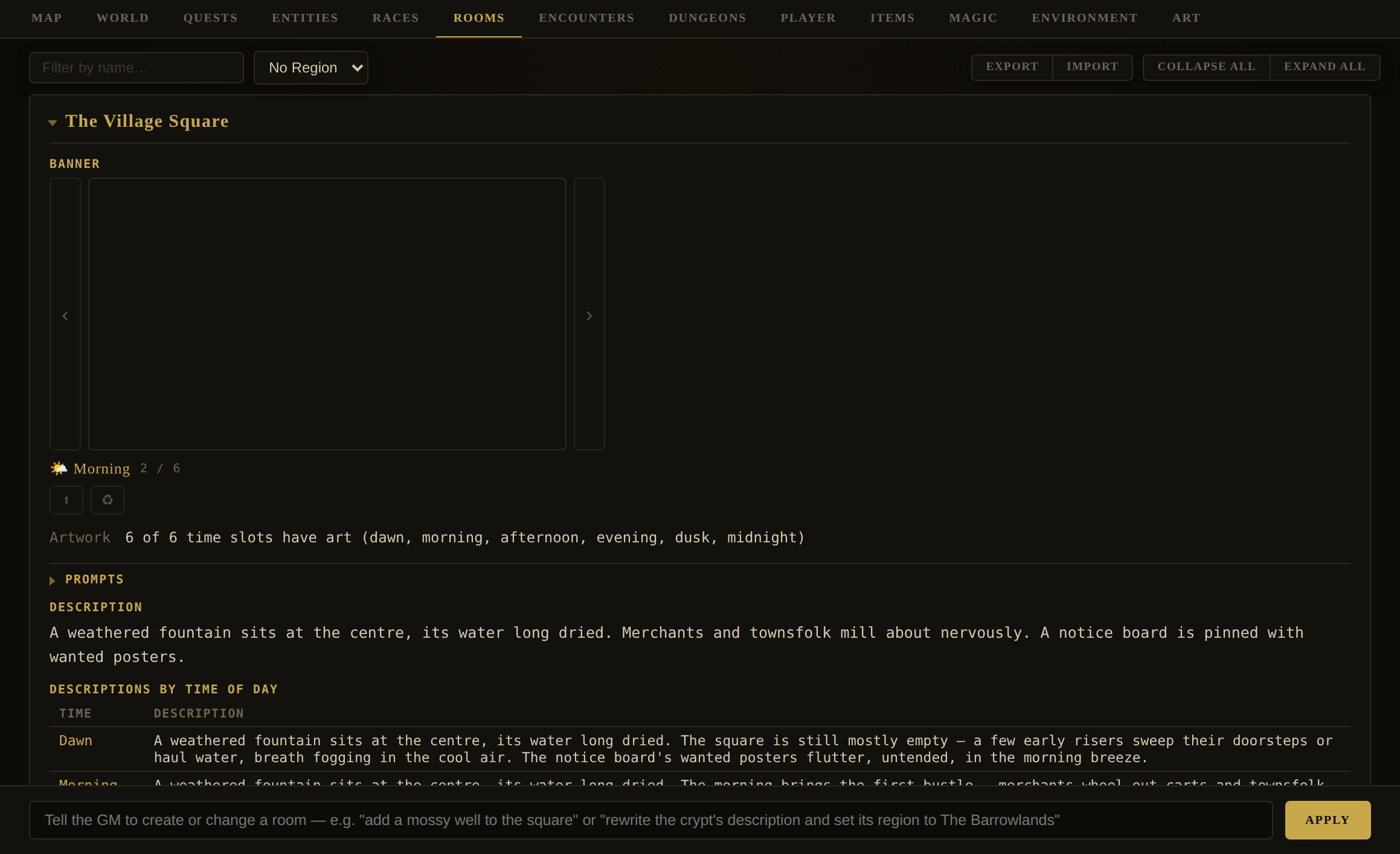
GM box examples: "add a mossy well to the square" · "add a dusty storeroom north of the kitchen" · "rewrite the crypt's description and set its region to The Barrowlands" · "add a hidden exit down from the chapel to a crypt". New rooms are created and stitched into the map automatically; edits merge (exits and descriptions merge rather than replace). A lock on that storeroom is not authored here, though — see Doors on exits below.
Stub & flesh
A stub room is a placeholder — a name, a line, and its exits. Its card shows a Flesh out with GM button that has the GM write its full description, banner prompt, items, and inhabitants, then clears the stub flag (its exits and visited state are preserved). Stubbing a whole region and fleshing rooms as the player approaches is a good way to build big worlds without generating everything up front.
| Room field | Meaning |
|---|---|
id, name, description | Identity and the base scene text. |
descriptions | Optional per-time-of-day description overrides. |
region | The zone it belongs to (see World › Geography › Regions). |
exits, hiddenExits | { direction: { to, description } }, optionally paired with a door (see below). Hidden exits stay secret until revealed in play. |
items | Floor items — catalogue refs {ref, quantity} or inline objects. |
entities | The beings that call this room home. |
interiorOf, interiors | Containment — this room is inside that one, or contains these. |
bannerImages, bannerPrompts, bannerArtStyleOverride | Six per-time-of-day art slots and their prompts. See Part IV. |
audioPrompts | Music and sound prompts — Music / Sounds, six per-time slots each, plus a General mood-music slot under Music. |
ambient | Per-time background beats — overheard speech, a sound, a bit of activity — with a chance and interval. Detailed below. |
stub, visited | Flags: skeleton-not-yet-fleshed, and whether the player has been here. |
Doors on exits
Any exit can carry a door (or a barrier — the same record under a different label and a squarer picture, for a boulder or a portcullis rather than something hinged). Doors aren't authored through the GM box like the rest of a room: each exit row carries its own + door button — or a state chip, once one exists — that opens the Door Editor directly.
| Field | Meaning |
|---|---|
| Name, Description | What the player reads when they examine the door — separate from the exit's own description of where it leads. |
| Kind | Door or Barrier — same mechanism; only the flavor and art shape (portrait vs. square) differ. |
| State | open / closed / locked, shared by both faces of the door. |
| Opens by | none / key / magic item / spell / sealed. Key and magic-item locks reference a catalog item by id, not a free-text name. |
| Pickable, Pick DC | Orthogonal to the method above — a door can want a key and still be pickable by a skilled thief. |
| Hidden, Hides the exit, Found by | hidden is whether the player knows the door exists at all; the separate hidesExit covers the rarer case where the exit itself isn't listed either. "Found by" records how the player is meant to discover it — search, a skill + DC, or a GM hint. |
| Art | Generate / Upload, independent of the room's own banner art. |
| Same door on both sides | Mirrors the door onto the room at the far end of the exit, sharing one doorId so one key or lever opens it from either side. |
moveToRoom while it's shut or locked — the GM narrating the player through it anyway doesn't override that, and the refusal is said to both of you. See the openDoor / closeDoor / lockDoor / unlockDoor / revealDoor family in the Field Guide's Appendix A.Ambient behaviours — a room that breathes
A room's ambient field holds the little background beats that make a place feel lived-in while the player lingers there: a snatch of overheard song, a fist thumping a table, the wind rattling the shutters. It is organised per time of day — dawn, morning, afternoon, evening, dusk, midnight — so the same tavern can roar at evening and fall to embers and wind by midnight. Each period holds a list of acts, and each act is one recurring beat.
Every act has four parts:
| Part | Meaning |
|---|---|
type | speech — a line overheard in the room · sound — an environmental noise (optionally with a real, synthesised audio clip) · action — a brief bit of described activity. The two you will reach for most are SPEECH and SOUND. |
prompt | The GM steering for the beat — what is heard or happens. It is a seed, not a script: the GM rewrites it fresh each time it fires, so describe a situation, not one fixed sentence. |
chance | The per-check probability, 0–100 (percent; 0 disables the beat). Defaults to 40 when unset. |
interval | Seconds between checks — how often the beat's timer rolls its chance while the player is in the room. |
A beat written 30% · 60s therefore means: every 60 seconds the player stands in this room at this time of day, there is a 30% chance the beat fires and the GM narrates it. Low chances and longer intervals keep a place subtle; higher chances make it feel busy.
A worked set — one tavern, evening into midnight. Five beats that, read top to bottom, tell a small story of the room emptying out:
| Type | Beat (the prompt) | Chance · Interval |
|---|---|---|
speech | a knot of patrons singing a ragged old drinking song, off-key but full-throated | 30% · 60s |
sound | laughter and the thump of a fist on a table as someone loses a bet | 30% · 60s |
speech | a hushed traveller at the corner table murmuring about lights seen moving wrong out on the moor | 25% · 60s |
sound | the fire popping and settling as the crowd thins and voices drop low | 25% · 60s |
sound | the wind rattling the shutters while the last embers glow dim in the hearth, the room otherwise silent | 20% · 100s |
The first three are the busy evening — a song, a lost bet, a nervous rumour; the last two are the room winding down toward midnight — the fire settling, then only the wind, at lower chances and a longer interval. Authoring beats that shift with the hour like this is what makes a place feel alive rather than looped.
Two ways to add them, both in Editor › Rooms:
- The GM box — describe the atmosphere in plain language and let the Game Master author the acts, chances, and intervals for you, spread across the right times of day: "give the tavern a lively evening — patrons singing off-key, a fist thumping the table over a lost bet, a hushed traveller muttering about lights on the moor — and quieter midnight beats as the fire dies down and the wind picks up."
- The room card's Ambient section — expand a room and edit its per-time beats by hand: choose the
type, write the prompt, and set the chance and interval. For a sound beat you can add a short text-to-sound-effect prompt and press ✨ to synthesise an actual clip (the Audio AI provider), ▶ to preview it, and tick play with ambient so the clip plays alongside the narrated beat.
How the GM generates each beat. Because the prompt is a seed rather than a line, the moment a beat fires the Game Master composes a fresh narration from it — and it does not do so blind. It reads the beat against the room's description and, above all, the room's atmosphere / mood at the current time of day (the per-time mood you can author on the room, GM-eyes-only). The same "patrons talking" prompt becomes uneasy, clipped remarks in a tense, gloom-soaked room and boisterous banter in a warm one. Since both the mood and the beat list are keyed to the hour, the GM lends the room a different voice at dawn than at midnight without any extra work from you. A speech beat yields a single overheard spoken line; a sound beat a described noise (and, if you generated one, its clip); an action beat one brief sentence of activity. None of it advances the plot, changes state, or consumes a turn — it is pure background.
“Ambient on Enter” changes when they are heard, not what they are. A player who keeps moving can walk through a whole village and hear none of your ambience: each beat rolls its chance only while they stand in the room, so beats written to be rare are the first to go unheard. The switch in Settings › Story makes entering a room fire one beat outright — chosen at random and delivered at once, with no chance roll after the pick. It draws from the room's beats for that hour and from the ambient behaviours authored on the beings standing in it, so an NPC with a remark makes it as the player arrives rather than half a minute later. Author for the OFF case, which is the default — low chances, beats that bear repeating — and know that with it on your rarest beat is as likely as your commonest, since the pick is uniform over whatever is eligible. A beat you set to chance 0 is still never chosen: it says never, and a pacing setting does not overrule an authoring decision.
Editor · EncountersEncounters
Editor › Encounters
Encounters are the world's randomised, timed events — a wolf pack that prowls the road at night, a merchant who wanders into town by day. Each is a definition the living-world clock rolls against.
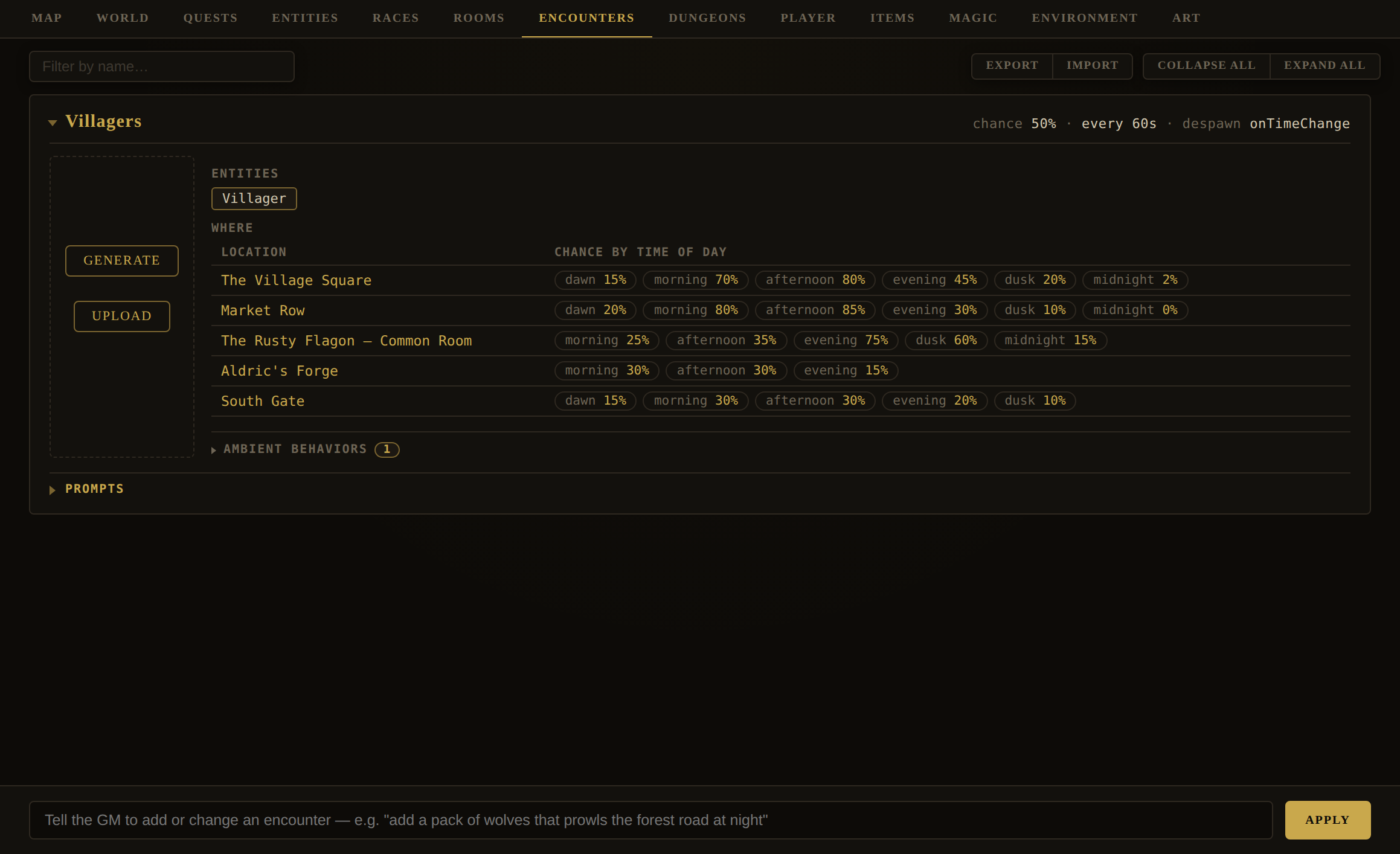
GM box examples: "add a pack of wolves that prowls the forest road at night" · "make the wraith encounter only fire at midnight in the crypt" · "raise the wolf pack's spawn chance to 40%". If an encounter needs a creature that doesn't exist yet, the GM authors it too and adds it to the bestiary.
| Encounter field | Meaning |
|---|---|
name | Its key (encounters are upserted by name). |
chance | 0–100, rolled on each tick. |
interval | Seconds between rolls. |
despawn | onPlayerExit · onTimeChange · none. |
entities | Which beings spawn (refs into the bestiary). |
where | Location × time-of-day probabilities — a room and, per period, a chance it fires there. |
ambient | Self-acting atmospheric behaviours the encounter's beings perform. |
image, prompt | Its card art and image prompt. |
Editor · DungeonsDungeons
Editor › Dungeons
A dungeon is two things kept in two places, and knowing which is which explains almost everything about this tab. The record — its name, where it lies, what it looks like, its hidden lore — is world data, and you write it here on a card like any other. The map — levels, corridors, doors, locks, chests, monsters and the stone they are all cut from — belongs to the Dungeon Builder, a separate application that opens in its own window from the card's Edit button. The two are joined by the dungeon's id and nothing else.
+ Add makes an empty dungeon and you fill the card in. Export and Import move the records — the cards, honouring the filter — as their own JSON file; they carry no maps, so a dungeon imported that way arrives undrawn. Whole worlds do carry maps — see World › Chunks and the tile-art checkbox beside Export World.
| Card field | Meaning |
|---|---|
name, location | Editable here. location is free text — a region, a road, a room — because a dungeon is not pinned to a room in the world model. |
type | Always dungeon, shown read-only. It is a declaration, not a choice. |
| Dungeon id | What the Builder files its map under. Assigned from the name when the dungeon is created, and stable thereafter. |
| Layout | What has been drawn: levels, floor tiles, grid size and the date — or not drawn yet. Read from the Builder's own summary, so it is never a guess. |
| Enters from | The rooms that open onto this dungeon. Derived, not authored — see below. A room named here that does not exist, or that already has its own way down, is flagged in amber. |
description, detailedDescription | The blurb and the fuller write-up, both with GM Generate. The first is what the party is told; the GM reads both when they are underground. |
| Portrait + prompt | Generate or upload a picture, with its own image prompt and the usual per-card art-style override. |
| Lore | The same hidden-lore set every other card has, and it is four fields rather than the three this used to say: lore, loreKey, loreXp and the unlocked flag. The GM box writes the first three — it will not leave the price out, and an omitted loreXp is not free but the flat default. |
The Dungeon Builder
Press Edit on a card and the Builder opens in its own window, already pointed at that dungeon. It is a genuinely separate application — no login, no world, no network — which is why it can also be opened on its own from Modules/Dungeons/dungeon-builder.html and even installed as a standalone app. It has no copy of your world, so anything it needs from one (a room id, an item to put in a chest) is either taken on trust or handed to it by the game.

You draw with three families of tool. Piece brushes stamp the shape of the floor — Bedrock, Dead end, Hallway, Corner, T, Cross, Room, and a plain Floor that carves rock without deciding its walls for you; right-click or R turns the stamp. Wall and door brushes paint one face of one square: Wall, Torch (a sconce, and a real light), Door, Open (which cuts through into the rock behind), Secret, and Switch. Select, Lock and Visible act on something already placed rather than painting — Select opens a properties panel for the face or the square you clicked. Undo goes back eighty steps.
Mechanisms are three fields on a door or a wall, and they compose. A lock id is free text and global to the dungeon, so several doors can share one; a switch carries the lock id it throws, and pressing it opens every lock of that name at once, wherever they are. A secret wall reads as plain stone until it is searched out, and can carry a lock id too. A switch can itself start hidden. And a locked door can carry a narrated act instead — something the party must do at that door, written out in your own words (speak the word "mellon") — which is the one lock down there the engine cannot judge, so it asks the GM.
Chests are real containers: give one a lock, a trap and contents, and the party works it with exactly the rules a chest on a room's floor obeys. Because the Builder has no world to look items up in, the game publishes a digest of this world's item catalogue for it, so the chest editor offers a picker rather than asking you to type an id. You can also create monsters and replace any of the sixteen tile-art slots with your own images.
The sprite sheet editor
A monster in this engine is its sheet — a horizontal strip of equal frames billboarded onto a quad, its width taken from one frame's own proportions so a squat spider comes out squat and a tall skeleton tall. + Create monster… opens one dialog for the whole act, in two pages you turn between with the pager under them: Creature & prompt, which is everything you type, and Sheet & corridor, which is everything you look at. Generating or choosing a sheet turns to the second page by itself, that being the point of pressing the button.
The second page keeps together the things that have to be judged against each other: the sheet itself with the grid the engine will cut it on drawn over it, the frames taken apart underneath, and beside them how the result reads moving down a corridor at one square's distance. A frame count that is wrong looks perfectly fine examined alone, so seeing all of that at once is the whole job — and giving those two half a dialog each is why they are no longer sharing it with the prompt.
Fill in a name, a build (Small/Medium/Large, which sets the cell proportions) and a frame count, then either write the creature clause yourself or press Invent at the left of the acts row to have the Game Master supply one, write it into the image prompt at the build and frame count you've set, and paint the sheet — three steps in one press, each stopping on its own failure and keeping whatever the earlier steps produced. Generate sheet runs the last of those three steps alone, from whatever prompt is in the box. The background comes back a flat colour rather than transparent — magenta by default, green as the fallback for a rose- or flesh-toned creature magenta would eat into — and the Builder keys it out the moment the sheet arrives; the sheet sits on a chequerboard so a colour that didn't key cleanly is visible rather than merely dark-on-dark. Save sheet (labelled Create monster on a new one) commits it to this dungeon's palette.
Judging a sheet — the cuts, the corridor and the cells
Three things in the dialog answer the question is this sheet right, and they are on screen together because each of them alone can be misread. The sheet shows what came back with the cut lines drawn over it. The frame strip shows those cuts taken apart, so a cell holding half a creature is obvious. And the corridor shows the thing animating where the party will actually meet it.
The cut lines, and dragging them
The prompt asks for frames of equal width and the image providers frequently paint the right number of figures and then space them by eye. That is not a fault the frame count can repair — there really are eight figures; it is the even cuts that fall through two of them — so each line can be dragged to where the gap between two figures actually is. A line cannot pass or sit on top of its neighbour, and the numbers under the sheet report the slice widths as you go.
What a drag does is worth knowing, because it is not what it looks like. The engine always slices a texture into equal columns and is not being taught otherwise: when you move a line, the editor rebuilds the sheet, copying each slice into a cell of its own, every cell as wide as the widest slice, each slice centred in its cell rather than stretched to fill it. Stretching would make the creature pulse in size across its own walk cycle. So the sheet that leaves the dialog is an ordinary even one, and nothing downstream ever knows the sheet arrived crooked. Even cuts puts the lines back where they started; changing the frame count or loading a new sheet does the same, since positions placed against one picture describe nothing about another. Nudging the background tolerance does not reset them — that dial moves no figure.
Cropping the empty space — the reason monsters come out small
Image providers hand back a frame with a lot of sky in it, and how much varies by creature. That is worth knowing because the symptom does not look like framing: the monster is simply smaller than the Height you typed. The engine works out how wide the creature stands from one frame’s proportions and then draws the whole frame at that height — so a creature filling three fifths of its frame is drawn at three fifths of the height you asked for. Nothing on screen disagrees with anything else; it just comes out short.
Trim to the creature does the whole thing in one press. By that point the background has already been keyed out, so the sheet itself knows exactly which rows hold the figure — the button finds them and sets both lines, leaving a row of slack so the creature’s own outline is not shaved off. Nudge the handles afterwards if you want more air. If it tells you there is nothing to find, the background has not been keyed out: set the Background colour on the first page and generate again, or drag the lines by hand.
The two horizontal lines across the sheet are the fix. Drag the top one down to the creature’s head and the bottom one up to its feet; the shaded bands are what is being thrown away. The sheet is rebuilt without them, so the frame the engine measures is that much shorter and the creature fills it — watch the corridor beside it, which will jump to the size you meant. It gets wider in the same proportion, because it is the same picture at a larger scale. Full height puts the lines back to the edges.
One band comes off every frame at once, which is right: the empty space is a property of the cell the model painted in, and that is the same cell in all of them. Where you cropped to is saved with the monster, so reopening its sheet shows the lines where you left them — over a sheet that has already been trimmed to match.
The corridor
The creature at the rate it will move at, standing one square away — orthogonal adjacency, which is the distance the party actually meets a monster at and therefore the view worth being sure about. The corridor is drawn with the engine's own figures, a square across and a ceiling at 1.15 squares, so how the thing sits against the walls and under the ceiling is true rather than suggestive.
− and + zoom, and Fit returns to the framing that holds the whole
creature. Zoom tightens the lens; it does not walk the camera forward. That distinction is what keeps the picture
honest: focal length scales the walls, the floor, the ceiling and the creature by exactly the same factor, so the
relationship between them is unchanged at every setting — it is the same true geometry through a tighter lens. Past
1× the creature runs off the top and bottom of the frame, which is the point; past a certain size the
question is what a hand or a face looks like, not how the thing fits under a ceiling.
Trying another provider
Under the sheet is Painted by — the image provider this sheet came from — and Regenerate. Some providers are simply better than others at a flat-lit row of equal frames, and which one is better varies by creature, so the quickest answer to a sheet that came back wrong is often the same prompt somewhere else. The list is the game’s own: whatever is offered under Settings › Image AI is offered here, including any your vault adds. A provider you have set no key for is still listed and marked as such, because it still works — the game falls back to its keyless provider for that call and notes the substitution in the Logs.
Choosing here changes nothing outside this dialog: your Settings choice is untouched, and the rest of the game goes on painting with it. What is remembered is which provider painted this monster, so reopening its sheet comes back to that one.
Which cell is playing
The corridor names the cell it is showing — Cell 3 / 8 — the sheet prints that number inside each of its cells, and the one playing is lit. Three sightings of one fact, because the question you have when a frame looks wrong is which frame, and the only other way to answer it is to count along a row whose count is the very thing you are unsure about. On a sheet with many frames the numbers drop out below about fourteen pixels a cell, a clipped 8 being easy to read as a 3.
Pause holds it on one cell without stopping the corridor answering everything else — you can zoom, drag a cut or change the height while it is held, which is most of what anybody pauses in order to do. The arrows either side of Pause walk one cell at a time and wrap both ways, so the seam between the last frame and the first is as easy to inspect as any other join. They pause as they go: a step taken while the animation is running is overwritten by the next frame, so rather than sitting greyed out until you have pressed Pause, they simply stop it and hold where you asked.
The way in, and the way out
You do not tell a room that it leads to a dungeon. You tell the dungeon where it comes out, and the entrance is worked backwards from that. Stairs up on level 1 have no floor above them to pair with, so they are the way out, and each carries the id of the room the party climbs into — typed into the Room field on that tile. The room then offers a Descend exit, derived at read time and never written into your world data, so clearing the stair later cannot strand a phantom way down.
Two rules follow, and the card reports both. A room that already has its own down exit keeps it — the authored cellar wins, and the dungeon gets no entrance there. And a dungeon with no way out is not enterable at all: its Enter button is disabled and says which half is missing, either nothing drawn yet or no stair with a room on it. A way in with no way out is a trap, so the app declines to build one.
What the party does down there
Enter replaces the Story view with a first-person view of the dungeon. The party walks it themselves — keys, or the pad under the view — and that is the one thing the GM does not do for them: it describes, adjudicates, answers questions and keeps the thread, but it does not move them a square or open a door. Ask it to go north and it will tell you, plainly, that down here you walk yourself.

Everything else works as it does above ground. A chest is picked, trapped, detected, disarmed and looted through the ordinary container rules; a secret is found by searching the right wall, and the GM decides whether the search earned it; a skill check is a skill check. Monsters you placed stand where you put them and attack when the party comes alongside — the engine starts that fight, not the GM, which is why nothing is ever foreshadowed down a corridor — and a fallen one leaves remains holding whatever it was carrying, opened like any other container. A monster is only a foe if you told it what it is: point it at one of this world's monster kinds in the Builder and it fights as that creature, pack and all; leave it unpointed and it is scenery, which stands there and is never fought. Leave puts the party back in the room they descended from.
What is remembered
The map is what you drew; what the party has done to it is play state, and the two are kept apart. Doors they opened, secrets they found, switches they threw, lids they lifted, the ground they have charted and the square they were standing on all ride in the game save, per dungeon — so a crypt left half-explored is exactly as they left it when they come back, while your authored map is untouched and a locked vault is locked again in a fresh game.
The map itself lives in this browser, filed under the world it belongs to, and it travels with a world export or an exported save — layout always, and the tile art you uploaded only if you tick Include dungeon tile art beside Export World, since art is megabytes where a layout is kilobytes. Arriving somewhere that has already drawn that dungeon, a carried map is ignored: what is on the machine wins, so importing an old file can never overwrite an afternoon's work.
Editor · EntitiesEntities — NPCs & Monsters
Editor › Entities · inner subtabs: NPCs / Monsters / Catalog
Entities are the living beings of your world, split by behaviour: NPCs (people to talk to) and Monsters (hostile creatures). Wildlife (animal-type) lives one tab over, under Environment › Fauna. All three share the same rich card. A third subtab, Catalog, shows the templates those beings are built from.
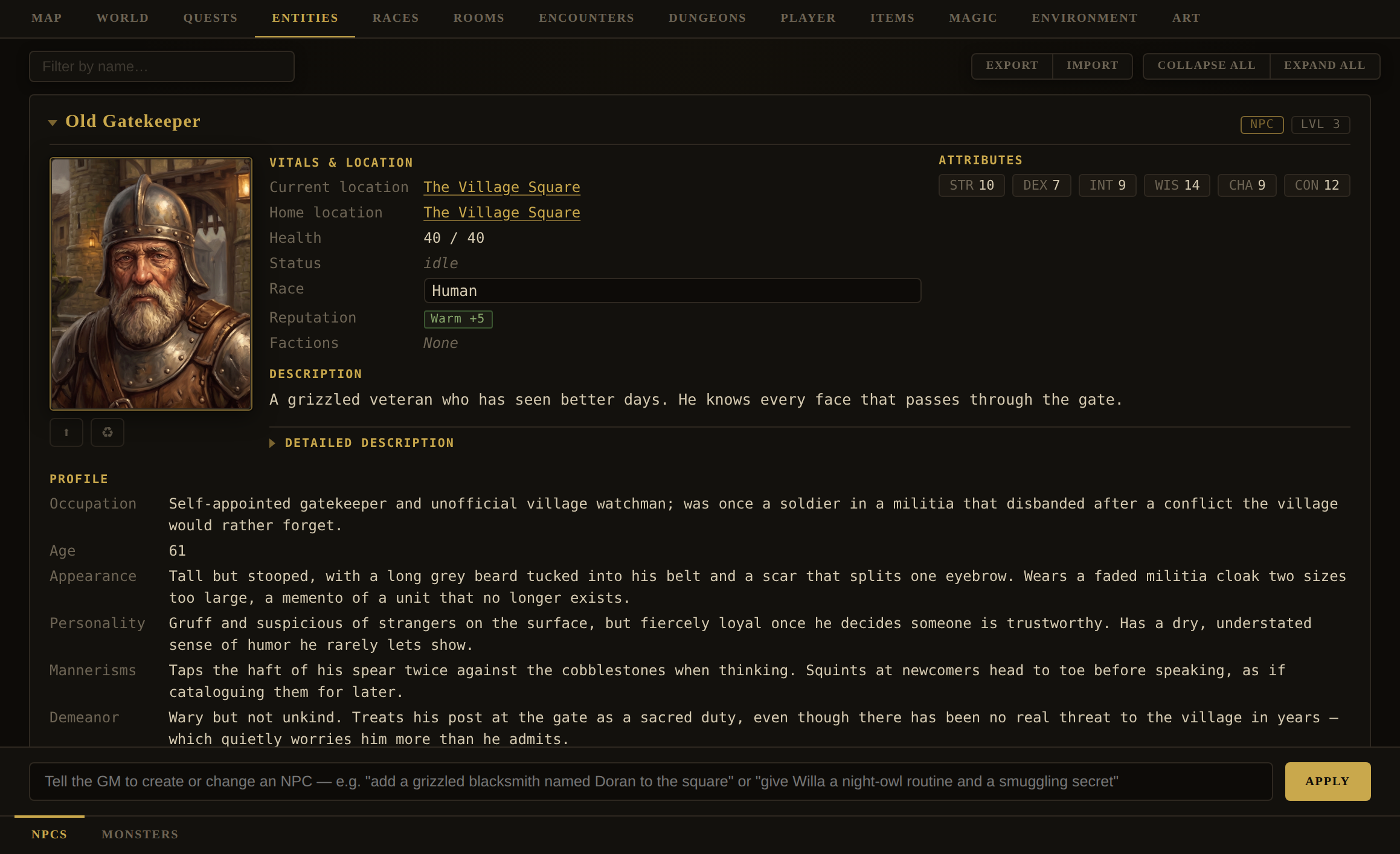
GM box examples (NPCs): "add a grizzled blacksmith named Doran to the square" · "give Willa a night-owl routine and a smuggling secret" · "add the Ironvale Guard faction to both Town Guards".
Monsters: "add a pack of dire wolves to the forest road" · "make the cave troll stronger and give it a regeneration ability" · "make the crypt wraith respawn after 3 days" · "set a size on every monster that has none".
location (a room id) — that's required. Editing by exact name updates every being that shares it, so two "Town Guard" NPCs change together.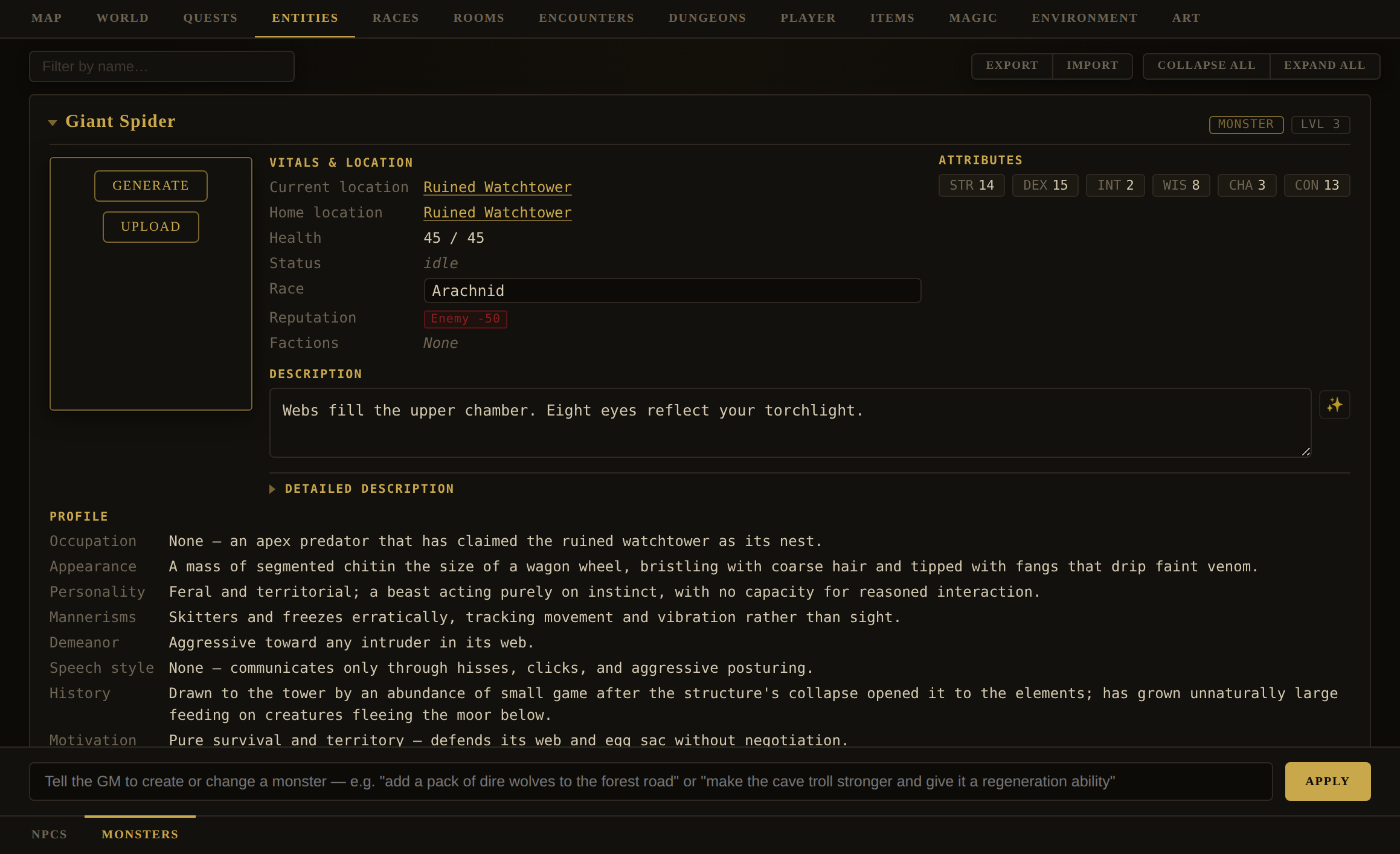
| Entity field | Meaning |
|---|---|
name, type | type is npc, monster, or animal — the behavioural split. |
race | Free-text people/species (NPCs & monsters), editable inline; ties to the Races tab. |
gender | male · female · other, from a dropdown directly under Race on every NPC and monster card (animals have neither). Blank is a real answer and stays in the list: an unstated gender means nobody has decided, which is a different statement from Other — and the Game Master is told to judge an unstated one from the description rather than guess. Unlike Aggression and Size below it, this is a fact about the individual and is not written through to the catalogue type: two beings called Town Guard are two people, and making one of them a woman leaves the other, and every guard yet to spawn, exactly as they were. The GM reads it in the room dossier (every line it writes about a being picks a pronoun), and the being's paper doll and full-body render read it for the silhouette. |
age | A number box beside Gender, offered on every being including animals — a three-year-old wolf and an old one are different creatures to narrate. Typing a number writes a birthday behind the scenes (the same mechanism the player's own Age/Born pair uses), so a being's age follows the world clock from then on rather than staying whatever you typed — wind a world forward five years and the blacksmith's apprentice is five years older without anyone touching the card. A card also shows the day it was born, once one exists. Clearing the box clears the birthday and falls back to whatever the free-text profile.age says (see below) — which is why the built-in world can still say a lich is "over four centuries dead" rather than a number. This is a fact about the individual, like Gender, and never travels to another being of the same name. |
description, detailedDescription | The blurb and a fuller write-up. |
level, stats str/dex/int/wis/cha/con | Power and the six attributes (shown as chips). Scale stats to the being's level. |
hp / maxHp | Health pool. |
reputation, status, alive | Standing toward the player, current activity, and living state. |
classes | 1–3 kind tags (undead, humanoid, beast, construct…) — used to judge what actions are feasible against it. Distinct from type. |
factions | Memberships { ref, role, reputation }. |
aggression | How readily it starts a fight — evasive, passive, defensive, aggressive or hostile, picked from a dropdown on the card. The five are one word each so they read as one scale, which costs hostile its old spelling hostile-on-sight and with it the part that explained itself: it means the being attacks on sight, with no parley, and evasive at the other end means it will not be approached at all. Distinct from reputation, which is what it thinks of the player and moves with play; this is what it is like and does not move. Blank is a real answer: an unstated aggression is not "passive", it is a being nobody has decided about, and the GM judges it from the fiction. |
size | How big it is — tiny (a rat, under 1 ft) · small (a badger, 1–4 ft) · medium (a human or a wolf, 4–8 ft — the player's own scale) · large (a bear, 8–16 ft) · huge (a troll, 16–32 ft) · gargantuan (a dragon, over 32 ft). Also a dropdown, directly under Aggression, on every card including animals. It is not decoration: the GM reads it to settle what physically fits, fits through and fits inside — a rat rides in the player's pack, a wolf does not — and to weigh a grapple, a shove or a lift between two things rows apart on that scale. It is also the one fact a portrait cannot carry, so it is what a victory banner paints the creature's true size from. Leave it blank and the banner says nothing about scale rather than guessing, which is how a rat once came out the size of a person. |
abilities, inventory | Named powers and carried items. |
equippedItems | What the being is wearing, as against inventory, which is everything it is carrying. The card's Equipment section lists each worn piece with the slot it fills, and its ⚙ Doll button opens the player's Equipment tab, for this being: the same paper doll, the same three Stored places (Back, Left Hip, Right Hip), the same pack column, and the same full-body render column with its Generate, Extract Portrait, Update, upload and gallery. It is not a copy of that screen — it is that screen, told a different wearer — so anything the tab learns, this learns with it. Drag from the pack onto a slot to dress the being, drag a piece off the figure to take it off. A being can only wear what it carries: add the gear on the card's Inventory section first, and taking an item away takes it off the doll with it. |
bodyPortrait, bodyGallery | The being's full-body render and every one it has worn — the same two fields the player carries, painted by the same pipeline from the being's own compendiumImage as the face and everything it has equipped as the prompt. Extract Portrait runs the other way: it crops a head-and-shoulders picture out of the render and adopts it as the being's portrait, propagated to every copy of that being. |
armor & the AC row | armor is natural armour — a hide, a carapace, a thick coat. The AC row above Health is derived and not typeable: worn armour's own ac sets the base (10 + DEX modifier when the being wears none), every other worn piece's signed acBonus adjusts it, and armor stands on top of whichever base applies. It is the same rule the player's AC follows, so a chain shirt means the same number whoever is wearing it. To change a being's AC, change its natural armour or what it has on — there is no box that would let the two disagree. A being wearing nothing scores exactly what it always did, so no world you have already authored moves. |
routine, routineDescription | Where the being is at each time of day, and a GM-eyes-only note on its habits. |
ambient | Self-acting atmospheric beats it performs (mutter, pace, comment). |
profile | Occupation, age, appearance, personality, mannerisms, demeanour, speech style, history, motivation, secrets — the actor's bible. None of it is shown to the player raw. |
lore, location, homeLocation | Hidden history fuel, and where it is / belongs. |
folklore | NPCs only — chips for the tales this person can tell, picked from a roster grouped by kind (World › Culture › Folklore). A monster or animal carries none — the field is for conversation. The GM's dossier lists, per room, only the tales tellable by whoever's actually present. |
respawn, respawnCooldownDays | Creatures only — whether and how soon it returns after death. |
restock, restockTo, restockHours | Per inventory line — whether a sold-out item returns, to what quantity, and after how long (world default 24h). Set from the Restock block on the being's Inventory section, directly under Respawn, same shape and same control; unticking strips the fields rather than leaving them dormant. Tops up toward the baseline only — never erases what a player has sold the merchant, and never restocks past it. See Merchant Restocking. |
acceptedCurrencies | Which currencies this being will take, in the order it prefers to be paid — empty means the base currency (Coin) only. A merchant who deals solely in gems refuses ordinary coin and says so; see World › Currency. |
tasks | NPCs only — errands or favours this NPC can ask of the player. Each is { name, description (the goal), subtasks:[{ text, xp }], completionXp }: a title, the desired end, the currently-known steps (each with a small XP reward), and a final XP reward for finishing the whole task. When you ask the GM to author an NPC it decides whether they warrant a task, scales the rewards to the task's difficulty (more for one that requires defeating enemies or long travel) and to the NPC's reputation toward the player (neutral or unfavourable → slightly lower), and may mint the items/other NPCs the task routes through — gating their appearance on the task's state (e.g. the fetched item need not appear until the player accepts the task or completes an earlier step). Send tasks to replace the set, or addTasks to add/update one as the story reveals new steps. You author these on the being's card, under Errands — name, what is asked, the XP, the coin, and the id in a field of its own — or by asking the bar at the foot of the tab for them. This roster reaches the Game Master at the table now, which for most of its life it did not: every living person in a room brings their open errands into that turn's dossier — the id, what is asked, your steps where you wrote any, and what it pays — as a menu for the Game Master to offer from when a scene opens one, never to be read out to the player. Finished ones are left off; one the player is already carrying stays, marked in hand, so the person can ask after it. When the player agrees, the Game Master sets taskOffered naming the person and the id, and everything the player carries is copied off your record — description, steps, XP — because you priced it and it is not the Game Master's to inflate. It may bring only this occasion's steps, and only where you wrote none, which is why a one-line prose errand is a perfectly good thing to author. An errand may pay in GOODS as well as coin, and for many people that is the truer payment — a smith in iron, an innkeeper in a bed and a hot meal. Set reward on the errand: catalogue ids and a note saying which one and how. Ids and never a described item: an id names an object this world already has, with its own value and lore, while a name composed at the moment of handing over mints a look-alike that reads correctly on screen and carries none of it. Where no existing item fits, create one — define it in the top-level items object exactly as you would an item the errand asks the player to fetch, and name its id here; the card marks an id the world does not have in red. Or leave the choice open, which is often the better authoring. Give the note ALONE, with no ids, and the Game Master authors the object when it hands it over — which is the only moment anyone can see who finished the errand. Say in the note what the choice turns on. It may be the PLAYER (“an iron weapon suited to their class, from what is left of the ore”), where a cleric and a druid should not walk away with the same thing. It may be the GIVER (“the herbalist offers something from her cabinet”, “a meal and a bed for the night”), where what matters is that the thing is characteristically theirs, whoever they are paying. Only a vague note is a bad one: “a reward” leaves nothing to reason from. Listing ids WITH a note is the middle road — examples the Game Master may pick from, or past, so long as it stays inside what the world has. Where you have named ids it may not invent an object at all: a new one beside an authored one is a counterfeit of it. It is handed over once, and a second is refused and reported back. An errand the Game Master invents in conversation carries no goods reward at all. Write a coin fee as coin, not only in the prose. A task pays its XP through the engine; coin it does not — the figure you set is a promise, shown to the Game Master as “Promises: N copper”, and the Game Master decides whether, when and how much to hand over in the scene. Writing it as data rather than leaving it in the description is what lets it survive an hour of play and a trimmed transcript. The engine does one thing of its own here: it will not apply a payment twice for the same step, and a refusal is logged (Double payment refused) and reported back to the Game Master. An errand with two people in it can be written on both — the one who wants a thing carried and the one waiting for it — so whichever the player reaches first sets it going. Give both entries the same id — the field is on the card, so type one over the other and read them back to be sure. That is what makes them one errand, and the engine then refuses a second copy of it from the other end. Two errands on the SAME person may not share an id (nothing could tell them apart when one is offered) and the card refuses that edit; deleting an errand here removes the template only, never a copy a player has already agreed to. Different ids mean two errands, which is also a thing you may mean. This is not the only road onto the sheet. An errand the player agrees to that nobody wrote copies across through taskTaken, with the Game Master authoring whatever the world needs for it in the same breath — a creature placed in a named room, an object left lying in one; an order's duty arrives through the faction's roster instead. What an invented errand may pay is bounded where yours is not: XP and the scene's coin, never an order's standing, and no more than five errands stay open at once whichever door they came through. The Game Master also owns the ticking — a milestone is marked done by its turn field and not by the player, who has no box to click. See Tasks & the Small Work of Living §03a, §03c and §09a, decisions G, I, K, M and N. Rarely, the Game Master may promote a task into a full quest thread mid-play, when what the player took on for a courier's fee turns out to matter more than either of you planned — the task stays on their sheet, gains a line pointing at the new thread, and the thread opens already crediting the beats the task's own milestones cover. |
compendiumImage, portraitPrompt, ignoreArtStyle | Portrait and how it's generated. |
seen, seenCondition, discovery | Any being can be hidden. seen: false keeps it out of the sidebar, the room text, the map and the Compendium until found; seenCondition is the specific act that would find it ("searching the tall grass"), and an optional discovery: {skill, dc, hint} puts a roll behind it — the GM-only hint never printed verbatim. Omit discovery and doing the named thing is the discovery. A creature is not removed while hidden — it can watch, follow, or attack, and a hidden attacker reveals itself the instant it strikes. |
revealed, apparentName, identifyDC | Fauna only — the species gate, independent of seen. revealed: false shows the being everywhere as its apparentName ("a small brown bird") rather than its true name, until identified. A creature that is both hidden and unidentified must be found before it can be named — finding it only ever reveals that something is there. |
discovery.dc — having the skill is the whole of it, the same courtesy Herbalism has always paid a hidden plant. The GM's own actions are revealBeing and identifyBeing, each taking a name or an array and matching either the true or the apparent name. See Hidden Beings for the full design.wearing:[…] list naming the slot each piece fills and the one number that piece decides (an armour's base, a weapon's dice, a signed AC bonus), and flags those same pieces — WORN in its carries: list so the GM can tell a blade at the hip from a spare in the pack. A stowed piece — in one of the three Stored places — gets its own stowed:[…] list and a — STOWED flag instead: it is riding on the body and visible, so the GM can describe it, but it counts toward no Armor Class. Carrying a breastplate has never made anybody harder to hit. Once a fight starts each foe's own line in the combat block repeats what it is wielding, with the dice, and what it has on. The combat contract tells the GM two things about that: its AC already counts every worn piece, so never add the armour again; and a listed weapon's dice are the ones to roll for its blows, instead of a figure invented per turn. A foe with nothing listed is unarmed or improvising, which is a real answer rather than a gap. A being wearing nothing adds not one character to the prompt.Standing, Fame & Renown — the two scales, and which one is hidden
Your world carries two measures of how the player is regarded, and the difference between them is worth holding: reputation is what one person thinks of them, and Fame is what the realm at large has heard. Reputation is a visible number; Fame is a hidden one the player only ever sees as a word. Standing & Morality is the full write-up; this is what you need to run one.
Reputation sits on each being, on the engine’s single −100…+100 scale,
and the player sees both the number and its label in an NPC’s close-up. You set it on the being’s
card; the Game Master moves it in play with reputationChange. One asymmetry is deliberate and
catches people out: on a positive change the engine adds the player’s CHA bonus and their Fame
bonus; on a negative one it adds neither. Charm and renown open doors and do not soften an insult.
| Reputation | Label |
|---|---|
| +40 and up | Devoted |
| +20 | Friendly |
| +5 | Warm |
| −4 to +4 | Neutral |
| −19 | Wary |
| −39 | Hostile |
| below −40 | Enemy — attacks on sight |
Fame is one hidden number, fameValue, that the player never sees. They see
its label, and they are told once when the label moves — “Your fame grows — you are now
Notable.” Each tier also lends a persuasion bonus, which is the mechanical reason to care about it
at all: a famous character is believed more readily by people who have never met them.
| Fame value | Label | Persuasion bonus |
|---|---|---|
| 0 | Unknown | — |
| 25 | Locally Known | +1 |
| 75 | Recognized | +1 |
| 150 | Notable | +2 |
| 300 | Renowned | +3 |
| 600 | Famous | +4 |
| 1200 | Legendary | +5 |
Unknown is the bottom rung, not an error. A fresh character is nobody, and every surface that shows the label — the Character Profile, the Renown chip on a Legends entry — will say so until something moves the number.
Four things move it, and all of them happen in play:
| Source | What it adds |
|---|---|
| A quest beat unlocking | 8, and 20 more on the beat that completes the quest |
| Treasure collected | 12 per item, plus 1 per 500 copper of its value |
| Wealth held | 1 per 500 copper — but only past the highest total ever held. It is a high-water mark, so spending loses no Fame and re-earning the same purse credits nothing twice |
| The Game Master | fameDelta for a notable deed, or the fame field to override the label outright |
Your own lever is the console: // fame +150 or // set fame 300 (renown
works as an alias). It echoes the number and the label back, so you can see where a value lands
without consulting the table above.
// fame +N, // xp +N,
and the items by hand.Alignment is the third measure and the only one nobody computes. It starts at True
Neutral and the Game Master nudges it as the character behaves; the valid set is your world’s own
alignments map, each with a description the model is shown, so a world can moralise on its own
terms rather than on a borrowed nine-box grid. Set it directly with // set alignment Lawful Good.
Catalog — the templates, and what is using them
The NPCs and Monsters subtabs list the beings standing in rooms. Catalog lists something different: the templates a room's {"ref": "…"} resolves against. The distinction is invisible until it matters, and then it matters completely — a template is a description of a being, not a being. Defining one puts nobody anywhere.
So the column that earns this screen is the last one: what is using each template. There are three answers.
| The row says | Meaning |
|---|---|
| One or more room names | Beings built from this template stand in those rooms. It appears on the NPCs or Monsters subtab. |
| spawned by … | An encounter references it and spawns it as the player plays. In no room by design — this is correct, not a gap. The built-in world's villager is exactly this. |
| used by nothing | No room holds it and no encounter spawns it, so no such being can ever appear. Usually a Game Master that authored the template and forgot to place it. These sort to the top. |
Two controls per row. Place builds a being from the template into the room you choose — the repair for a template nothing uses, and equally the quick way to put a second Town Guard somewhere. Delete removes the template, and is offered only while nothing uses it: deleting one that is placed, or that an encounter spawns, would leave live beings whose reference resolves to nothing.
Editor · RacesRaces
Editor › Races
The peoples and species of the world. A race is lore-and-flavour: it gives NPCs a heritage and the player a sense of place. Beings reference a race by name.
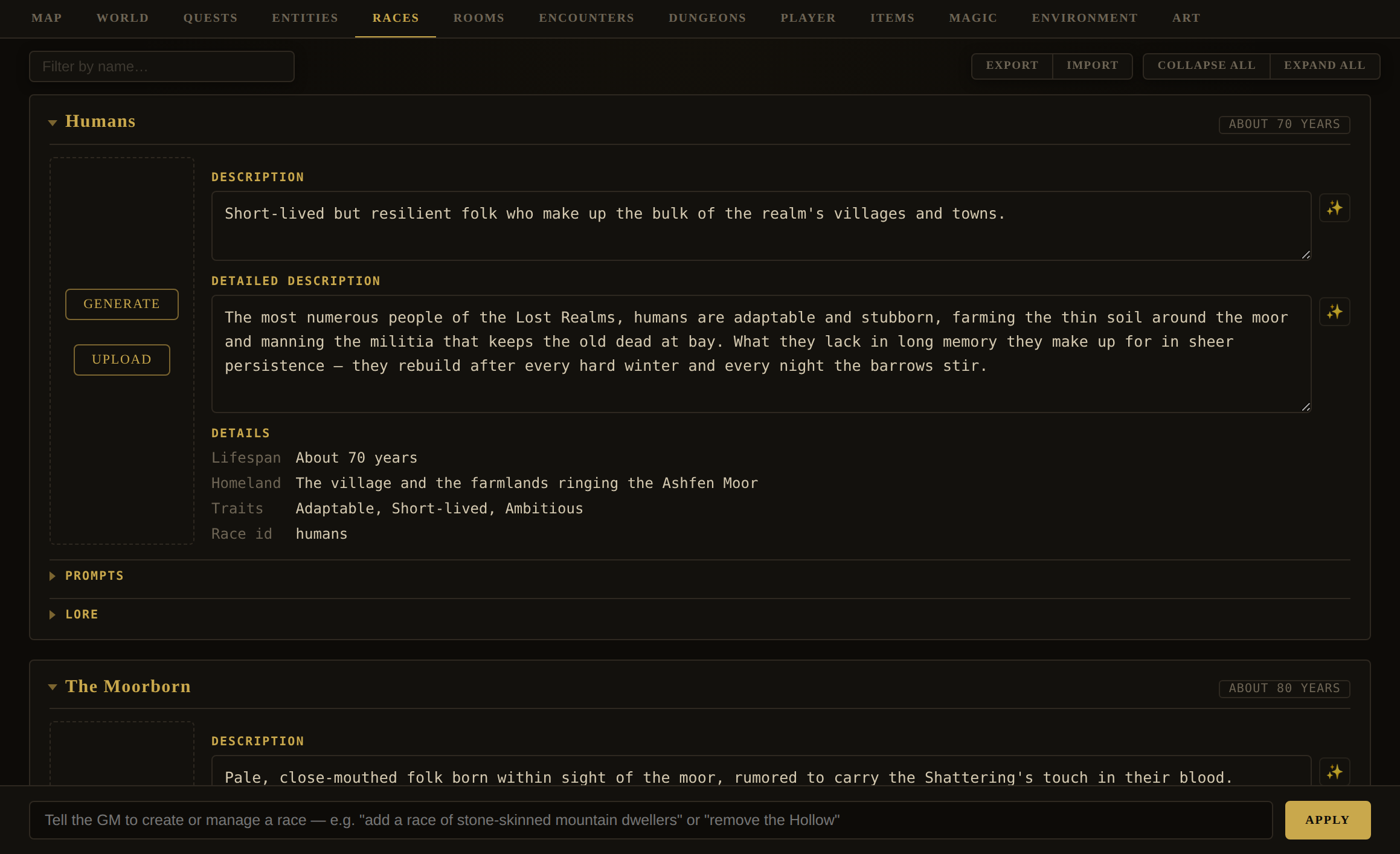
GM box examples: "add a race of stone-skinned mountain dwellers" · "give the Sylvani a 300-year lifespan and a woodland homeland" · "remove the Hollow".
| Race field | Meaning |
|---|---|
id, name | Identity. |
description, detailedDescription | Blurb and fuller write-up (both ✨-editable). |
traits, lifespan, homeland | Distinguishing features, how long they live, where they hail from. |
lore, loreKey, loreXp | Hidden history, the condition under which the player earns it, and what earning it pays. The GM box writes all three. |
abilities | Custom racial abilities — named, described traits, each rooted in a mechanic. A racial ability is inherent (members are born with it), so every racial ability is a PASSIVE (kind:"passive"): an always-true capability the character never rolls a check to use. (The "checked" modifier shape — kind:"modifier" with appliesTo/bonus, which rides a d20 check — is reserved for learned skills and granted boons, not a birthright.) A passive does one or both:
|
portrait, portraitPrompt, ignoreArtStyle | A representative portrait and its prompt. |
Editor · EnvironmentEnvironment — Flora & Fauna
Editor › Environment · inner subtabs: Flora / Fauna
Environment gathers the world's natural life — plants and non-hostile wildlife — so they don't clutter the Items and Entities tabs.
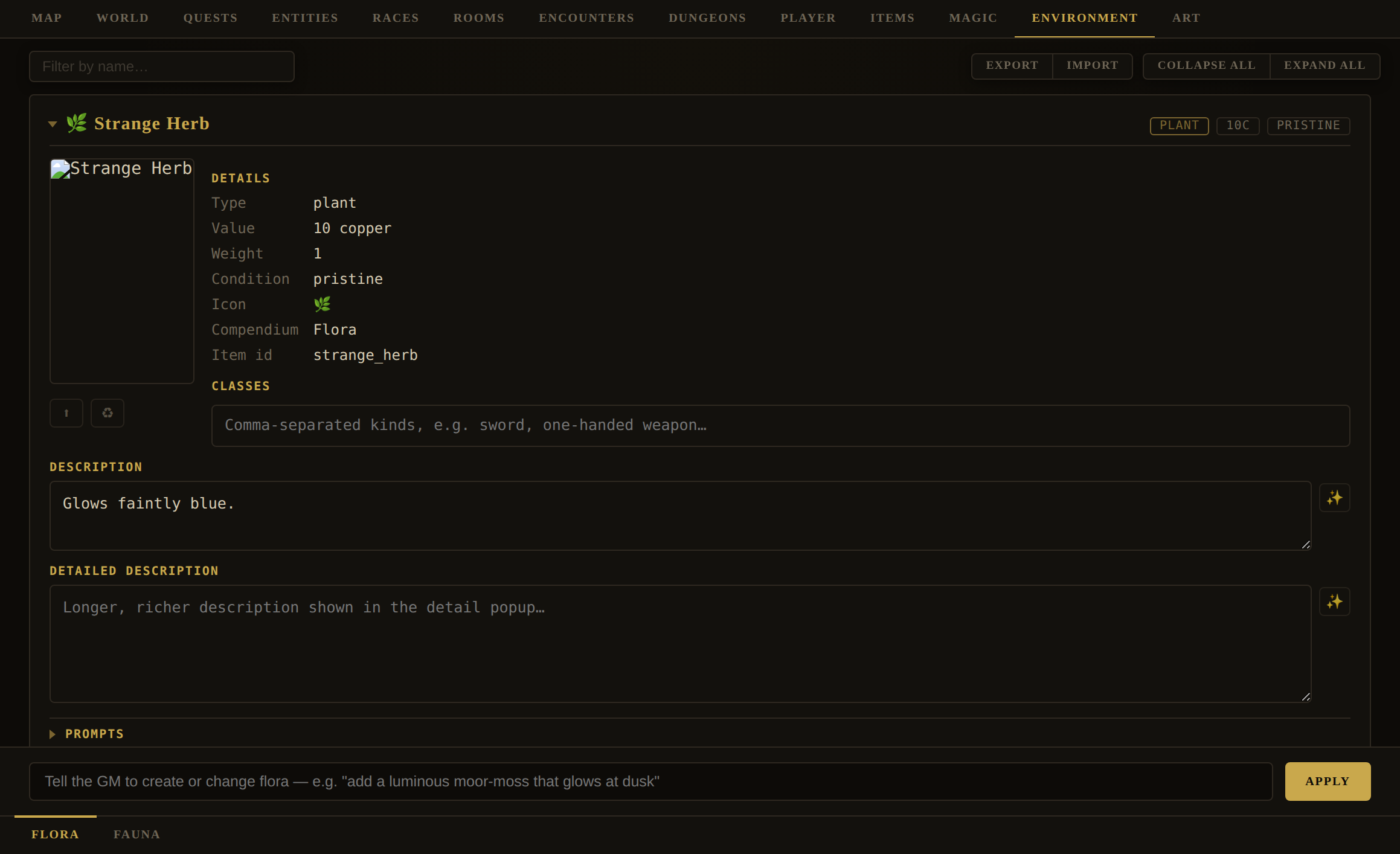
- Flora — plant-type items. They use the same card as the Items tab, scoped to
type: "plant". Author with the GM box ("add a luminous moor-moss that glows at dusk"). Common vegetation is usually worth 0 coin; give it an evocative icon (🌿🌳🍄🌸) and asubtypestag (herb/tree/fungus/flower). - Fauna — animal-type entities. These are beings, not items, so they use the full entity card (stats, hp, size, aggression, routine, ambient, portrait) minus race — and
sizeearns its keep here more than anywhere, because a wildlife roster is where the difference between a thing that fits in your pack and a thing that does not is most often the whole question. Author with the GM box ("add a marsh heron that stalks the shallows"); new entries must be non-hostileanimals.
Editor · PlayerPlayer — Classes & Progression
Editor › Player · inner subtab: Classes
Classes are the archetypes a player can begin as. Each sets starting attributes, a starting loadout, the signature skills it begins knowing, and — optionally — a milestone progression timeline.
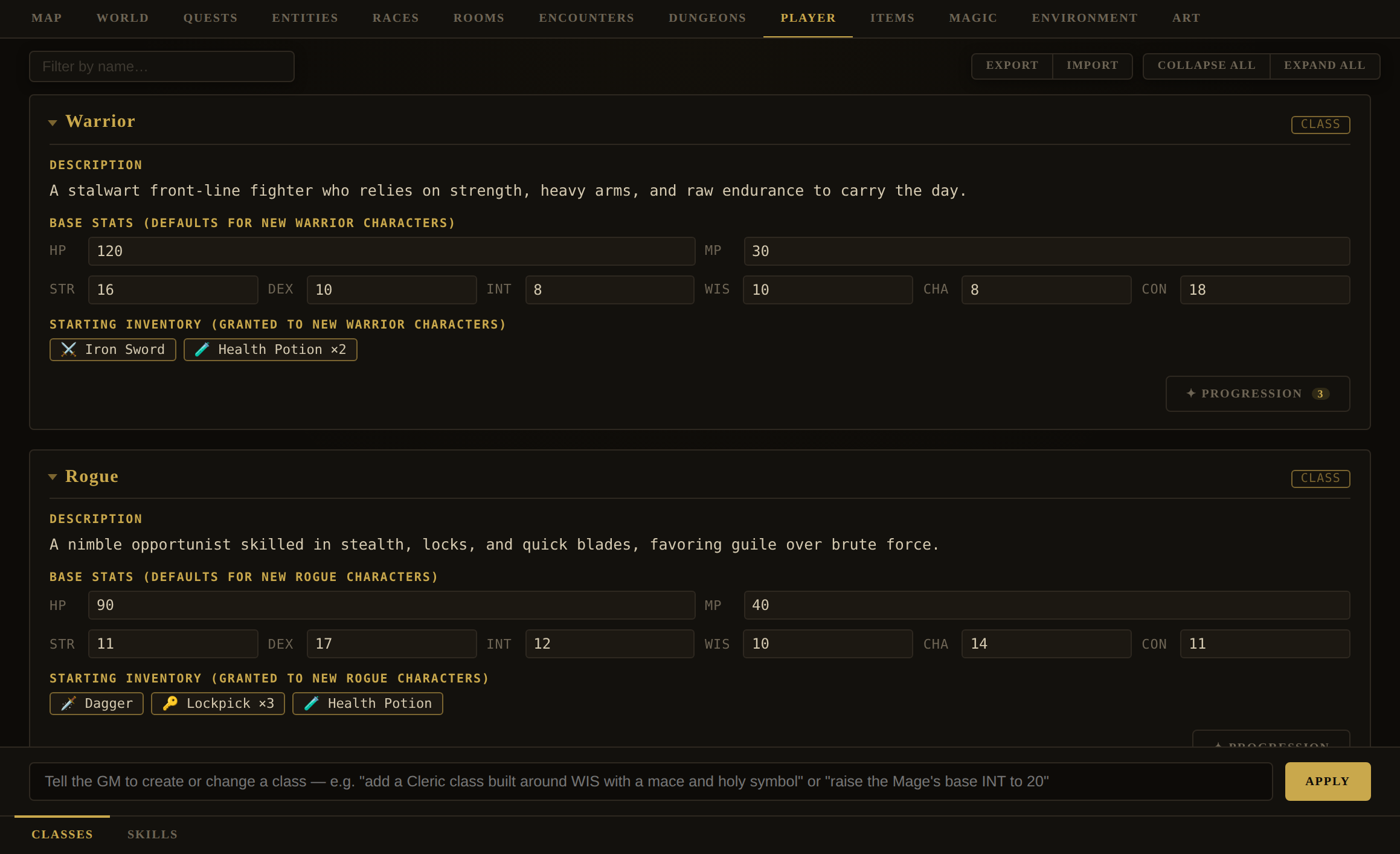
GM box examples: "add a Cleric class built around WIS with a mace and holy symbol" · "raise the Mage's base INT to 20" · "give the Ranger a bow and 3 arrows as starting gear".
| Class field | Meaning |
|---|---|
name, description | Identity and pitch. |
baseStats | { hp, mp, str, dex, int, wis, cha, con } — whole numbers ≥ 1. This is the one grid you edit directly on the card. |
startingInventory | The opening loadout (catalogue refs or inline items). Replaces, doesn't append. |
inherentSkills | Skill ids the class begins knowing — its signature abilities. |
equipmentSlots | Optional — overrides to the default paper-doll gear slots when a class equips differently (e.g. a Mage swaps its Shield slot for a Spellbook slot). Add/remove/replace ops; most classes omit it and use the standard slots. |
portrait, portraitPrompt | The class's picture and the prompt that paints it — the same pair a race or faction carries. Authored from the card's portrait column and Prompts › Portrait section, not by hand. |
progression | An optional authored milestone timeline (below). Built-in classes ship without one. |
The class portrait
A class card carries a picture, with the same controls every other object card has: Generate and Upload on an empty slot, ⬆ beside ♻ once there is one, and a Portrait box under Prompts with its ✨ writer and the per-object art-style override. It matters more here than almost anywhere else: a class is what a player picks from at the login screen, before they have seen a single room.
Leave the prompt blank and Generate still works — the fallback is derived from the class's description and its starting loadout, because gear is most of what tells two classes apart in a picture. A warrior and a mage differ in the frame by what they are carrying far more than by any adjective, so the loadout you authored above is doing double duty.
portraitPrompt whenever it creates a class, and the portrait is painted straight afterwards without you pressing anything — the same courtesy a GM-authored race gets. An edit that does not mention the prompt leaves the one you wrote alone.The Progression dialog
Each class card carries a gold ✦ Progression button (with a beat-count badge). It opens a big dialog showing that class's milestone timeline — the rewards a character earns as it levels.
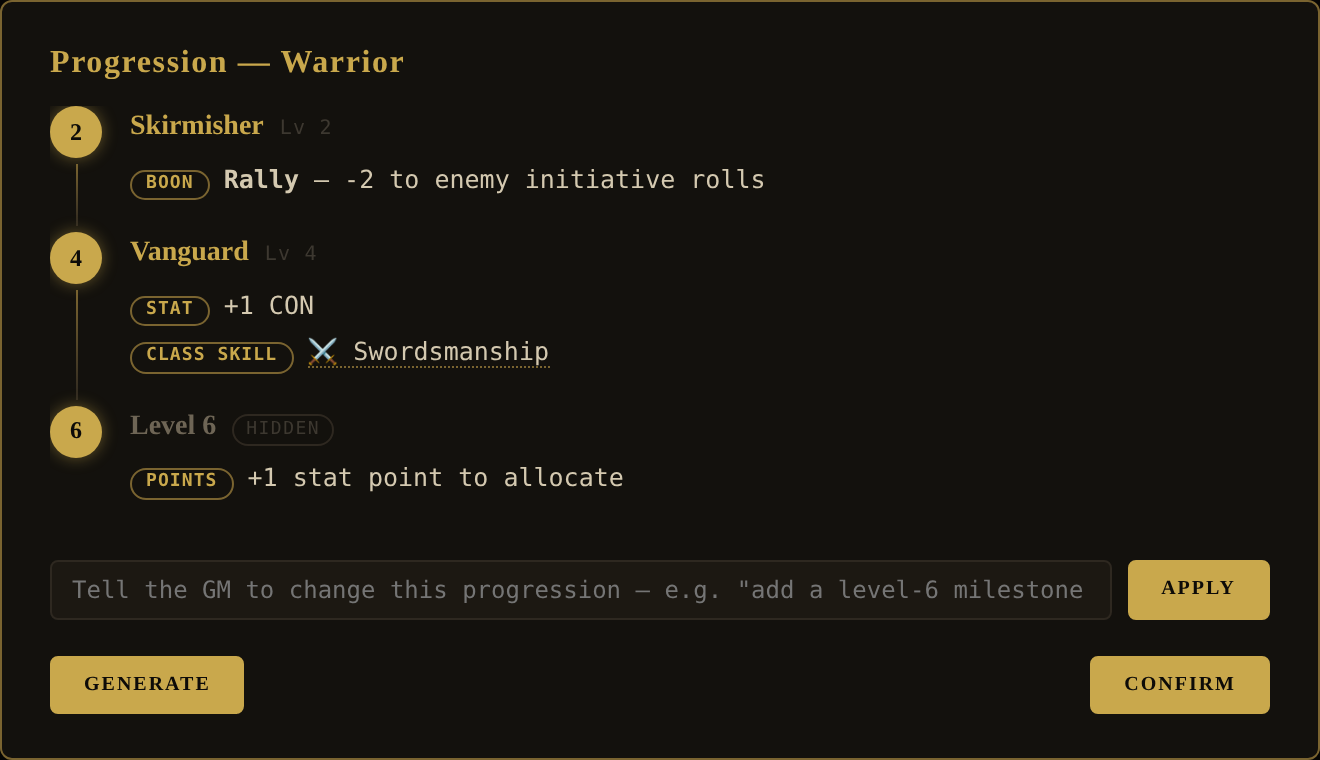
- Generate drafts a whole timeline. If one already exists it asks to confirm the overwrite first.
- The ask bar refines it in plain language: "space the beats out more" · "add a level-5 riposte class skill" · "give level 10 a +2 CON bump".
- Confirm simply closes — edits are already applied.
A beat is { level, title?, revealed, rewards[] }: a level (2+, since level 1 is creation), an optional nickname reserved for meatier milestones (it also becomes the character's honorific), a revealed flag (show the player the beat early, or keep it hidden until reached), and one or more rewards. Reward types: classSkill, skill, stat (a fixed bump), statPoints (points to allocate), and other (a mechanical boon). Timelines are meant to be sparse and front-loaded — a handful of beats across twenty levels, not one per level. The full design rationale is in the Player Progression doc; the player sees their own copy on the Character › Progression tab.
Editor · PlayerPlayer — Skills
Editor › Player · inner subtab: Skills
The world's skill catalogue — the proficiencies the GM rolls against when an action calls for one. Skills are what classes grant, books teach, and mentors train.
GM box examples: "add a Pickpocketing skill for Rogues (DEX)" · "make Herbalism governed by INT" · "add an open-to-all Swimming skill, DC 10".
| Skill field | Meaning |
|---|---|
id, name, icon | A lowercase_snake_case id, a display name, and one emoji. |
stat | The governing attribute (str/dex/int/wis/cha/con) — the check adds its modifier. |
classes | The class gate. Empty means anyone can use it; listed means it's a signature of those classes. |
baseDC | Base difficulty, 5–25. |
description | What it does (inline-editable, with a ✨). |
type: "book" with teaches: <skillId> — reading it is an INT check vs the skill's DC, one attempt per character level); and mentors. Root skills like Spellcasting are hard-gated off-class; softer skills can be learned off-class at lesser effect. The built-in catalogue runs three tiers, not two — Venomcraft and Apothecary are the only tier-3 skills, both built on Concoction, which is itself tier 2 behind Herbalism. A tier is a rung a skill's own prerequisites climb to, never a flag, so a skill built atop a tier-2 skill cannot itself be tier 2 without outranking its own parent. The rules are in Player's Handbook Ch. 9 and the Character Skills doc.What the Game Master can see of this tab
Until recently, only the skills a character had learned reached the Game Master. The world's catalogue — everything a character could learn — was never sent, and that had one consequence worth knowing about as an author: the GM could not name a skill the player had not got. Asked to adjudicate something that wanted training the character lacked, it either refused in general terms or invented a plausible-sounding skill name, and an invented name is a dead end you did not write. The player goes looking for it in their Skills panel and there is nothing there.
The whole catalogue now travels in the cached half of the prompt, with each skill's name, id, governing stat, base DC, tier and — for a gated skill — what it wants first, by name. So a refusal can say “that wants Apothecary, and you would need Concoction before it”, and every word of it points at something the player can actually go and learn. Two things follow for you. Anything you author here is immediately nameable by the GM, so a skill with a vague description will be recommended vaguely. And the catalogue is cached, not per-turn, so its cost is one write rather than a charge on every turn — see What it is costing you.
Crafting
Crafting is built. All seven phases of the design in Crafting have shipped — the skills, the skill catalogue the Game Master is briefed with, dismantling, assembly with its hours-and-stages dial, the recipe a successful craft leaves behind, the condition ladder, and repair. Everything below describes what the engine does today, and the part you author for it is authored in this very tab.
Crafting is the mundane half of making things, and it is three acts: putting materials together into an item, taking an item back apart into materials, and repairing a worn one. It is adjudicated by the Game Master rather than by a recipe table, which is the deliberate opposite of Concoctions, and §2 of the design doc argues why both are right: a concoction is magic and magic is specific, so its catalogue is closed; there is no canonical way to make a knife, and a table of authored knife recipes would be endless and beside the point.
Two rules shape everything else. A craft combines what already exists and never creates it — no conjuring a material to make the thing you want — so the economy is bounded at the input end by your world's own material stock rather than by a value ceiling you would have to keep tuning, and magic falls out of scope by that same logic, since magic is not a material a hammer can work. And the cost is hours, under four rules a player can guess without being told: aim higher and it is harder and longer; rush it and you will probably botch it; take somewhat longer and it goes somewhat better, up to a ceiling; work through the night and you get worse at it, because a long craft advances the clock and the sleep-deprivation tiers are already wired into every roll.
The hours buy stages, one check each, and the grade you land on is how many you cleared — so a player reaching for a masterwork and falling short comes away with a good blade rather than nothing. A successful craft leaves its recipe behind in the save — on the PLAYER, not the world, because a discovered method is knowledge a character earned rather than a fact about the place — and it can be worked again with no GM call at all. A re-run is still a sitting per turn, though: what re-use saves is the model call, not the hours. Both halves live in the player’s Character › Crafting tab, which lists unfinished projects on one side and the known methods on the other.
craft directive — the
target, the craft it wants, a DC, the hours, what it consumes, and a spec for the result — and the
engine owns everything after that. It checks the materials really are in the pack and refuses with a
list when they are not; spends them at once, because the leather really is cut; puts a half-made item in the
pack in their place; then works one sitting of about eight hours per turn, rolling a stage at a time,
until the piece is done.
Two figures are worth understanding because they are the whole of the player’s decision. The grade they ask for sets how many stages the work takes and how hard each is; the hours they give it are weighed against what the job wants. Short by a quarter costs +2 on every stage (to a ceiling of +6, which is all the arithmetic allows); over by a quarter buys an extra stage, never more than two. How far up the stages they got is the grade they land on — so reaching too high usually yields an honest lesser piece rather than nothing, which is what makes the gamble worth taking. Do not narrate the outcome: describe them setting to work and let the engine’s manifest say how it went, and do not describe a finished piece until the engine says it is finished.
mineral, tanned leather an animalpart, a bolt of linen misc. What
marks them all is the subtype material, which any type may carry.
Use it on anything you author that a craft would consume. It is what lets a player (and the Game Master) tell stock from a finished piece at a glance, and the Game Master is told to add it to anything it invents that fits. The pairs to keep straight: material is stock somebody stocks, salvage is what a working left behind, and a thing can honestly be both — a scrap of iron off a sword is salvage, and if your world also sells scrap iron it is material too.
One word to avoid on a material: component. The engine reads
ingredient, reagent and component as alchemy, so anything wearing one joins the concoction
recipe picker and reaches the Game Master as an ingredient for brewing. It is the right English word for a small
fitting and the wrong label for one.
Where a player buys it. Market Row keeps two traders beside the herbalist — Hesk the tanner (hide through cured to tanned, sinew, tallow, bone) and Wenna the chandler (board, haft, glue, pegs, charcoal, rivets, and cloth from fibre through thread to bolt) — and Aldric’s forge carries the metal: ore, ingots, charcoal and flux. Both Row traders keep the herbalist’s hours and are gone after dusk, so a player who wants materials at midnight wants the morning instead. Engraving stock is deliberately sold nowhere — gold leaf and niello are not village goods, and where they are bought is a question your world gets to answer.
Making a trader of your own, which is the part with a trap in it. A vendor is simply an NPC who
CARRIES the stock — there is no shop screen and no shop record; the Game Master adjudicates the sale out of what
the being has on it. Putting merchant in a being’s classes does not create that: it is a
label, which files them under ⚖ Merchant in the Compendium and is what the Game Master attaches when you
ask it for a trader. Useful, and not the mechanism. What makes somebody a shop is stock, a price on it, and being
somewhere the player can reach at the hour they get there.
Stock by ref, not by copy. An inventory row of
{ "ref": "tanned_leather", "quantity": 4 } hands over that catalogue entry — its price, its
description, its picture, all still answered in one place. Writing the item out inline instead gives that trader a
second definition of the same thing, and the two drift the first time you reprice one. And a mistyped ref is
silent: it does not warn and does not fail, because the engine mints an empty entry under the id it did not
find. The stall then sells something with no name but the id, no description and no worth, which looks exactly like a
shop the player has already cleaned out. Read a new trader’s stock back off their card once, and you will never
meet it.
Give them hours, and make the room agree. A trader with a routine that leaves the room
is genuinely unavailable then — which is good, and is why the Row is bare frames after dark. The room’s
own time-of-day descriptions are separate prose and will not follow on their own: a description that still has somebody
hawking at midnight while their routine has them asleep is the kind of contradiction the player meets and the engine
never notices.
A world you GENERATE is asked for its own. The World Builder’s directive now tells the Game Master to
author a working stock — two or three materials per craft the world actually practises, typed by what they are, in that
world’s own register (a realm of ash and bone does not sell oak planks) — and to put at least one trader who deals in
materials rather than gear somewhere the player passes early. So a generated world should arrive with the supply already in it.
The id crafting is load-bearing, and the engine now guarantees it. Making, mending and
taking apart all read that one id, the way every cast reads spellcasting — so a world that keyed its
smith-craft Smithing and had no crafting at all lost all three acts for the length of the game.
The refusal was honest (that is the Crafting skill, and you have never learnt it) and permanent, because a
skill your world does not define cannot be learnt either. That is fixed in the engine rather than left to you to
notice: crafting joins the short list of ids the engine guarantees, beside the two a container trap’s
detect and disarm DCs default to, and it is filled in from the built-in catalogue whenever a world is built or a save is
loaded. So it is in your world now whether you authored it or not, including in a world saved before this was true.
The cost is a world that deliberately wants no crafting carrying one unused row in its skill list, which is the better
side of that trade. The generation directive still asks for the id by name, so a generated world names it on purpose
rather than by rescue.
A region you build gets a different instruction, on purpose. It joins a world that already has a supply and is handed the list of it, so the Game Master is told to reuse first: a region that mints an “Iron Bar” beside your “Iron Ingot” has not added a material, it has split one, and nothing merges them afterwards. What it authors is what that place actually yields — ore from mining country, timber and pitch from forest, hide and horn where the herds are. And it gets a trader only where the region has somebody to sell from: a wild region’s materials are found rather than bought, which is the right answer rather than a gap.
If your world is your own, the MATERIALS are not in it — a world you have edited or imported is exempt from the built-in merge, by design, so new content never rewrites somebody’s realm. Ask the Game Master for the set on Editor › Items: add a stock of crafting materials — ore, ingots, charcoal, hide, leather, timber, plank, thread, cloth — each with the subtype "material". The skill is a different matter and needs nothing from you: it is guaranteed rather than merged, so an imported world has Crafting even though it has none of the stock. That is the right way round — a skill with nothing to practise on is a prompt to go shopping, where stock with no skill to use it would be furniture.
“Auto Roll Skills” governs the bench too. With it off, all three crafting acts ask the
player for a d20 from the bag and resolve it in the engine — you are not asked for a skillRollRequest
and should not narrate a result, exactly as when the engine rolls. A craft asks per stage, not per sitting: a
sitting makes one check per stage and each is the player’s to roll, so a long piece of work stops at every stage.
The banner follows the same unit, which is why it is one card per sitting when the engine rolls and one per stage when
the player does. The hours are identical either way.
That is deliberately the gentler of two possible answers and it is not as gentle as it looks, because the cost is paid later rather than at once. The week is gone and the fatigue was real; more to the point, a craft can be no better than its worst material, so stock that has been through a failure caps everything it goes into afterwards. A smith who botches twice is working ruined iron and can make nothing better than ruined out of it. You do not have to enforce any of that — the ladder does it — and it is worth knowing so you can narrate the loss at its real weight rather than as a total one.
Two details in case a player asks. A material with a Compendium entry comes back as that entry, picture and all, rather than as a same-named copy with default stats; something uncatalogued (your room clutter, a thing they made themselves) comes back as what it was and mints no new entry. And where the returned stock merges into intact stock of the same name — one entry, because things stack by name — that entry takes the worse condition. A player who kept spares does not get to launder the damage through them.
partial subtype. It
cannot be worn or wielded, it never reaches the Compendium, and its picture is repainted as the work goes. That makes it
something you can author: a half-forged blade on a dead smith’s bench, a shop’s abandoned
seconds, a reward nobody could finish. The player picks it up and resumes it like their own.
An authored partial has no conversation behind it, so it has to carry everything itself. Give the item
"subtypes": ["partial"], "minor": true (which keeps it out of the catalogue and the
Compendium), and a "project" block holding target, grade, stages,
done, skill, dc and hours — plus an item spec for
what it becomes. Leave any of those out and they are filled in with defaults rather than lost.
One rule binds you the same as anyone: an unfinished thing is not a loophole. Its TARGET must be something you could have authored outright — an unfinished masterwork is a tempting reward precisely because it reads as generous and costs the player work, and it is still subject to everything a finished one would be.
Worth knowing when you author: a made thing is an instance, not a type. It never merges with a
bought item of the same name, it keeps its own picture rather than sharing one with its namesakes, and a player may give
it a name of their own — so two swords in one pack may legitimately read the same and still be two swords. If you
author a sword called what a player’s own forged one is called, nothing collides and nothing is lost. A second
craft that genuinely differs from the first — a different recipe, different materials, anything craftSameThing
reads as a real difference — is never merged silently either: the engine renames the newcomer with the next free
ordinal off its own base name, so a second Fine Short Sword becomes Fine Short Sword (2) and the player
can tell them apart in a list. Two identical crafts off the very same recipe still stack as one, same as any other item.
A name the player gave a thing themselves is never overwritten this way.
repair directive mends a worn thing: name the item, the craft, a DC and the
hours, and optionally what it consumes. The engine adds the difficulty the thing’s current state deserves — the same +2/+4/+6
the ladder charges a dismantling — spends the materials and the hours, rolls, and moves it one rung up on a pass, two on a
critical, never past pristine. A failure does not make it worse; the hours and the materials are the cost, and they
are spent either way. Do not offer to repair something already pristine or a half-finished craft — the engine refuses both, the second
because it wants resuming rather than mending.What reads it: taking a thing apart is harder the worse its state (+2 average, +4 worn, +6 ruined, added to whatever DC
the Game Master set, and shown to the player), and what a dismantling yields comes out one rung below the thing itself —
so a good sword gives average iron, and nobody can take a blade apart and rebuild it forever. If you give a yield its own condition in the
dismantle directive, yours is kept; the one-rung drop only fills in where you said nothing.
A condition is always a fact about one object, never about its kind — worth stating because the engine got it wrong for a fortnight and the symptom was invisible from the pack. The rung a dismantling works out belongs to that scrap, so it is written on the piece the player is handed and never on the material’s Compendium entry. Sent to the entry it would be inherited by every copy minted afterwards and saved with your world: one ruined sword taken apart, and every scrap of iron anybody ever gets in that realm is the scrap off that sword. If you see a material in the Compendium whose Condition you did not write, that is what it was; it is fixed, and the box is yours to set.
One more, because it looks like a bug from the outside: salvage merging into stock you already hold takes the worse condition. Things stack by name, one entry cannot hold two states, so ruined scrap dropped into pristine scrap makes the whole entry ruined. That is deliberate — the alternative is that a player holding a little of something can launder any amount of damage through it — and it is the same rule that bounds a craft by its worst material.
It matters for authoring: an item you write as worn is now meaningfully worse to work with, not just described that way. If you want flavour without a penalty, use a word the ladder does not know.
And it bounds what can be MADE from a thing. A craft’s result takes the lower of two figures: how well it was made (the grade the player’s hours and rolls earned) and the worst condition among the materials that went into it. So scrap iron makes a poor sword however long somebody works at it, and the condition you put on an ingot is a real constraint on what a smith can do with it. The grade still names and prices the piece, so a Pristine Short Sword in good condition is not a bug — it is a beautifully made thing out of ordinary stock. A critical on the final stage of the work beats that bound by one rung, which is the one way a smith exceeds their materials. Materials whose Condition box is empty impose no bound at all, so you only need to fill it in when you mean it.
The parts do not have to exist in your world already. The Game Master invents them and the engine creates them — you need not have authored an “Iron Ingot” for a sword to yield one. This is the exact opposite of the rule on making things, and the two are worth holding apart: a craft may not conjure its materials, because there the player is asking the world for something it may not have; a dismantling only takes out what the subject was already made of, and the subject is a real object the engine has just checked is in the pack. The constraint is plausibility rather than inventory — whatever comes out has to be plausibly that object taken apart, which is what stops a dismantling becoming a way to hand out treasure.
Which makes an item’s Description the field that decides this, so write it accordingly. The Game Master is handed each carried item’s Description and (truncated) Detailed description alongside its name, and those are what it reasons from. A chest called Bound Chest and described as “a wooden chest with iron bands” comes apart into scrap wood and iron bands; the same chest with an empty Description gets whatever the model supposes chests are generally made of. If a thing has parts worth recovering, say what they are in the Description. It costs you a clause and it is the difference between the parts being yours and being invented.
The distinction the Game Master is asked to draw is between an assembly and a single whole, and your wording is what settles it. A chest, a sword, a lantern are assembled from parts and come apart into them. A clay pot, a glass bead, a cast ingot are shaped in one piece from one substance and do not revert to it — a pot does not dismantle into clay, because that is unmaking rather than taking apart. Where breaking such a thing still leaves something usable the Game Master names the broken form instead: pottery shards, not clay. And a single whole can still carry separable things: a clay pot set with gemstones yields pottery shards and the gemstones, because the stones were fitted to it and were never part of its substance. A thing with no parts and no useful broken form — a candle, a plain cup — yields nothing, and the Game Master is told to say so rather than invent filler.
An item can settle this once, and then it stops changing. Give an item a Comes apart into list and every dismantling of it yields exactly that — the Game Master’s own suggestion for the turn is ignored, because the world has already answered. Without one, the parts are worked out afresh each time, so the same sword can give iron and leather today and steel scrap and a grip wrap tomorrow, and neither is wrong. The list is read-only in the editor, on the item card and in the item dialog: it is written by the Game Master when it creates the item, and you can have it added to an existing item at any time by asking — record what a short sword comes apart into. That is not a missing control. The list has to stay plausibly the object, which is a judgement about that object’s own description, and a box you could type in is an invitation to put a ruby in a sword.
And the first dismantling settles it for you. Where an item has no list and somebody takes one apart successfully, the engine writes what came out of it onto that kind of item — so the second short sword comes apart into exactly what the first did, and nobody works it out twice. The player is told when it happens (you will not have to work out what one of these is made of again) and the Logs record it, because it is a change to your world that nobody asked for. Three things about it are worth knowing. It happens on a success only: a failed attempt taught nobody anything, and the guess at what was inside was never put to the test. It is recorded against the kind of item rather than the one that came apart — that one has just been consumed, and what a sword is made of is a fact about swords. And it never overwrites: an item that already answers this, whether you authored the answer or an earlier dismantling did, is left alone. If the first one got it wrong, have the Game Master record it again — a bound chest comes apart into scrap wood and iron bands, not planks and nails — which is the same path that wrote it in the first place, and the correction sticks the same way. A one-off with no catalogue entry behind it (a scrap of room clutter, something a player made) comes apart exactly as it would have and simply has nowhere for the lesson to live.
What the list does not hold is condition. A parts list says what a thing is made of — names and counts, which is all the card shows. What state those parts come out in is decided at the time, one rung below the thing that was taken apart, so a pristine sword and a ruined one give the same parts in different states off the same list. That is deliberate, and it is what keeps the ladder honest: a condition stored on the list would outrank it for ever, and one first dismantling that happened to yield pristine scrap would have every later ruined sword giving pristine iron. The Game Master may still name a condition for a part in the turn it invents one and that is honoured — it simply does not become part of the record.
What the list does hold is a price on each part, and that price is the one figure here the engine will argue with you about. Every part carries a value and a count, and together they are meant to come to a fraction of what the whole thing is worth. That is what makes taking something apart a decision rather than a trade: you give up a sword and get back less than a sword. Reverse it and dismantling becomes a money printer — buy the thing, take it to pieces, sell the pieces, repeat — and nothing else in the game closes that loop. The condition rung the parts lose on the way out reads like a brake on this and is not one: nothing in the engine prices an item by its condition, so a worn ingot fetches exactly what a pristine one does at the counter. The wear matters to what you can make from it, never to what you can sell it for.
The arithmetic to check is the one that is easy to get wrong: a part’s value is what one of them is worth, so three boards at 10 is thirty, not ten. The Game Master is told all of this now, in both of the places it authors a parts list, so a list it writes should already obey it. The ones to look at are lists written before that instruction existed, and your own hand-authored prices.
Two findings in the world evaluation watch it for you, and they are the only part of the crafting system the report can see — everything else about a craft is invented in the moment and exists in no world data to audit. A thing worth more in pieces than intact is reported when the parts come to as much as the whole or more. Parity counts: parts worth exactly the whole make dismantling free, and a free dismantling is not a decision either. A salvage part that carries no value is reported when a part has no price at all — which matters more than it looks, because the first time somebody takes one of these apart that part is minted as a real catalogue entry worth nothing, and from then on it stacks by name with every other one. The player collects something worthless and no later authoring can tell it from a part you meant to be worthless.
Both arrive as Your call rather than Ask the GM, and that is the honest badge rather than a cautious one: the data cannot tell which number is wrong. Parts worth more than the whole may be parts priced too dear, or an item that has been underpriced since the day it was authored, and a model told to “fix the balance” would pick a side and write a price nobody chose. Open the object, decide which half is wrong, and fix that one.
What the report deliberately will not tell you is whether the parts were the right parts, and it is worth knowing why, because it looks like an omission. A chest your description calls copper-banded should come apart into copper scraps even if your world holds nothing else copper — the parts have to come out of the object’s own description, and that description said copper. In the data that is indistinguishable from the Game Master minting an “Iron Bar” beside the “Iron Ingot” you already have, which is the thing it is asked to avoid. The only difference between the two is a judgement about the object’s prose, and a check that guessed at it would start flagging your correct authoring. If a near-twin ever does slip through, it costs very little: ask the Game Master to make the thing and it will reconcile the intent against whatever the player is holding, or tell them why the two are not the same after all. The one place it bites is a stored method, which matches its inputs by exact name and runs with no Game Master in the loop — so it will say short Iron Bar while the player holds ingots. That is a shortcut declining, not a craft blocked; ask for the thing the ordinary way and the next success overwrites the stale method.
Leaving it empty is an answer too. An item with no list does not mean “nobody got round to it” — it means the Game Master works the parts out at the time, and for a thing that genuinely does not come apart it will say so. And every part handed back is marked salvage whether it came from a list or was worked out on the spot, so what a working left behind is tellable from what somebody bought. That is a different label from material, which is what the catalogue’s own stock carries: salvage says where a thing came from, material says it is stock a craft consumes, and a thing can honestly be both.
Containers: empty ones come apart, full ones do not. A chest the player has emptied is boards and iron bands like anything else. One with something still in it is refused, and the player is told why — breaking it would take whatever is inside with it. That reads off the CONTENTS and not off whether the player has looked: a locked box nobody has opened is still refused while it holds something, since a character with their hands on it knows a full one from an empty one. If you want a container that can never be taken apart, leave something in it.
acquireItem stacks pack entries by name, so a second Iron Sword
merges into the first and the day marker rides on the entry — take one apart today and the other
is unavailable too. Same rule that makes a brewed concoction a “Potent Knitbone Salve”
rather than a salve with a potency field: to this engine, two identical swords are two of one thing.Editor · ItemsItems
Editor › Items
The catalogue of ordinary gear — weapons, armour, consumables, keys, books, treasure, and clutter. (Magic items, spells, and spellbooks have their own tab; plants live under Environment.)
GM box examples: "add a silvered dagger that harms undead" · "make the Health Potion worth 20 copper" · "add a locked chest to the vault holding a jewelled crown".
| Item field | Meaning |
|---|---|
id, name, type | Identity and kind — weapon, armor, wearable (jewelry, dress and regalia — worn for what it IS rather than what it stops, bordering armor), consumable, key, book, spellbook, scroll, plant, treasure, gem, ring, mineral, animalpart, misc, … |
description, detailedDescription | The blurb and a fuller write-up (✨-editable). |
value, weight, size, condition | Worth (always a copper integer, whatever currencies the world defines — see World › Currency), how heavy, how much container space it takes, and wear. |
icon / iconImage, image, prompt | An emoji or a generated glyph, a card picture, and its image prompt. |
subtypes | Kind/taxonomy tags for the item (e.g. sword, one-handed weapon) — a specialization of type. |
classes | Optional — character classes the item is restricted to (empty = any class may use it). |
ac, acBonus | ac: the base Armour Class a piece of body armour sets. acBonus: what every other worn piece (coif, helm, shield) adds on top. Two body pieces give one AC, decided by the body armour rather than the order worn. |
damage, damageBonus, damageType | For weapons: the damage dice (NdX / NdX+M), a signed magic modifier, and the type (slashing, piercing, …) — the offensive twin of ac. Shown wherever AC is; combat consuming it is a later phase. See the Weapon Damage design doc. |
lore, loreKey, loreXp, loreUnlocked | Hidden history, how it's earned, what earning it pays, and whether this character has earned it yet. |
minor | Flag for incidental room dressing — playable but kept out of the catalogue and Compendium. |
teaches | For a book or a scroll — a skill id or a list of them — a thicker primer teaches several, one lesson per read, in whatever order the reader doesn't yet know. For spellbooks, spell id(s), inscribed rather than read. |
teachesReagents | For a book or a scroll — an array of reagent ids. A receipt: reading it sets each formula down in the reader's compendium, no check and the item stays in the pack. Worth writing only for a reagent marked secret — teaching an open one grants nothing, and the card's Receipts picker and the item's own chip say so. |
chapters | For a book or a scroll — what it says, as a list of chapters. Each carries a title, a page of text (up to 4,000 characters, a chapter being a page), and optionally a plate: an illustration with its own image prompt, drawn to the left of the words when the chapter is read. Authored on the item card's Chapters section — each chapter is a chip, and a chip opens the chapter editor. An item carrying any chapter is never consumed, even once every teaches lesson is spent; one with nothing in it reads as empty. |
passage | The single page a book carried before chapters existed, and still does. A book with a passage and no chapters reads exactly as it always did and shows its page as one untitled chapter on the card; saving any chapter of it converts the field. Nothing migrates on load, so an older world file is untouched until you edit it. |
language | Which entry in World › Culture › Languages this object is written in — a fact about a book, spellbook, or scroll alike, not only a book's passage. A reader who hasn't learned that tongue's script sees glyphs; one who knows the script but not a given word sees a pronounceable placeholder instead of English. |
teachesScript, teachesWords, bilingual, teachesLanguage | A book or scroll (never a spellbook, which is inscribed rather than read) that teaches the tongue itself rather than — or besides — speaking in it: the alphabet as one flag, specific words as a list granted only where the lexicon defines them, the whole passage as a Rosetta stone whose every lexicon word is learned at once, or — the largest, meant to stay rare — teachesLanguage, a whole grammar that grants fluency: every word the tongue's record ever pairs, now and later, subsuming the other three. All deterministic: no GM call, no check, no consumption. NPC-taught words (teachWords in conversation) are P4 of the system and not yet built. |
container | Makes the item a container — see below. |
Containers, locks & traps
Any item can be a container. Its container object holds hidden contents (concealed until opened), a capacity, a lock (method none / key / pick / button / sealed, a pick DC, an optional key ref, and hidden-button details), and optional trap fields — a labelled effect that springs on opening, with detect and disarm DCs. Containers and traps are covered in the Containers design doc.
Treasure
Items of type: "treasure" are special: they're filed into the player's admired Treasure trove rather than usable inventory, and finding them raises Fame. Use them for trophies and hoard-pieces.
Editor · MagicMagic — Items, Spells, Spellbooks, Schools & Concoctions
Editor › Magic · inner subtabs: Items / Spells / Spellbooks / Schools / Concoctions
Everything arcane lives here, split five ways.
- Items — magic-type items (rings, wands, relics). The same card as the Items tab, scoped to the "magic" category. "add a ring of invisibility".
- Spells — the world grimoire. "add a level 3 healing spell" · "make Firebolt cost 8 MP and deal 18 damage". Fields:
id,name,school,level,mpCost,target,description,icon/image/prompt, aneffectsummary, and a GM-facing Usage note on what casting actually does in and out of combat (✨-authored). - View (in a book's Actions row, when it has at least one chapter) — the one control on an item card that is not an editor. It opens the book as the player meets it, shaped like an open book: the plate is the left page and fills half the width, cropped to fill it the way a printed plate is; the words are the right page and scroll on their own, so the picture facing them stays put. In the book's own tongue, translated only as far as the current character has got, one chapter at a time with a row of pips to move between them, each move turning the page in the direction you went. On a narrow screen the two stack and the plate becomes a band; a reader whose system asks for reduced motion gets no turn at all. The Chapters editor cannot answer this, and structurally never could — it shows the English, because the English is what you are typing — so until now the plainest question about a book in a world's own alphabet, can they read any of this yet?, meant putting a copy in the pack and reading it in play. It reads the character's knowledge and never writes it: nothing is learned, nothing spent, and there is deliberately no Translate button, that being one attempt per book per level and an act of play rather than something a preview should burn.
- Chapters (on a
bookorscrollcard) — what the thing says. Each chapter is a chip; + Chapter and any chip open the chapter editor, which puts the plate on the left and the page on the right — the same arrangement the chapter is read in. Three ✨ buttons: one beside The page asks the Game Master to write the chapter from the book's title and description and every chapter before this one, in full, so chapter four continues from chapter three instead of opening the book again; one to the right of Title names the chapter from what it says, refusing an empty page rather than inventing a heading for a chapter nobody has written yet; one under the plate prompt asks for a picture of this chapter rather than of the book. The plate is painted into the dialog and only reaches the book when you press Save, so Cancel really does discard it. - Spellbooks — the tomes that teach spells. Each card adds a Teaches section linking to the spells it grants. "add a tome that teaches Firebolt" · "make The Emberleaf Codex also teach Frost Lance". A spellbook item's
teachesfield is a spell id or list; reading it learns those spells. The app can even mint an evocative tome for a given spell for you. - Schools — one card per school the world's own spells and craft skills actually declare (derived from live data — a school appears without anyone maintaining a list). Each carries a name, a type of magic (divine, arcane, earthen, or whatever a world calls its kinds), an origin, a description, and a governing attribute that, once set, overrides the engine's own school→attribute table for every spell in that school — a world may re-point Restoration off WIS, or give a school the engine never named an attribute at all. Left blank, nothing changes. There is no GM box here yet; the cards are hand-edited.
Concoctions & Reagents
Concoctions is earth magic: compounded from ingredients by ritual rather than cast from a loadout, governed by the concoction skill (CON, tier 2, open to any class) rather than Spellcasting. Three tiers, three vocabularies — an ingredient is a real item (subtype ingredient) the player finds, buys, or cuts off a corpse; a reagent is a transformation of one, and is not an item at all — a record in world.reagents, with a count of prepared measures kept on the player; a concoction is brewed from reagents and is an item again. The tab's two inner panels:
- Catalog — one card per recipe (
world.recipes): the governingskillanddc, thehoursa working takes, a reagents map of reagent id → count, thebatcha single working yields, theyieldsitem (defaulting to the recipe's own id — a concoction is the item it makes), adescription, and a Preparation box for the rite itself in plain prose. + Add is disabled here, because a concoction names the item it yields and only the Items tab can mint one; ask the GM box for it instead once the item exists — "recipe a Knitbone Salve from comfrey root and beeswax, worked by poultice, DC 13". - Reagents — one card per reagent record, each carrying an
origin(where in this world it's got — what makes it findable rather than merely purchasable), its ownpreparation(how the raw ingredient is readied, distinct from a recipe's rite worked on several reagents together), the recipe that yields it, askill(the craft gate — defaults toconcoctionrather than to ungated, so a world cannot open the tier by omitting the field), andsecret(the formula gate — unticked, which is common knowledge, unless a keeper is meant to hold this one).
Playable end to end. A player prepares an ingredient into a reagent — a Prepare button on the item's card, or typing prepare <reagent> — labour rather than a roll: it spends the ingredients and the recipe's hours and always succeeds, once two gates are open. The craft gate is the reagent's own skill (see above) — without it, preparing refuses by name: "Preparing Knitbone Meal is Concoction work, and you have not learned it." The formula gate is secret — a character who has not been taught a secret reagent is refused with "You do not know how to prepare Cured Venom." A receipt book (an item of type: "book" carrying teachesReagents, an array of reagent ids) teaches a secret formula the moment it's read: no check, and unlike a skill book, the book is never consumed. Marking a reagent secret with no book or keeper anywhere in the world leaves it unobtainable, which nothing yet checks for. They then brew a concoction from reagents on hand — a Brew button, or brew <concoction> (brew 3 knitbone salve to scale up) — which spends the reagents and hours before rolling d20 + Concoction proficiency + CON against the recipe's DC; a failed roll still costs what was spent. The roll uses the engine's outcome ladder: a natural 1 spoils the working, a natural 20 lands it at the best grade, a total at or above the DC grades on margin (Workable, Sound at +5, Potent at +10), missing by one or two yields a thin batch (half the doses, floored, never below one, at the plain grade), and missing by three or more spoils it. dc (default 12) and hours (0 is legal) are authorable on the recipe with no upper clamp; the hours are discounted by the player's proficiency (skill level + 1, capped at 5) by about a tenth per step above the first, to the quarter hour — never by grade, which is only known after the clock has advanced. The grade is carried in the brewed item's own name and description, since the game adjudicates a consumable from its description rather than a hidden field. A recipe's batch and the player's chosen scale multiply how many doses one working yields; the DC and hours do not grow with the batch, so one roll governs the whole of it. The GM's dossier now carries the craft — what earth magic is, that prepare/brew are the player's own to invoke, that grade multiplies effect, and the measures currently on hand — and is told explicitly never to move a measure, decide a working's outcome, or hand over a brewed item on its own initiative.
Editor · QuestsQuests
Editor › Quests
Quests are threads of story told in beats. Crucially, they are GM-eyes-only: the player never sees a quest list or a beat title until play organically triggers it, at which point the beat is woven into narration and written to their Journal. As DM you see the whole thread — every beat, locked and unlocked, with its hidden trigger.
GM box examples: "add a three-beat revenge quest against Baron Vale" · "give the missing-child quest a reward of the silver locket" · "change the final beat's trigger to entering the crypt at midnight" · "remove the smuggling side quest".
| Quest / beat field | Meaning |
|---|---|
Quest id, title, summary | Identity and a GM-only description of the thread. |
Beat id, title | Identity and the heading the player eventually reads. |
Beat text | The Journal entry shown to the player once the beat unlocks. |
Beat trigger | GM The natural-language condition that unlocks it. Never shown to the player. |
Beat npcs | Exact NPC names the beat concerns — cross-referenced into the Compendium. |
Beat location | Optional — the room id (or exact room name) where the beat takes place. The Journal shows it as a clickable Location chip that opens that room's popup. Omit for a beat with no single location. |
Beat rewards | { ref, quantity?, note } — an item, a count, and a GM-only note on how it's obtained. Delivered when the beat unlocks. |
Each beat's badge toggles its lock state so you can test a thread without playing to its trigger (see Testing your world). Beats unlock one per turn, in order, only when their trigger is genuinely met.
Prompt & ImageHow art works
A world can be entirely text, but a handful of images transform it. The Lost Realms is built so that one line of visual direction — your Art Style — gives the whole world a consistent look, and so that the GM can write the individual image prompts for you.
Three ideas make the whole system click:
Style is global
Your world's Art Style is prepended to every image prompt at generation time. Change that one line and every banner and portrait re-skins to match.
Prompts are subjects
Each object stores a subject-only prompt — "a grizzled gatekeeper before a village gate" — with no palette or medium words. The style supplies the look; the prompt supplies the thing.
The GM writes prompts
Every ✨ button hands off to the GM to author a prompt grounded in that object's data and your world's canon. You rarely type prompts by hand.
So the division of labour is: you set the style once and pick a provider; the GM writes the subjects; the app combines them and paints. The rest of this part shows where each of those levers lives.
Prompt & ImageThe Art › Style tab
Editor › Art · inner subtab: Style
This is the control room for your world's look. It has four sections.
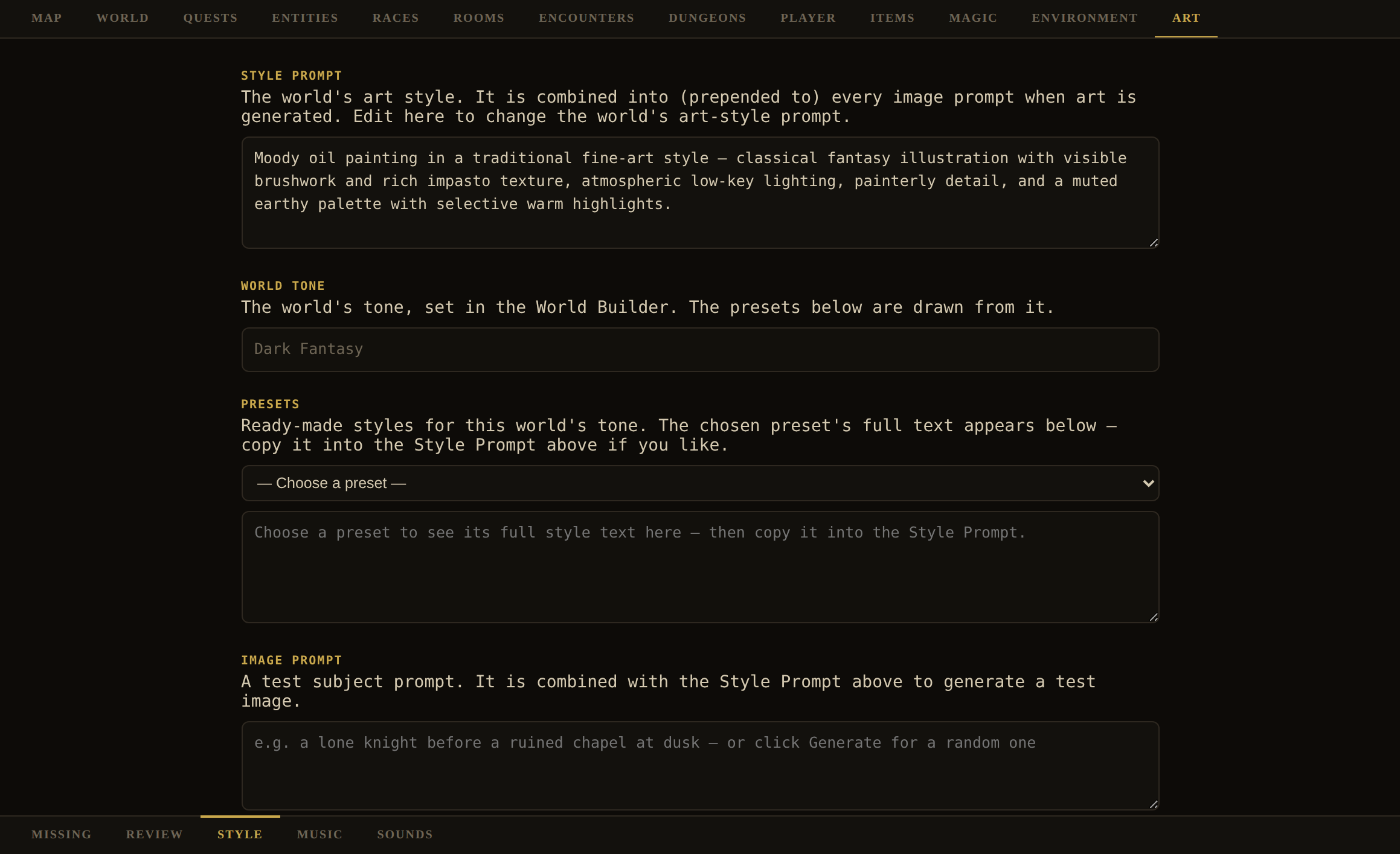
| Section | What it's for |
|---|---|
| Style Prompt | Your world's Art Style, live-editable. This exact text is prepended to every image prompt when art is generated. Rewrite it to change the world's entire look at once. |
| World Tone | Read-only, from the World Builder. The presets below key off it. |
| Presets | Ready-made styles for your tone. Choosing one drops its full text below so you can copy it into the Style Prompt. |
| Image Prompt | A test bench. Generate asks the GM for a random subject fitting your world; Test paints it through the real pipeline (style prepended) so you can preview your Style Prompt on a live image before committing. |
Prompt & ImagePer-object prompts & the ✨ handoff
Almost every object that can have a picture carries its own image-prompt field and a small set of controls. The glyphs are consistent everywhere:
| Glyph | Means |
|---|---|
| ✨ | Ask the GM to write the prompt (or, on an item icon, generate the icon) — grounded in the object's data and world canon. |
| ⬆ | Upload your own image for this object. |
| ♻ | Regenerate the portrait/banner from its current prompt. |
| Generate | Paint an image for an object that has none yet. |
| ▶ | Play a generated sound. |
Where prompts live, by object:
- Rooms — a banner for each of six times of day. Each slot has its own prompt, a ✨ to suggest it, a per-slot art-style override, and Generate/Upload/Regenerate. So a tavern can look warm at evening and cold at dawn.
- Entities, items, factions, races, classes, spells, encounters, regions — a single portrait/emblem/scene prompt with a ✨, plus ⬆ upload and ♻ regenerate.
- Items — additionally, a generated icon: the item popup's ✨ mints a minimalist game glyph (a single bold symbol on a transparent field) that then shows in place of the emoji across the sidebar, sheet, story, and Compendium.
The "Override World Art Style" checkbox
Every prompt block has an Override World Art Style checkbox. Ticked, that one object is generated from its prompt alone, without your world style prepended — for the rare thing that needs to look different (a map, a UI-like sigil, a photoreal insert). Leave it unticked and the object inherits the world look.
Prompt & ImageThe Missing dashboard & batch Generate
Editor › Art · inner subtab: Missing
The Art tab opens on Missing — a dashboard of everything in your world that doesn't have art yet, grouped as Characters & Monsters, Races, Classes, Encounters, Rooms, Items (and, separately, their icons), Spells, Skills, and Factions. It's your worklist for dressing a freshly-built world.
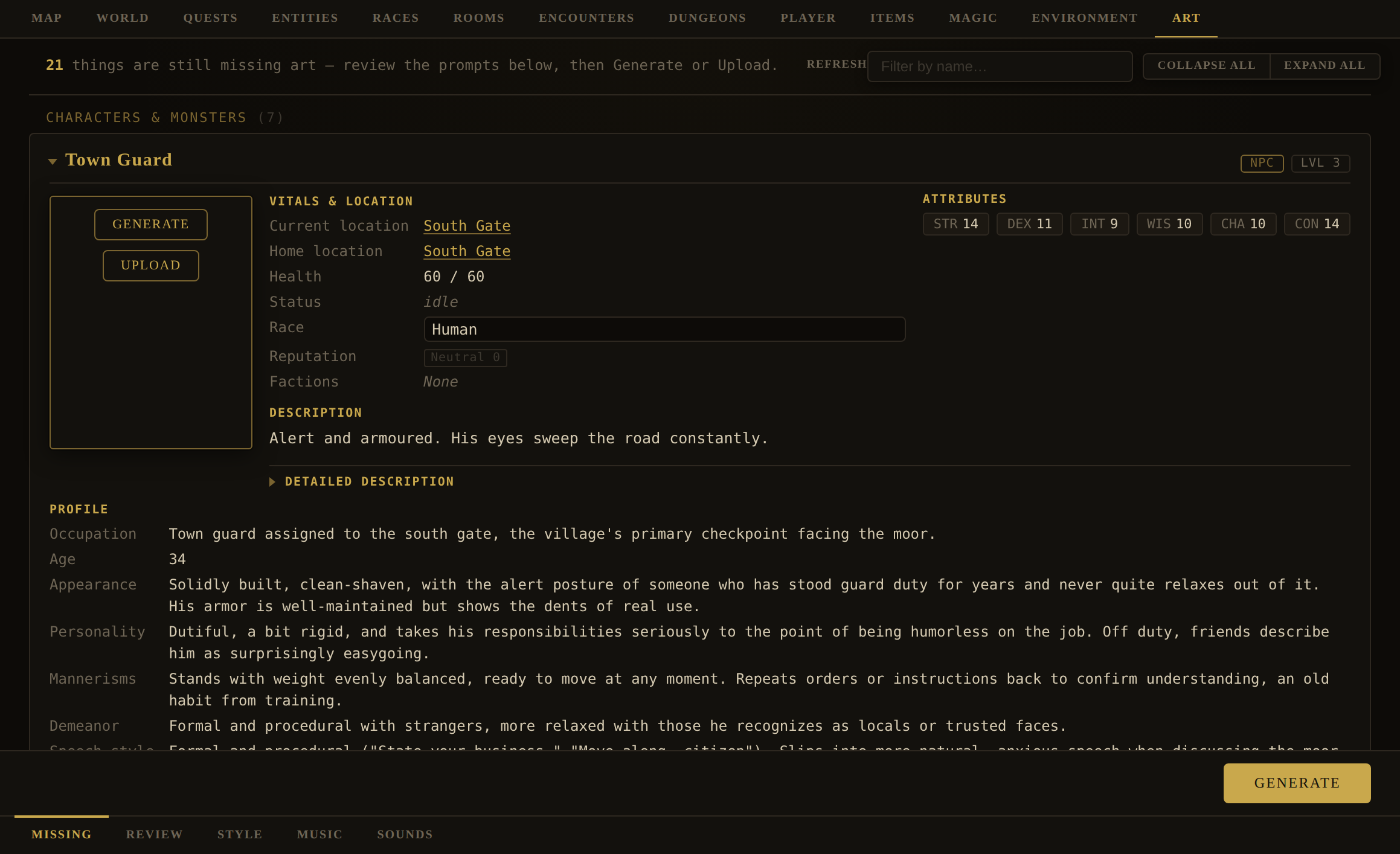
The single Generate button at the foot batch-paints every card shown (respecting the name filter), one at a time: it writes any missing prompt first, then paints. While it runs, the button becomes Stop (click to finish the current card and halt), and each card leaves the list the moment it has art — so the tab shrinks as the batch works through it and what is left on screen is always what is still outstanding. A card whose generation failed stays, and the next run picks it up again. A summary is logged.
The Review subtab is a gallery of everything that already has art, grouped the same way as Missing — click any cell to open that object's detail popup. It's the place to spot-check a world's art after a batch, without hunting through each catalog tab. The Music/Sounds subtabs remain shells, carrying the standard chrome but no authoring yet.
Prompt & ImageImage providers & keys
Prompts are provider-agnostic; the painter is a separate choice. There are two independent decisions: which image provider renders your pictures, and which optional keys you've supplied.
Choosing a provider
Providers are chosen in Settings (the gear), under Image AI (with parallel pickers for Icon AI, Map AI — the provider used for region maps (see World › Geography › Regions), Gallery AI, Sound AI, Music AI, Video AI, and Language AI):
| Provider | Notes | Key |
|---|---|---|
| Pollinations | The default and fallback. Keyless (an optional token raises limits). If any other provider lacks a key, the app silently falls back to this one. | Optional token |
| Nano Banana (Gemini) | Google's image models. A model picker offers Nano Banana (flash) and Nano Banana Pro. | Gemini key |
| Higgsfield | A model picker offers Soul (1080p) and a faster 720p variant. | Higgsfield key ID |
| OpenAI | The GPT Image models. Text-to-image only, so it is offered for Image, Icon, and Map but not for the Gallery or weathered banners. | OpenAI key |
| fal.ai | The SANA family — a model picker offers Base, the very fast Sprint, and 1.5 at 1.6B and 4.8B, with three optional tuning fields beneath it (see below). Text-to-image only, the same three slots as OpenAI. | fal.ai key |
Keys are entered from the login screen's API Keys dialog (Pollinations, Nano Banana / Gemini, Higgsfield, OpenAI, fal.ai, ElevenLabs for sound, Runware for video, Tripo for 3D) — each optional, each stored encrypted on your device. On a Server Vault realm they are held on the server instead, entered once on the admin page and never sent to a browser. When a provider that needs a key doesn't have one, generation quietly uses Pollinations and notes the substitution.
Tuning SANA
Choosing fal.ai reveals three optional fields under the model picker: Inference steps, Guidance scale, and Seed. All three are blank by default, and blank is the setting that matters most — a blank field is not sent at all, so the model you picked uses its own tuned default. That is deliberate rather than lazy: Sprint resolves a picture in a handful of steps where Base wants roughly eighteen, so any number pinned across all four variants would suit one and spoil the rest.
- Inference steps — how many denoising passes the model makes. More is generally finer and slower.
- Guidance scale — how tightly the picture is held to your prompt. Higher obeys the words more literally; lower gives the model more room to compose.
- Seed — pin one and the same prompt paints the same picture every time, which is how you refine wording without the composition shifting underneath you. Left blank, every generation gets a fresh seed.
A value out of range settles to the nearest one the API accepts, and clearing a field hands the decision back to the model. Whatever you set applies to every fal slot — Image, Icon, and Map alike.
Prompt & ImageVictory banners
When a player wins a fight, the story can carry one wide scene of the blow that ended it: that character killing that creature in that room, by the means they actually typed. It is the one picture in the game the DM does not author — and the one that most directly repays having authored everything else.
It is assembled from art you already made
Nothing about the banner is invented. Four things are gathered and handed to the image model together, each read from its own home:
| What | Comes from |
|---|---|
| The hero | The player's own Character › Equipment full-body render, if they have generated one — it already shows their kit. Failing that, their face portrait plus their equipment written out, because a face alone paints an unarmed person. |
| The foe | That being's portrait, resolved the same way its popup resolves one. |
| The place | The room banner that is on screen when the fight ends, used as the backdrop. That is the weathered repaint if the sky has been painted into it, otherwise the pinned slot if you pinned one, otherwise the current hour's. A victory in the rain is painted in the rain. |
| The deed | The player's last command and the GM's narration of it, read out of the story. “Stomp on the rat” paints a boot; “stab it with my dagger” paints the dagger. |
| The spell | If one was cast: its picture, its description, and its image prompt — the only one of the three that says what the magic looks like. |
| The scale | The foe's size, written out against the player's own. This is the one thing the pictures cannot supply: each reference image is cropped to fill its own frame, so a rat's portrait and a hero's portrait are the same size on the page and nothing inside either says which subject is smaller. A creature with no size set gets no scale sentence at all rather than a guessed one — which is worth knowing, because it is why an unauthored rat once came out as tall as the person killing it. |
How often, and what it costs
Each banner spends one image generation. Settings › Imagery › “All Victory Banners” governs how often, not whether. Left off, only a notable victory earns one — a fight worth 20 XP or more, or a foe at least the player's level — so a corridor of rats does not become a corridor of banners. Turn it on and every win is painted.
It also needs a provider that accepts reference pictures, since the whole prompt is written around its attachments. That is Nano Banana, and the banner runs on the Gallery slot to get it — the same slot the portrait Gallery and weathered banners use, which is hard-wired to Nano Banana Pro exactly as they are. So there is no provider to choose: all it needs is a Nano Banana key.
Without a key the banner is declined outright rather than painted from the words alone, and it now says so in the story, under the victory recap, as well as in the Logs.
What it will not do
- No second GM call. The narration already is the description of the scene, so nothing paraphrases it — the prompt is composed from the story and your world data directly.
- One duel per fight. With several foes down, the banner shows the last to fall — the death the closing narration describes, so the picture and the words above it agree.
- It keeps a dozen. The pictures live in Journal › Gallery — shared now with sleep pictures, merged newest first so the screen reads as a record of the campaign rather than as two lists — each folding the GM's own account of the kill beneath it; the story line only points at them. Past twelve the oldest drops out and its story line says the picture has aged out.
Prompt & ImageSleep pictures
The victory banner's quieter sibling. A full night's sleep or camp paints one wide scene of the night into the story — the player's own body render asleep in the room they slept in — assembled from two pictures the world already has.
| What | Comes from |
|---|---|
| The sleeper | The player's Character › Equipment full-body render, or their face portrait if they have no render. With only a face, the prompt describes their clothing instead — and says it is not armour, since a face alone otherwise paints a knight asleep in full plate. |
| The place | The room banner that is on screen — the weathered repaint if the sky has been painted in, else a pinned slot, else the current hour. A night in the rain is painted in the rain. |
Three prompts, and the branch between them is the feature
Each case exists because the obvious single prompt produces a specific wrong picture.
| Case | What it asks for | What it prevents |
|---|---|---|
| Camping, outdoors | ADD a campfire to this place, lay them asleep beside it, and let the firelight light the scene. | The room reference has no fire in it. Told only “this is a camp”, a model reproduces the place as given and leaves the sleeper in an empty landscape — and a fire with no lighting direction arrives pasted onto a daylit field. |
| Indoors, with a bed | In the bed already in the room picture, where the picture puts it. | A second bed added in a clear corner while the room's own one stays empty. |
| Indoors, with nothing | Whatever the room offers — a pallet, a bench, straw, the floor — and no bed is to be added. | Furniture painted into your authored room. The room picture is the evidence; an awkward picture is the better failure. |
What it costs, and how to stop it
One image generation per night, which is a different rhythm from the victory banner's one per notable fight — nights come round every in-world day. Settings › Imagery › Sleep Pictures turns it off; it is on by default. Like the victory banner it composes from reference pictures, so it runs on the Gallery slot and needs a Nano Banana key — see Victory banners for why that slot and not Image.
Where it lands, and when
- Before the night, not after. The picture is painted and shown FIRST; the rest notice and its eight-hour clock sweep follow it. The other order reads backwards — the player watches themselves sleep, wake, and only then sees the bed they did it in. While it paints, the header clock is held and the action box is locked, so nothing can be typed into the gap between lying down and falling asleep.
- The clock sweep waits to be seen. The rest notice's progress bar does not start until the card is actually on screen. A freshly mounted picture reflows the story as it decodes, and a player who has scrolled up is not watching at all — and the notice is built showing the COMPLETED state, so a sweep that runs against a card nobody is looking at leaves them a bar that was finished before they found it. It gives up waiting after a few seconds and starts anyway, so scrolling away can never strand a night.
- Nothing to paint costs nothing. Every refusal is decided without waiting, so a world with the setting off, no Nano Banana key, or no room art starts the night exactly as promptly as it always did.
- In the story it is a room banner. Same size, same crop, and clicking it widens it to the full column exactly as a room banner does — it is a picture of a room and sits where that room's banner sits.
- It keeps eight. The pictures live in Journal › Gallery beside the victory banners, merged newest first. Eight rather than the victory dozen because nights come round far more often than notable kills, and the two caps are separate so a week of sleeping cannot evict a campaign's fights.
Prompt & ImageMusic & sound
Rooms can carry audio the same way they carry banners. Under a room's Audio section are Music and Sounds, each with six per-time-of-day prompt slots and a ✨ to have the GM write them. Sound slots add Generate Audio (synthesise a clip via your Sound AI provider and play it) and ▶ Play. Music's General slot has a composer of its own — see below.
Music carries one more, above the six: General — the mood score for the place itself, whatever the hour. It is the slot to fill when you want a room to have a sound at all, and the six times are for when a room sounds genuinely different at dawn than at midnight. Its ✨ asks a different question from theirs: where a time slot is written from that hour's mood, General is written from the room's name and description together with the world's tone and premise, so the score belongs to this setting rather than to any tavern anywhere. Sounds has no General slot — an ambient soundscape with no time attached is one the engine has no moment to play.
Under the General prompt is ♪ Generate Music. Pressing it opens a dialog: while your Music AI provider composes, the dialog says who is working and how long it has been at it; when the track arrives it shows the name it will be filed under, where that name came from — your provider's own filename, or the room's (“The Village Square Theme”) when the provider sends none — and a player, so you hear it before you commit to it. The gold Accept button does the filing: the bytes are stored, the track is added to Art › Audio as an Area sound, and it is selected in this room's Music box. Cancel discards the take and changes nothing — the generation is already paid for either way, so turning down one you don't like costs you nothing but the call. Press again for another take; accepted tracks pile up in the library rather than replacing each other.
Only General has it, and that is deliberate — a room loops one Area track, so a score per time of day would be six generations billed and five of them unhearable. The hour is what the Sounds prompts are for.
Under every one of the music prompts, General included, is ⬆ Upload Music — the other way a track gets here: write the prompt, feed it to a music model elsewhere, and bring the file back. It opens the same Add a Sound dialog the Art › Audio tab uses — same four fields — retitled Add Music, and pressing Add does three things at once: stores the file, adds it to Art › Audio as a new entry, and selects it in this room's Music box. Area is pre-picked and kept even if you swap it out, because a room's Music list holds Area sounds and nothing else — a track without it would land on the Art tab and then be missing from the very picker you opened the dialog to fill.
Whichever door a track came through, it ends up in the room's Music box near the bottom of the card — a short picker listing the world's Area sounds, with a ▶ beside it. Pressing ▶ plays the selected track and turns into ■; pressing it again stops. Only one preview plays at a time across the whole editor, so starting one here silences a sound you left playing on Art › Audio, and that card's button goes back to Play.
Where the audio goes — generated or uploaded — depends on how you are running. With a vault, the bytes land in its media store and your world keeps a short reference — which matters more here than anywhere else, since a music track is the largest thing you will upload and an embedded one is rewritten into your save on every write. In Direct mode there is nowhere to put it, so it is embedded and travels with the world. If an upload fails you still get the track, embedded, and you are told so rather than left to wonder.
Ambient beats of the "sound" kind can carry a play-with-ambient flag: when the beat fires in play, the app makes sure a clip exists (authoring the sound prompt via the GM and synthesising it if needed), stores it so it isn't regenerated, and plays it so the text and the sound land together.
The Sound AI and Music AI providers (currently ElevenLabs for both) are chosen in Settings and keyed from the API Keys dialog. They are separate pickers because they are separate services — a sound effect and a composed score are different endpoints, even on the same account — but one ElevenLabs key covers both, so there is nothing extra to enter. As with images, the standalone Music and Sounds Art subtabs are shells today — room-level audio is where sound authoring lives.
Running & GrowingTesting your world
Authoring and playtesting are the same loop: build a little, play a little, fix what the play reveals. A set of DM-only tools lets you test without grinding through your own content.
The // debug console
As a DM, prefixing a typed line with // issues an out-of-character command that changes the live game directly — no story turn, no time passing. Use it to jump to the state you want to test:
// heal            — full HP/MP
// set dex 14      — set an attribute
// gold +100       — coin, xp, fame…
// level up        — jump a level (to test progression)
// give me a torch — conjure an item
// scar face left three claw scars      — give a lasting mark (// unscar 1 · // unscar all)
// tear clothing: torn at the front — damage the one piece worn there (// mend clothing)// scar takes a body region (face, scalp, neck, shoulder, arm, hand, chest, back, abdomen, leg, or a plain word like cheek), an optional side, and what the mark looks like. // tear takes the slot or the item's name, a short label that becomes part of the item's name, and optionally, after a |, what the damage looks like. Only the worn piece is torn; identical ones in the pack stay whole. Both are cosmetic only. Repaint the portrait or the full-body render to see them.//A // line phrased as a question (e.g. // how do I add a faction? or // what do encounter timers do?) is recognised as a how-to query and answered from this Dungeon Master's Guide in a popup — the DM counterpart to the player's / Field-Guide lookup — rather than changing any game state. Anything phrased as an instruction still runs as a live command.Quest & hint testing
unlock the quest beat <name>/lock the quest beat <name>— jump a beat's state so you can test a thread without meeting its trigger. (The Quests tab's per-beat badge does the same by click.)/hint— ask the GM for a subtle nudge toward the nearest quest thread. Useful for checking that a beat's trigger and nearby NPCs actually point the player where you intend.verbose on/verbose off— lengthen or tighten GM narration while you read your own scenes.
Holding the world still while you work
The ⏸ Pause Story button in the story panel's corner stops the in-world clock and, with it, the whole living world — encounter rolls, ambient beats, NPC routines, weather, respawns, restocking. That is more useful while authoring than it sounds. Reading a scene you just wrote, checking a room's data against what the GM actually narrated, or stepping away mid-playtest all take longer than a turn, and without it the realm carries on: an encounter fires into an empty chair, a merchant restocks, the hour turns and the banner you were assessing is repainted for a different sky.
It lifts on your next game action and on nothing else — so a // debug line does not lift it, which is exactly what you want while poking at state between turns. It is unavailable during combat, which runs on its own clock. A held world is marked on the header clock, so it never reads as a hung app.
The Logs tab
Every GM handoff — world edits, prompt authoring, turns — is recorded on the DM-only Logs tab, including the raw model responses. When an edit doesn't do what you expected, the log tells you what the GM actually returned.
// command set (attributes, vitals, coin/xp/fame, scars and worn damage, status effects, spells/skills, alignment, travel, world/being construction, app recolouring) is documented in the Field Guide's OOC meta-commands.Running & GrowingEvaluating & fixing a world
Editor › World · inner subtab: Evaluate
Playtesting finds what feels wrong. The evaluator finds what is wrong — a door that opens onto nothing, a shop the player can never afford, a lore hook worth no experience, a quest beat that needs an NPC something else kills. It compiles your world the way a build does, reports what it can prove, and names a remedy for each finding. Fix World then hands the remedies it can back to the Game Master in one press.
Running the pass
Open Editor › World › Evaluate and press Evaluate this world. It runs on the Server Vault using the same compile pass as the command line (Tools/build-evaluation.js), so the two can never describe the same world differently. Without a vault there is nowhere to run it, and the tab says so.
It reads the draft in front of you, not the published library world — they differ mid-session, and the source line at the top of the report names which world was read. Art and audio are stripped before sending: a measured world export is 99% base64 pictures, and the evaluator never looks at one.
What comes back is three things stacked:
- Six headline figures — objectives, findings (split error / warn / info), authored XP and the level it reaches, authored wealth and the purse it starts from, and what the economy reads as against the archetypes.
- The action plan — the remedy cards, described below.
- The findings themselves, worst-first, each with an Action button that jumps to the card that remedies it.
The action plan — and who each card belongs to
Every card aggregates one kind of finding and states the remedy precisely: why it matters, the act that closes it, which subjects it concerns, and — where the fix depends on another card — what it is blocked by and what it unlocks. Cards are ordered by leverage, not severity: declaring an economy before grading one saves three later cards, so the pass puts it first even though a dangling exit is the louder error.
The badge at the head of each card says whose job it is, and this is the distinction Fix World turns on:
| Badge | Means | Fix World |
|---|---|---|
| Ask the GM | Genuine invention — writing lore that does not exist, giving a room the exit its description already implies. The card carries the prompt and names the roster to run it against. | Runs it. |
| DM edit | A mechanical edit the pass has already worked out for you. Making it by hand is faster than asking, and cannot go wrong. | Listed, left to you. |
| Your call | The missing input is your intent. Which of two colliding names survives is not a thing to be researched — it is a thing to be decided. There is nothing to hand the GM until you have chosen. | Listed, left to you. |
Each card carries Done and Dismiss (and Reopen after either). That checklist is stored per world in your browser, not in the world file — it is your working state, and exporting a world must not carry one author's half-finished checklist to whoever opens it next. A tick survives re-running the pass, which is the point: if a card you marked done comes back in the next report, it says so plainly rather than showing you a tick and letting you move on.
An Ask the GM card can be run on its own with its Execute button — it confirms, then puts the prompt in that roster's own GM request box and runs it where you can watch. A card offering two or more branches also offers Plan placement, which asks the GM to decide where each subject belongs first and opens the result for review before anything is written.
Fix World — the whole plan in one press
Working a report card by card is precise and slow. When you would rather defer the whole thing to the Game Master, the gold Fix World button at the top right of the Evaluate tab does it in one press.
It appears only once a report exists — before that it would be offering to fix a list nobody has compiled. When a report exists but holds nothing the GM can act on, the button stays visible but disabled, and says why on hover; hiding it would only leave you wondering where it went.
Pressing it opens the Fix World dialog, which shows the plan before it runs anything:
- What the Game Master will fix, numbered, in the order they will run — each with the instruction that will be sent and the roster (Rooms, Items, Quests, NPCs, Monsters) it will be sent to. A card blocked by another says so, and runs anyway: the edit still lands, it simply cannot be graded until the blocker is settled.
- What is left for you, greyed, each with its reason. These are not omissions — they are the dialog saying how much of the report this button can honestly close.
- Execute Plan. Nothing is written until you press it.
While it runs, each step shows its own state — waiting, asking the GM, done, or failed — and the dialog stays up throughout. It has to: each roster switches the Editor to its own tab as it goes, and a dialog that closed would leave you watching tabs flip with nothing saying why. It also stops taking input, because pressing Execute twice would run every roster again over a world the first pass has already rewritten.
A failed step does not stop the plan. The remaining edits are independent, against different editors; stopping at the first problem would leave you with a half-run plan and no way to finish but to start again from the top. The failed step is marked, the rest carry on, and only the steps that actually succeeded are recorded as run — so a failure still shows as open in the next report instead of quietly ticking green.
When the last edit is in, it re-runs the evaluation itself, so the report behind the dialog describes the world you now have rather than the one you started with.
Running & GrowingGrowing a live world
Worlds are meant to expand as play pushes at their edges. You have three ways to grow one that's already in motion:
- From the Editor. Everything in Part III works on a live world — add a room where the player is headed, a quest to chase, an NPC who just became relevant.
- World chunks. On World › Chunks, have the GM author a whole new region and stitch it onto existing rooms, or stub a large area to flesh out room-by-room from the Rooms tab as the player approaches.
- In play. The DM command
expand the world <brief>grows the world mid-session from a one-line description.
Because merges are additive, growing a world never overwrites what's already there — new rooms and quests are added, existing ones are left intact, and only catalogue collisions ask you to choose.
Running & GrowingKeeping it consistent
A few habits keep a growing world coherent:
- Export often. Use World › Chunks → Export World as a backup before big changes. A world file is small and portable.
- Lean on World Rules. Because your Rules are fed to the GM every turn, keeping them accurate is the single biggest lever for consistent play. Update them when the world's reality shifts.
- Let reveals be earned. Faction
revealconditions, hidden loreloreKeys, and questtriggers all keep secrets until play earns them — resist spelling things out in public descriptions. - Write a key as the whole of the gate. The Game Master reads a
loreKeyas written and judges only whether the player did what it says; it will not add a person, a skill, a reputation or a second visit the key does not name. A key that asks the player to say something (“examine the hull and say aloud that it was burned from within”) is met once the examining is done and the words are said — the player is articulating what they understood, not submitting proof. If you want proof, a skill check or a particular person, put it in the key. - One Art Style. Resist per-object style overrides except where genuinely needed; a single Style Prompt is what makes the world look like one place.
Running & GrowingWhat it is costing you
Authoring a world is the expensive half of this app, and it is expensive in a way that is easy not to notice: every ✨, every GM box request, every Update button and every world generation is a paid call on your key, and none of them announce a price. Typing /usage in play opens the ledger of what they have actually come to.
It is the same dialog the player has — the Field Guide describes it for them — but a DM reads it for a different reason. A player wants to know what a session cost; you want to know which of the things you do is costing it.
| What it shows | What to read it for |
|---|---|
| Spent so far, and GM calls with an average | The headline, and the size of a typical call. An average that climbs across a build usually means the world itself has grown — every turn carries it. |
| Prompt tokens, with the share served from cache | The number that decides most of the bill. A cached prompt token bills at a tenth of the normal rate, so this percentage matters more than the token count above it. |
| Cumulative spend and Cost per call | The second chart plots each call against a ten-call trailing average, which is where an expensive habit shows up as a run of spikes rather than one. |
| Show the numbers | The last sixty calls in a table — time, what the call was for, model, tokens in, cached, out, and cost. This is the view that answers “which of my tools is the expensive one”, because each row is labelled with the function that made it. |
| Per call site — the second table behind Show the numbers | One row per kind of call, sorted by how close each is to running out of room to answer in: calls, p95 out, budget, used, and how many replies were cut off. This is the newest view and the only one that is about a limit rather than a cost. See below. |
It is scoped to one character in one world, so it is a per-playthrough figure rather than an account total — and a fresh test character starts a fresh ledger, which is the cleanest way to price a change: play the same stretch twice and compare. Your real bill is in the Anthropic console; this is computed from the token counts the API itself returned.
The output budget, and the one row worth acting on
Every call the app makes sets a ceiling on how much the Game Master may write back — its output budget. You never set these; they are part of the app. But you can see them now, and the reason you should is that a call which runs out of room is billed in full and returns less than it meant to. That is the most expensive thing that can happen per unit of work: you pay for every token and get an answer that was cut off in the middle.
It is not hypothetical. A region map prompt for a nine-room region ran past its ceiling in September 2026 and came back mid-sentence — “…a torch-lit archway opening on” — and what the DM saw was a ✨ button reporting that the Game Master had returned nothing at all. The budget has been raised and the engine now rescues what it can, but the general shape of the problem is permanent: the app ships one number per call, and your world decides how much writing that number has to cover.
| Column | What it means |
|---|---|
| p95 out | The biggest reply this call realistically writes — as big as or bigger than 95 in every 100 it has produced. Deliberately one of the sizes actually seen rather than an average, because what matters here is the long replies and not the typical one. Read it against the calls column beside it: with a handful of calls it is simply the largest of them, which is the honest answer to a question asked of four data points and not a stable figure. |
| Budget | The ceiling that call asks for. Reads not recorded for calls made before the ledger started storing it — that is an absence, not a zero, and it fills in as you play. |
| Used | The p95 against the budget. Anything over 80% is highlighted: its next long reply is the one that gets cut off. |
| Cut off | How many replies from that call actually hit the ceiling. Any number here outranks everything else in the table — a high p95 is an argument, a cut reply is the thing itself. |
/usage says so in a line above the charts, naming it, without the numbers being opened. When nothing is, the line is not there at all. So the answer to “should I be checking this?” is no — it checks itself, and tells you.What you can actually do about it is the honest part, because you cannot edit these numbers. Two things. The first is that you control the input: the calls that run long are the ones whose prompt is assembled from your world, and a region map prompt has to name every room filed under the region. A region of thirty rooms asks for a far longer reply than one of six, so splitting an overgrown region, or filing fewer rooms under one, is a real fix rather than a workaround. The second is to report it — a call site that keeps appearing in that column is a budget that wants raising in the app, and the table is the evidence for it.
AppendixWhere to go next
This guide covers authoring. For the rest of the system, these companions go deeper:
The in-app Field Guide (guide.html)
- Part II · The Dungeon Master — the app-reference view of every Editor tab and the
//commands. - Part III · The Game Master — what the GM sees each turn, the rules it plays by, and its authoring behaviour.
- Appendix A · Change-field reference — the complete JSON vocabulary the GM speaks (quest updates, state changes, discoveries). Read this to predict how your data behaves in play.
The Player's Handbook (players-handbook.html)
The player-facing rules — attributes, combat & dice, skills, spells, containers & traps, reputation & factions, time, XP & leveling. Know these to author fair challenges.
Design deep-dives (Designs/)
| Doc | Covers |
|---|---|
| combat.html | Turn-based combat, initiative, AC/to-hit, fleeing, rewards. |
| weapon-damage.html | The per-weapon damage stat (dice, magic bonus, type) — the offensive twin of AC. |
| spells-and-scrolls.html | The spell system — how the world catalog, a class and a spellbook decide what is castable (§04), and everything from memorisation to casting. |
| character-spells.html | The player-facing side of the same system: the memorised loadout, field spellbooks, and how casting reads on the character sheet. |
| reagents-and-concoctions.html | Earth magic — recipes, reagents, and the concoction skill. Playable end to end: a player prepares reagents and brews concoctions in play; nothing yet stops a working by place or circumstance (Decision M). |
| dialects-and-languages.html | A world-authored alphabet and dictionary, rendering written matter in its own glyphs and teaching it through books and scrolls like any other skill. A dialect may inherit a parent tongue's script and most of its dictionary, overriding the rest, so a reader of the parent tongue stumbles rather than reads blind — unless taught the third tier, fluency, which grants every word a tongue's record ever pairs and is deliberately the rare, largest grant in the system. Built through P3 — including tracing a drawn or generated sheet into vectors (Glyph AI) and a Language AI that can author a whole alphabet and starter dictionary — plus a built-in Foreign Languages skill that lets any reader puzzle out one page of an unlearned tongue without teaching it the words. Only P4 — the Game Master authoring or teaching a language in the moment — remains proposed. |
| character-skills.html | Skills — gating, checks, off-class penalties. |
| class-gating.html | Class gating why gear is a hard refusal and skills a soft penalty, and where to draw each. |
| player-progression.html · character-progression.html | Class progression timelines and the attribute/vitals model. |
| entity-leveling.html | How level shapes a being's stats and abilities. |
| living-world.html | The clock, routines, encounters, and ambient life. |
| quests-and-journal.html | Quest threads, beats, triggers, and the Journal. |
| standing-and-morality.html | Reputation, Fame, and alignment. |
| containers.html | Chests, locks, keys, and traps. |
AppendixData-object cheat-sheet
The world's building blocks and where you edit each. Fields are detailed in the linked sections above.
| Object | Lives in | Editor tab |
|---|---|---|
| World framing (name, tone, theme, artStyle, rules, prologue) | world root | World › Profile · Art › Style |
| Region | world.regions | World › Geography › Regions |
| Faction | world.factions | World › Factions |
| Folklore (tale) | world.folklore | World › Culture › Folklore |
| Religion | world.religions | World › Culture › Religions |
| Currency (+ denominations) | world.currencies | World › Currency |
| Room (+ its doors) | world.rooms | Rooms |
| Encounter | world.encounters | Encounters |
| Entity (NPC / monster / animal) | world rooms' entities | Entities · Environment › Fauna |
| Race | world.races | Races |
| Class (+ progression) | world.classes | Player › Classes |
| Skill | world.skills | Player › Skills |
| Item (incl. plant, container, treasure, book) | item catalogue | Items · Environment › Flora |
| Magic item / Spell / Spellbook | catalogue · world.spells | Magic |
| Recipe (concoction) | world.recipes | Magic › Concoctions |
| Reagent (+ ingredient item) | world.reagents · item catalogue (ingredient subtype) | Magic › Concoctions (Reagents panel) |
| Language (script + lexicon) | world.languages | World › Culture › Languages · fields on Items |
| Quest (+ beats) | world.quests | Quests |
AppendixGlossary
| Term | Meaning |
|---|---|
| DM | Dungeon Master — you, the human author. |
| GM | Game Master — the AI engine that runs and co-authors your world. |
| World Builder | The New-World screen that generates a whole world from a concept form. |
| World Editor | The tabbed workspace for hand-editing a world's data. |
| GM request box | The bottom-of-tab input that has the GM author data from a plain-language instruction. |
| Chunk | A partial world (rooms/items/entities/…) that merges additively into an existing world. |
| Stub | A skeleton room — name, line, exits — to be fleshed out later. |
| Beat | One step of a quest, unlocked by a hidden trigger and written to the player's Journal. |
| Art Style | The world's one-line visual direction, prepended to every image prompt. |
| Reveal / loreKey / trigger | Hidden conditions that keep factions, lore, and quests secret until play earns them. |
| Inherent skill | A signature skill a class begins knowing. |
| Size | A being's scale on a six-step ladder from tiny to gargantuan, with medium being a person. A trait of the kind, not the individual. Decides what fits in a pack or through a grate, weighs a grapple or a shove, and gives a victory banner the one fact no reference picture can carry. |
| Sleep picture | The scene painted when a player sleeps a full night: their own body render asleep in the room they slept in — in its bed, or beside a campfire under open sky. See Sleep pictures. |
| Door / Barrier | A record on an exit with its own state (open/closed/locked), an optional lock, and whether it's hidden. Same mechanism either way — Barrier is just the label and picture for a boulder, portcullis, or the like. Engine-enforced: a shut or locked one genuinely blocks moveToRoom. |
| Evaluator | The vault-side pass on World › Evaluate that compiles a world and reports what it can prove is wrong — unreachable, unaffordable, unpriced, or locked to one build. |
| Action card | One remedy in an evaluation report, badged Ask the GM, DM edit, or Your call by whose job the fix is. Ticking it Done or Dismissed is your working state and stays in your browser. |
| Fix World | The gold button on the Evaluate tab that hands every Ask the GM card in a report to the Game Master in one approved batch, then re-evaluates. |
| Currency | A family of denominations that trade as one kind of money (gold/silver/copper is the default). A world may mint others; a being decides which it will take via acceptedCurrencies. |
| Rivals | Two factions named at odds via rivals. Rising with one costs the player half as much standing with each rival; falling credits them nothing. |
| Concoction / Reagent | Earth magic, in three tiers: an ingredient (a real item) is prepared into a reagent (a record in world.reagents, not an item), then brewed — per a recipe in world.recipes — into a concoction (an item again). Governed by the concoction skill rather than cast. Playable end to end via the Prepare and Brew verbs; authored on Magic › Concoctions. |
| Language | A world-authored tongue (world.languages): a script (glyphs a reader must learn to see past), a lexicon (English ↔ its own words), or both. A book, spellbook, or scroll's passage can be written in one; a book or scroll teaches it the same deterministic way it teaches a skill, up to and including a rare teachesLanguage grammar that grants outright fluency. The alphabet grid can also be traced from a drawn or uploaded sheet (Glyph AI) or generated whole, with a starter dictionary, by a Language AI. The built-in Foreign Languages skill lets any reader puzzle out one page of an unlearned tongue without teaching it the words. |
| Folklore | A tale this world's people tell — myth, belief, fable, or legend (world.folklore). Earned through conversation like lore; an NPC's own folklore field lists which tales they can tell. |
| Religion | A faith (world.religions): a deity, a description, who keeps it (races/regions), and where (worship). Authorable on World › Culture › Religions; not yet narrated by the GM in play. |
The Lost Realms — Dungeon Master's Guide. Companion to the Field Guide and Player's Handbook. Copyright © 2026 Brave You Worlds, LLC. All rights reserved. This guide is Game Content, not software: licensed under LICENSE-CONTENT, with no Change Date — it does not become open source on any future date, the way the engine does. Free to read, print and use in personal or non-commercial play, permanently; commercial use needs a separate licence — licensing@braveyouworlds.com.